<?xml version="1.0" encoding="utf-8"?>
<feed xmlns="http://www.w3.org/2005/Atom">
  <title>Lovelife</title>
  
  <subtitle>时光荏苒，岁月静好</subtitle>
  <link href="/atom.xml" rel="self"/>
  
  <link href="https://0Leo0.github.io/"/>
  <updated>2018-12-03T15:58:25.258Z</updated>
  <id>https://0Leo0.github.io/</id>
  
  <author>
    <name>Leowen</name>
    
  </author>
  
  <generator uri="http://hexo.io/">Hexo</generator>
  
  <entry>
    <title>创建python虚拟环境</title>
    <link href="https://0Leo0.github.io//2018/12/03/%E5%88%9B%E5%BB%BApython%E8%99%9A%E6%8B%9F%E7%8E%AF%E5%A2%83.html"/>
    <id>https://0Leo0.github.io//2018/12/03/创建python虚拟环境.html</id>
    <published>2018-12-03T04:17:50.000Z</published>
    <updated>2018-12-03T15:58:25.258Z</updated>
    
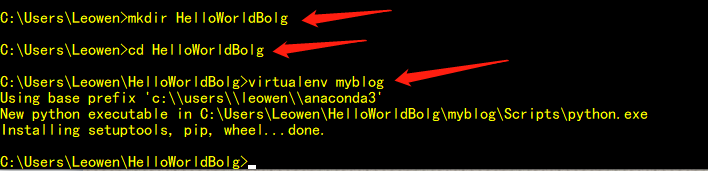
    <content type="html"><![CDATA[<link rel="stylesheet" class="aplayer-secondary-style-marker" href="\assets\css\APlayer.min.css"><script src="\assets\js\APlayer.min.js" class="aplayer-secondary-script-marker"></script><link rel="stylesheet" type="text/css" href="https://cdn.jsdelivr.net/hint.css/2.4.1/hint.min.css"><p class="description"></p><a id="more"></a><h3 id="创建python虚拟环境"><a href="#创建python虚拟环境" class="headerlink" title="创建python虚拟环境"></a>创建python虚拟环境</h3><hr><h4 id="为什么需要虚拟环境"><a href="#为什么需要虚拟环境" class="headerlink" title="为什么需要虚拟环境"></a>为什么需要虚拟环境</h4><p>在实际项目开发中，我们通常会根据自己的需求去下载各种相应的框架库，如Scrapy、Beautiful Soup等，但是可能每个项目使用的框架库并不一样，或使用框架的版本不一样，这样需要我们根据需求不断的更新或卸载相应的库。直接怼我们的Python环境操作会让我们的开发环境和项目造成很多不必要的麻烦，管理也相当混乱。因此我们需要使用python虚拟环境。</p><h4 id="安装python"><a href="#安装python" class="headerlink" title="安装python"></a>安装python</h4><p>这一步就略过了。建议安装anaconda。</p><p><img src="https://i.imgur.com/nbYWvPt.png" alt=""></p><h4 id="安装virtualenv"><a href="#安装virtualenv" class="headerlink" title="安装virtualenv"></a>安装virtualenv</h4><p>在cmd命令行窗口中，我们可以通过pip命令简单的实现安装：</p><p><img src="https://i.imgur.com/KkbtVyk.png" alt=""></p><p>可以看到，我前面其实是已经安装好了的。</p><h4 id="创建虚拟环境"><a href="#创建虚拟环境" class="headerlink" title="创建虚拟环境"></a>创建虚拟环境</h4><p>安装完成之后，我们可以通过以下命令创建我们的虚拟环境</p><p><img src="https://s1.ax1x.com/2018/12/03/FKvToR.png" alt=""></p><p><img src="https://i.imgur.com/m9eChQe.png" alt=""></p><h4 id="激活虚拟环境"><a href="#激活虚拟环境" class="headerlink" title="激活虚拟环境"></a>激活虚拟环境</h4><p>cmd中，定位到<code>myblog/scripts</code>中，执行<code>activate.bat</code>(或者执行myblog/Scripts/activate)</p><p><img src="https://i.imgur.com/sIN88n8.png" alt=""></p><p><img src="https://i.imgur.com/CQIPkUZ.png" alt=""></p><p>激活成功后，命令行前面会有(myblog)字样，如下</p><p><img src="https://i.imgur.com/jEZABey.png" alt=""></p><h4 id="取消激活"><a href="#取消激活" class="headerlink" title="取消激活"></a>取消激活</h4><p><img src="https://i.imgur.com/zDyFbX3.png" alt=""></p><p>上面其实是完成了我们虚拟环境的创建，但是有木有觉得很麻烦。使用<code>virtualenv</code>，需要进入相对应的路径进行操作，接下来我们可以通过使用<code>virtualwrapper</code>来简化对虚拟环境的操作。</p><p><strong>注意</strong>：<code>Virtualenvwrapper</code>的使用(<code>virtualenvwrapper-win</code>依赖于<code>virtualenv</code>，所以也要安装<code>virtualenv</code>)</p><p>在cmd中，执行</p><p><img src="https://i.imgur.com/48705vD.png" alt=""></p><h4 id="设置WORK-HOME环境变量"><a href="#设置WORK-HOME环境变量" class="headerlink" title="设置WORK_HOME环境变量"></a>设置WORK_HOME环境变量</h4><p><code>WORK_HOME</code>环境变量是通过<code>virtualenvwrapper</code>建立虚拟环境时，该虚拟环境的所在目录。<br>(之所以设置<code>WORKON_HOME</code>环境变量是虚拟环境会自动找到该环境变量的目录，例如：<br>注：因为前一步设置了WORK_HOME，所有虚拟环境将安装到 D:\VirEnv)<br>设置环境变量</p><p><img src="https://i.imgur.com/ZezGC3x.png" alt=""></p><p>接下来我们使用<code>virtualenvwrapper</code>新建虚拟环境</p><p>新建命令为:</p><pre><code>mkvirtualenv 虚拟环境名称</code></pre><p><img src="https://i.imgur.com/aVQ2wBu.png" alt=""></p><p><img src="https://i.imgur.com/kZXeIy7.png" alt=""></p><h4 id="查看安装的所有虚拟环境"><a href="#查看安装的所有虚拟环境" class="headerlink" title="查看安装的所有虚拟环境"></a>查看安装的所有虚拟环境</h4><p><img src="https://i.imgur.com/lMhSDKP.png" alt=""></p><h4 id="进入-切换-虚拟环境"><a href="#进入-切换-虚拟环境" class="headerlink" title="进入(切换)虚拟环境"></a>进入(切换)虚拟环境</h4><p><img src="https://i.imgur.com/aIu0SXX.png" alt=""></p><h4 id="退出虚拟环境"><a href="#退出虚拟环境" class="headerlink" title="退出虚拟环境"></a>退出虚拟环境</h4><p><img src="https://i.imgur.com/lYLLERE.png" alt=""></p><h3 id="更多的参考："><a href="#更多的参考：" class="headerlink" title="更多的参考："></a>更多的参考：</h3><p><a href="https://blog.csdn.net/geerniya/article/details/79231952" target="_blank" rel="noopener">Django开发个人博客网站——2、通过virtualenv与virtualenvwrapper创建虚拟环境</a></p><p><a href="https://blog.csdn.net/godot06/article/details/81079064" target="_blank" rel="noopener">Python为什么要使用虚拟环境-Python虚拟环境的安装和配置-virtualenv</a></p><p><a href="http://www.cnblogs.com/technologylife/p/6635631.html" target="_blank" rel="noopener">python虚拟环境–virtualenv</a></p><hr>]]></content>
    
    <summary type="html">
    
      &lt;p class=&quot;description&quot;&gt;&lt;/p&gt;
    
    </summary>
    
      <category term="平时" scheme="https://0Leo0.github.io/categories/%E5%B9%B3%E6%97%B6/"/>
    
    
      <category term="python" scheme="https://0Leo0.github.io/tags/python/"/>
    
  </entry>
  
  <entry>
    <title>Dockers for windows</title>
    <link href="https://0Leo0.github.io//2018/normal_05.html"/>
    <id>https://0Leo0.github.io//2018/normal_05.html</id>
    <published>2018-12-03T04:17:50.000Z</published>
    <updated>2018-12-03T13:53:52.090Z</updated>
    
    <content type="html"><![CDATA[<link rel="stylesheet" class="aplayer-secondary-style-marker" href="\assets\css\APlayer.min.css"><script src="\assets\js\APlayer.min.js" class="aplayer-secondary-script-marker"></script><link rel="stylesheet" type="text/css" href="https://cdn.jsdelivr.net/hint.css/2.4.1/hint.min.css"><p class="description"></p><a id="more"></a><h3 id="Dockers-for-windows"><a href="#Dockers-for-windows" class="headerlink" title="Dockers for windows"></a>Dockers for windows</h3><hr><h4 id="安装dockers"><a href="#安装dockers" class="headerlink" title="安装dockers"></a>安装dockers</h4><p>Docker是一种容器技术，可以将应用和环境等进行打包，形成一个独立的、类似于iOS的App形式的“应用”。这个应用可以直接被分发到任意一个支持Docker的环境中，通过简单的命令即可启动运行。Docker是一种最流行的容器化实现方案，和虚拟化技术类似，它极大地方便了应用服务的部署；又与虚拟化技术不同，它以一种更轻量的方式实现了应用服务的打包。使用Docker，可以让每个应用彼此相互隔离，在同一台机器上同时运行多个应用，不过它们彼此之间共享同一个操作系统。Docker的优势在于，它可以在更细的粒度上进行资源管理，也比虚拟化技术更加节约资源。</p><p>如果你的系统是Windows 10 64位，那么推荐使用Docker for Windows。此时直接从Docker官方网站下载最新的Docker for Windows 安装包即可： </p><p><a href="https://docs.docker.com/docker-for-windows/install/" target="_blank" rel="noopener">Docker for windows</a></p><p>如果不是Windows 10 64位系统，则可以下载Docker Toolbox：</p><p><a href="https://docs.docker.com/toolbox/toolbox_install_windows/" target="_blank" rel="noopener">Docker Toolbox</a></p><p>不推荐使用 docker toolbox，建议使用新的 docker for mac 及 docker for windows </p><p>需要注意的是，Windows上安装Docker对系统有以下的要求：</p><ul><li>需要支持Hyper-V的windows版本，Hyper-V目前仅在Windows 10之后的版本支持</li></ul><p><img src="https://i.imgur.com/zMpwRpe.png" alt=""></p><ul><li>BIOS里需要启用Virtualization（虚拟化）</li></ul><p>安装完成之后，运行我们的dockers。</p><p>测试安装的docker，在docker终端输入命令：</p><pre><code>C:\Users\Leowen&gt;docker --versionDocker version 18.03.1-ce, build 9ee9f40</code></pre><p>安装好Docker之后，为了为了提高镜像的下载速度，我们使用国内镜像来加速下载，于是就有了Docker加速器一说。</p><p>推荐的Docker加速器有DaoCloud（详见<a href="https://www.daocloud.io/mirror" target="_blank" rel="noopener">https://www.daocloud.io/mirror</a>）和阿里云（详见<a href="https://cr.console.aliyun.com/#/accelerator" target="_blank" rel="noopener">https://cr.console.aliyun.com/#/accelerator</a>）</p><p>不同平台的镜像加速方法配置可以参考DaoCloud的官方文档：<br><a href="http://guide.daocloud.io/dcs/daocloud-9153151.html" target="_blank" rel="noopener">http://guide.daocloud.io/dcs/daocloud-9153151.html</a></p><p>以 Docker for windows为例，点击加速器</p><p><img src="https://i.imgur.com/zofx70X.png" alt=""></p><p>然后获取Windows加速器地址</p><p><img src="https://i.imgur.com/mF10qcV.png" alt=""></p><p>配置dockers for Windows</p><p><img src="https://i.imgur.com/VSg5OYa.png" alt=""></p><p>接下来，下载我们需要的镜像。</p><p><img src="https://i.imgur.com/w8T9BiK.png" alt=""></p><p><img src="https://i.imgur.com/lqMO4L8.png" alt=""></p><h3 id="更多的参考："><a href="#更多的参考：" class="headerlink" title="更多的参考："></a>更多的参考：</h3><p><a href="https://docs.docker.com/engine/reference/commandline/docker/" target="_blank" rel="noopener">Dockers command</a></p><p><a href="https://hub.docker.com" target="_blank" rel="noopener">注册dockers</a></p><p><a href="https://www.toutiao.com/a6630653622684221959/" target="_blank" rel="noopener">Windows上做Python开发太痛苦？Docker了解一下！</a></p><hr>]]></content>
    
    <summary type="html">
    
      &lt;p class=&quot;description&quot;&gt;&lt;/p&gt;
    
    </summary>
    
      <category term="平时" scheme="https://0Leo0.github.io/categories/%E5%B9%B3%E6%97%B6/"/>
    
    
      <category term="python" scheme="https://0Leo0.github.io/tags/python/"/>
    
  </entry>
  
  <entry>
    <title>计算机视觉环境配置</title>
    <link href="https://0Leo0.github.io//2018/12/02/%E8%AE%A1%E7%AE%97%E6%9C%BA%E8%A7%86%E8%A7%89%E7%8E%AF%E5%A2%83%E9%85%8D%E7%BD%AE.html"/>
    <id>https://0Leo0.github.io//2018/12/02/计算机视觉环境配置.html</id>
    <published>2018-12-02T04:17:50.000Z</published>
    <updated>2018-12-03T15:57:39.469Z</updated>
    
    <content type="html"><![CDATA[<link rel="stylesheet" class="aplayer-secondary-style-marker" href="\assets\css\APlayer.min.css"><script src="\assets\js\APlayer.min.js" class="aplayer-secondary-script-marker"></script><link rel="stylesheet" type="text/css" href="https://cdn.jsdelivr.net/hint.css/2.4.1/hint.min.css"><p class="description"></p><a id="more"></a><h3 id="PyCharm-virtual-environments-and-OpenCV"><a href="#PyCharm-virtual-environments-and-OpenCV" class="headerlink" title="PyCharm, virtual environments, and OpenCV"></a>PyCharm, virtual environments, and OpenCV</h3><hr><p>本文的首先将假设您已经在系统上安装了OpenCV和相应的Python绑定。同时假设你也安装了virtualenv和virtualenvwrapper(下一篇文章介绍)。</p><p>接下来我将演示如何用python3.x以及opencv 3.x来设置我的Windows系统。</p><h4 id="Step1-Create-your-virtual-environment"><a href="#Step1-Create-your-virtual-environment" class="headerlink" title="Step1:Create your virtual environment"></a>Step1:Create your virtual environment</h4><p>我们要做的第一件事是设置我们的虚拟环境。打开终端并创建虚拟环境。在本例中，我们将虚拟环境命名为<code>mycvlearn</code>:</p><pre><code>mkvirtualenv mycvlearn</code></pre><p><img src="https://i.imgur.com/KpjocQg.png" alt=""></p><p><img src="https://i.imgur.com/aJcfvzP.png" alt=""></p><p><img src="https://i.imgur.com/MxpES3l.png" alt=""></p><p>现在我们已经设置了虚拟环境，让我们安装<code>NumPy</code>，<code>Scipy</code>，<code>matplotlib</code>，<code>scikit-learn</code>和<code>scikit-image</code>，这些都是计算机视觉开发中常用的：</p><pre><code>pip install numpypip install scipypip install matplotlibpip install scikit-learnpip install -U scikit-image</code></pre><p><img src="https://i.imgur.com/LFcJP8b.png" alt=""></p><p>如果安装不了，请移步下面这个网址下载whl进行安装。</p><p><a href="http://www.lfd.uci.edu/~gohlke/pythonlibs/" target="_blank" rel="noopener">http://www.lfd.uci.edu/~gohlke/pythonlibs/</a></p><h4 id="Step-2-安装opencv"><a href="#Step-2-安装opencv" class="headerlink" title="Step 2: 安装opencv"></a>Step 2: 安装opencv</h4><p>首先我们从下面这个网址下载python对应的opencv版本</p><p><a href="http://www.lfd.uci.edu/~gohlke/pythonlibs/" target="_blank" rel="noopener">http://www.lfd.uci.edu/~gohlke/pythonlibs/</a></p><p><img src="https://i.imgur.com/vfBbgW9.png" alt=""></p><p>然后安装</p><p><img src="https://i.imgur.com/XQOrfaK.png" alt=""></p><h4 id="Step-3-Configure-PyCharm"><a href="#Step-3-Configure-PyCharm" class="headerlink" title="Step 3: Configure PyCharm"></a>Step 3: Configure PyCharm</h4><p>我们的虚拟环境已经设置好了，让我们将它连接到PyCharm(关于专业版激活看前面的文章)项目。</p><p>打开PyCharm并创建一个新的“Pure Python”项目：</p><p><img src="https://i.imgur.com/0NJjbzB.png" alt=""></p><p>首先，我们设置项目的路径，然后选择已经存在的python解释器。在大多数情况下，此位置将指向您的Python系统安装。但是，我们不想使用Python系统，我们想要使用属于<code>mycvlearn</code>虚拟环境的Python，因此请单击<code>…</code>图标来选择。</p><p><img src="https://i.imgur.com/MR7CRtI.png" alt=""></p><p>最终结果</p><p><img src="https://i.imgur.com/C4CygYM.png" alt=""></p><p>测试：</p><p><img src="https://i.imgur.com/kKv9waG.png" alt=""></p><h3 id="更多的参考："><a href="#更多的参考：" class="headerlink" title="更多的参考："></a>更多的参考：</h3><p><a href="https://www.pyimagesearch.com/2015/08/17/the-perfect-computer-vision-environment-pycharm-opencv-and-python-virtual-environments/" target="_blank" rel="noopener">The perfect computer vision environment: PyCharm, OpenCV, and Python virtual environments</a></p><hr>]]></content>
    
    <summary type="html">
    
      &lt;p class=&quot;description&quot;&gt;&lt;/p&gt;
    
    </summary>
    
      <category term="平时" scheme="https://0Leo0.github.io/categories/%E5%B9%B3%E6%97%B6/"/>
    
    
      <category term="环境配置" scheme="https://0Leo0.github.io/tags/%E7%8E%AF%E5%A2%83%E9%85%8D%E7%BD%AE/"/>
    
  </entry>
  
  <entry>
    <title>python的那些小技巧</title>
    <link href="https://0Leo0.github.io//2018/12/02/python%E7%9A%84%E9%82%A3%E4%BA%9B%E5%B0%8F%E6%8A%80%E5%B7%A7.html"/>
    <id>https://0Leo0.github.io//2018/12/02/python的那些小技巧.html</id>
    <published>2018-12-02T04:17:50.000Z</published>
    <updated>2018-12-03T15:58:05.243Z</updated>
    
    <content type="html"><![CDATA[<link rel="stylesheet" class="aplayer-secondary-style-marker" href="\assets\css\APlayer.min.css"><script src="\assets\js\APlayer.min.js" class="aplayer-secondary-script-marker"></script><link rel="stylesheet" type="text/css" href="https://cdn.jsdelivr.net/hint.css/2.4.1/hint.min.css"><p class="description"></p><a id="more"></a><h2 id="python常用的小技巧"><a href="#python常用的小技巧" class="headerlink" title="python常用的小技巧"></a>python常用的小技巧</h2><hr><h3 id="1、Unpacking-拆箱"><a href="#1、Unpacking-拆箱" class="headerlink" title="1、Unpacking(拆箱)"></a>1、Unpacking(拆箱)</h3><pre><code>&gt;&gt;&gt; a,b,c = 1,2,3&gt;&gt;&gt; a,b,c(1, 2, 3)&gt;&gt;&gt; a,b,c = [1,2,3]&gt;&gt;&gt; a,b,c(1, 2, 3)&gt;&gt;&gt; a,b,c = (2 * i + 1 for i in range(3))&gt;&gt;&gt; a,b,c(1, 3, 5)&gt;&gt;&gt; a,(b,c),d = [1,(2,3),4]&gt;&gt;&gt; a,b,c,d(1, 2, 3, 4)</code></pre><p>更多参考：</p><p><a href="https://www.aliyun.com/jiaocheng/451140.html" target="_blank" rel="noopener">python3特性一：高级拆箱</a></p><p><a href="http://hangar.runway7.net/python/packing-unpacking-arguments" target="_blank" rel="noopener">Packing and Unpacking Arguments in Python</a></p><p>有没有想过你在Python函数中看到的<code>*args</code>和<code>**kwargs</code>是什么意思？ </p><p><code>*</code>和<code>**</code>运算符都根据它们的使用位置执行两种不同但互补的操作。在方法定义中使用时，如下所示：</p><pre><code>def __init__(self, *args, **kwargs):    pass</code></pre><p>他们执行一项名为“packing(打包)”的操作。它的作用是将这个方法调用的所有参数打包(pack)成一个单独的变量，一个名为args的元组。当然，你可以使用你想要的任何变量名，但是args似乎是最常见和更加Pythonic way。</p><p>一旦你有了这个’packed’变量，就可以使用普通元组(normal tuple)来做一些事情。比如<code>args[0]</code>和<code>args[1]</code>分别会给你第一个和第二个参数。如果将args元组转换为列表，您还可以修改，删除和重新排列其中的items。</p><p>那么如何将这些packed的参数传递给另一个方法呢？这就是我们的unpacking了：</p><pre><code>def __init__(self, *args, **kwargs):    # you can do something    super(AwesomeClass, self).__init__(self, *args, **kwargs)    #                                            ^    #                                        LOOK HERE!</code></pre><p>所以再次使用相同的<code>*</code>运算符，但这次是在方法调用的前后中。它现在所做的就是分解args数组并调用该方法，就像您已经分别输入每个变量一样。</p><p>请看下面：</p><pre><code>def func1(x, y, z):    print x    print y     print z                 def func2(*args):    # Convert args tuple to a list so we can modify it    args = list(args)    args[0] = &apos;Hello&apos;    args[1] = &apos;awesome&apos;    func1(*args)func2(&apos;Goodbye&apos;, &apos;cruel&apos;, &apos;world!&apos;)# Will print# &gt; Hello# &gt; awesome# &gt; world!</code></pre><p>之所以会出现上面的结果，是因为我们在将它们传递给func1之前更改了前两个参数。</p><p>管理方法定义的常规规则适用于此……调用<code>func2(&#39;a&#39;、&#39;b&#39;、&#39;c&#39;、&#39;d&#39;)</code>将引发一个错误，因为它将调用func1，并带有四个参数，这是func1意料不到的。</p><p>同样的原则也适用于<code>**kwargs</code>，除了在这种情况下它适用于关键字参数，并且<code>kwargs</code>结果是<code>dict</code>。</p><p>结合packing和unpacking可以让你做很多事情，比如：</p><ul><li><p>在传递参数之前验证它们</p></li><li><p>设置位置参数的默认值</p></li><li><p>为不同的代码/库创建适配器</p></li><li><p>等等</p></li></ul><h3 id="2、Unpacking-for-swapping-variables-拆箱变量交换"><a href="#2、Unpacking-for-swapping-variables-拆箱变量交换" class="headerlink" title="2、Unpacking for swapping variables(拆箱变量交换)"></a>2、Unpacking for swapping variables(拆箱变量交换)</h3><pre><code>&gt;&gt;&gt; a,b = 1,2&gt;&gt;&gt; a,b = b,a&gt;&gt;&gt; a,b(2, 1)</code></pre><h3 id="3、Extended-unpacking-Python-3-only-扩展拆箱"><a href="#3、Extended-unpacking-Python-3-only-扩展拆箱" class="headerlink" title="3、Extended unpacking(Python 3 only)(扩展拆箱)"></a>3、Extended unpacking(Python 3 only)(扩展拆箱)</h3><pre><code>&gt;&gt;&gt; a,*b,c = [1,2,3,4]&gt;&gt;&gt; a1&gt;&gt;&gt; b[2, 3]&gt;&gt;&gt; c4</code></pre><h3 id="4、Negative-indexing-负数索引"><a href="#4、Negative-indexing-负数索引" class="headerlink" title="4、Negative indexing(负数索引)"></a>4、Negative indexing(负数索引)</h3><p>(从-1开始，-1表示最后一个)</p><pre><code>&gt;&gt;&gt; a = [0,1,2,3,4,5,6,7,8,9]&gt;&gt;&gt; a[-1]9&gt;&gt;&gt; a[-3]7</code></pre><h3 id="5、List-slices-a-start-end-切割列表"><a href="#5、List-slices-a-start-end-切割列表" class="headerlink" title="5、List slices(a[start:end])(切割列表)"></a>5、List slices(a[start:end])(切割列表)</h3><p>(不包括end那个点，从0开始索引)</p><pre><code>&gt;&gt;&gt; a = [0, 1, 2, 3, 4, 5, 6, 7, 8, 9]&gt;&gt;&gt; a[1:3][1, 2]</code></pre><h3 id="6、List-slices-with-negative-indexing-负数索引切割列表"><a href="#6、List-slices-with-negative-indexing-负数索引切割列表" class="headerlink" title="6、List slices with negative indexing(负数索引切割列表)"></a>6、List slices with negative indexing(负数索引切割列表)</h3><pre><code>&gt;&gt;&gt; a = [0, 1, 2, 3, 4, 5, 6, 7, 8, 9]&gt;&gt;&gt; a[-4:-2][6, 7]</code></pre><h3 id="7、List-slices-with-step-a-start-end-step-指定步长切割列表"><a href="#7、List-slices-with-step-a-start-end-step-指定步长切割列表" class="headerlink" title="7、List slices with step (a[start:end:step])(指定步长切割列表)"></a>7、List slices with step (a[start:end:step])(指定步长切割列表)</h3><p>[::]表示取所有行所有列</p><pre><code>&gt;&gt;&gt; a = [0, 1, 2, 3, 4, 5, 6, 7, 8, 9]&gt;&gt;&gt; a[::2][0, 2, 4, 6, 8]&gt;&gt;&gt; a[::3][0, 3, 6, 9]&gt;&gt;&gt; a[2:8:2][2, 4, 6]</code></pre><h3 id="8、List-slices-with-negative-step-负数步长切割列表"><a href="#8、List-slices-with-negative-step-负数步长切割列表" class="headerlink" title="8、List slices with negative step(负数步长切割列表)"></a>8、List slices with negative step(负数步长切割列表)</h3><pre><code>&gt;&gt;&gt; a = [0, 1, 2, 3, 4, 5, 6, 7, 8, 9]&gt;&gt;&gt; a[::-1][9, 8, 7, 6, 5, 4, 3, 2, 1, 0]&gt;&gt;&gt; a[::-2][9, 7, 5, 3, 1]</code></pre><h3 id="9、List-slice-assignment-列表切割赋值"><a href="#9、List-slice-assignment-列表切割赋值" class="headerlink" title="9、List slice assignment(列表切割赋值)"></a>9、List slice assignment(列表切割赋值)</h3><pre><code>&gt;&gt;&gt; a = [1,2,3,4,5]&gt;&gt;&gt; a[2:3][3]#给这个位置赋值一个列表进去&gt;&gt;&gt; a[2:3] = [0,0]&gt;&gt;&gt; a[1, 2, 0, 0, 4, 5]&gt;&gt;&gt; a[1:1][]&gt;&gt;&gt; a[1:1] = [6,7]&gt;&gt;&gt; a[1, 6, 7, 2, 0, 0, 4, 5]&gt;&gt;&gt; a[1:-1][6, 7, 2, 0, 0, 4]&gt;&gt;&gt; a[1:-1] = []&gt;&gt;&gt; a[1, 5]</code></pre><h3 id="10、Naming-slices-slice-start-end-step-命名列表切割方式"><a href="#10、Naming-slices-slice-start-end-step-命名列表切割方式" class="headerlink" title="10、Naming slices (slice(start, end, step))(命名列表切割方式)"></a>10、Naming slices (slice(start, end, step))(命名列表切割方式)</h3><pre><code>&gt;&gt;&gt; a = [0,1,2,3,4,5]&gt;&gt;&gt; lastThree = slice(-3,None)&gt;&gt;&gt; lastThreeslice(-3, None, None)&gt;&gt;&gt; a[lastThree][3, 4, 5]</code></pre><h3 id="11、Iterating-over-list-index-and-value-pairs-enumerate"><a href="#11、Iterating-over-list-index-and-value-pairs-enumerate" class="headerlink" title="11、Iterating over list index and value pairs (enumerate)"></a>11、Iterating over list index and value pairs (enumerate)</h3><pre><code>&gt;&gt;&gt; a = [&quot;hello&quot;,&quot;world&quot;,&quot;!&quot;]&gt;&gt;&gt; for (i,x) in enumerate(a):...     print(&quot;{}:{}&quot;.format(i,x))...0:hello1:world2:!</code></pre><h3 id="12、Iterating-over-dictionary-key-and-value-pairs-dict-iteritems"><a href="#12、Iterating-over-dictionary-key-and-value-pairs-dict-iteritems" class="headerlink" title="12、Iterating over dictionary key and value pairs (dict.iteritems)"></a>12、Iterating over dictionary key and value pairs (dict.iteritems)</h3><pre><code>&gt;&gt;&gt; m = {&apos;a&apos;:1,&apos;b&apos;:2,&apos;c&apos;:3,&apos;d&apos;:4}&gt;&gt;&gt; for (k, v) in m.items():...     print(&quot;{} : {}&quot;.format(k,v))...a : 1b : 2c : 3d : 4</code></pre><p>注意：在python3.x中，iteritems方法已经被废除了，使用items方法替代。</p><p><a href="https://blog.csdn.net/program_developer/article/details/78657908" target="_blank" rel="noopener">Python字典中items()和iteritems()区别</a></p><h3 id="13、Zipping-and-unzipping-lists-and-iterables-列表以及迭代器的压缩和解压缩"><a href="#13、Zipping-and-unzipping-lists-and-iterables-列表以及迭代器的压缩和解压缩" class="headerlink" title="13、Zipping and unzipping lists and iterables(列表以及迭代器的压缩和解压缩)"></a>13、Zipping and unzipping lists and iterables(列表以及迭代器的压缩和解压缩)</h3><pre><code>&gt;&gt;&gt; a = [1,2,3]&gt;&gt;&gt; m = [&apos;a&apos;,&apos;b&apos;,&apos;c&apos;]&gt;&gt;&gt; zipped = zip(a,b)    #返回一个对象&gt;&gt;&gt; zipped&lt;zip object at 0x0000023116597D08&gt;&gt;&gt;&gt; list(zipped)    #list()转换为列表[(1, &apos;a&apos;), (2, &apos;b&apos;), (3, &apos;c&apos;)]&gt;&gt;&gt; a1,a2 = zip(*zipped) # 与 zip 相反，zip(*) 可理解为解压，返回二维矩阵&gt;&gt;&gt; a1(1, 2, 3)&gt;&gt;&gt; a2(&apos;a&apos;, &apos;b&apos;, &apos;c&apos;)</code></pre><p><a href="http://www.runoob.com/python3/python3-func-zip.html" target="_blank" rel="noopener">Python3 zip() 函数</a></p><h3 id="14、Grouping-adjacent-list-items-using-zip-列表相邻元素压缩器"><a href="#14、Grouping-adjacent-list-items-using-zip-列表相邻元素压缩器" class="headerlink" title="14、Grouping adjacent list items using zip(列表相邻元素压缩器)"></a>14、Grouping adjacent list items using zip(列表相邻元素压缩器)</h3><pre><code>&gt;&gt;&gt; a = [1,2,3,4,5,6]&gt;&gt;&gt; # Using iterators&gt;&gt;&gt; groupAdjacent = lambda a,k : zip(*([iter(a)] * k))&gt;&gt;&gt; groupAdjacent(a,3)&lt;zip object at 0x0000023116599F88&gt;&gt;&gt;&gt; list(groupAdjacent(a,3))[(1, 2, 3), (4, 5, 6)]&gt;&gt;&gt; list(groupAdjacent(a,2))[(1, 2), (3, 4), (5, 6)]&gt;&gt;&gt; list(groupAdjacent(a,1))[(1,), (2,), (3,), (4,), (5,), (6,)]</code></pre><p>上面代码的理解：</p><p>首先关于python的迭代器。<code>iter()</code>能把一个序列生成为一个迭代器，迭代器的特点是可以用<code>for in</code>语句迭代，原理是迭代器对象有一个next方法，可以每次移动迭代的指针，一旦迭代完，没有下一个元素的时候，会应发一个<code>StopIteration</code>异常。</p><p>在我们迭代了一次之后，指针就移动了，不会自动回溯。比如：</p><pre><code>&gt;&gt;&gt; a = [1,2,3]&gt;&gt;&gt; for m in a:...     print(m)...123&gt;&gt;&gt; x = iter(a)&gt;&gt;&gt; for i in x:...     print(i)...123&gt;&gt;&gt; for i in x:...     print(x)    # x 已经被迭代过了，是迭代的指针没有回去，理解为被清空了。...</code></pre><p>我们可以用<code>for in</code>循环列表a无数次，但是对于x，我们只能<code>for in</code>一次，因为迭代指针到达了迭代器的尾部。</p><p>第二个就是关于zip函数，它可以将两个序列对应着打包，而我们提过关于<code>*</code>的用法，它是python函数可变参数的一种表示方式，加入<code>*</code>表示传入一个元组对象进行解包。</p><p>最后是lambda函数，</p><pre><code>lambda express: express  返回一个可以调用的对象，可以理解为函数double = lambda x : return x * 2</code></pre><p>上面等价于</p><pre><code>def double(x):    retrun x * 2</code></pre><p>所以关于</p><pre><code>group_adjacent = lambda a, k: zip(*([iter(a)] * k))</code></pre><p>我们首先看(k取3)：</p><pre><code>&gt;&gt;&gt;[iter(x)]*3[&lt;list_iterator object at 0x0000026899671D68&gt;, &lt;list_iterator object at 0x0000026899671D68&gt;, &lt;list_iterator object at 0x0000026899671D68&gt;]</code></pre><p>可以看到，列表中的3个迭代器实际上是同一个迭代器！！！</p><p>怎么解释呢？首先看下面的一段代码：</p><pre><code>&gt;&gt;&gt; a = [1,2,3,4,5,6]&gt;&gt;&gt; x = iter(a)&gt;&gt;&gt; t = [a,a]&gt;&gt;&gt; t[[1, 2, 3, 4, 5, 6], [1, 2, 3, 4, 5, 6]]&gt;&gt;&gt; zip(*t)    #这是一&lt;zip object at 0x0000026899677888&gt;&gt;&gt;&gt; list(zip(*t))[(1, 1), (2, 2), (3, 3), (4, 4), (5, 5), (6, 6)]&gt;&gt;&gt; tx = [x,x]&gt;&gt;&gt; list(zip(*tx))    #这是二[(1, 2), (3, 4), (5, 6)]</code></pre><p>上面的一：这里的含义表示zip传了两个参数a，a1，a2都是a，所以我们执行了打包操作，打包了这两个序列。</p><p>上面的二：这里因为x是迭代器对象，迭代就调用<code>next</code>方法。也就是 zip执行打包的过程先调用第一个参数的x的<code>next</code>方法得1，然后调用第二个参数的x的<code>next</code>，因为这两个x对象实际上是一样的，调用第二个x的<code>next</code>方法的时候，迭代的指针已经移动，实际得到的时2，以次类推，过程模拟如下表示</p><pre><code>1 x.next -&gt; 12 x.next -&gt; 23 zip(x.next(), x.next()) ---&gt; zip(1, 2)4 x.next -&gt; 35 x.next -&gt; 46 zip(x.next(), x.next()) ---&gt; zip(3, 4)....</code></pre><p>等价于下面的方式：</p><pre><code>zip([1, 3, 5], [2, 4, 6])</code></pre><p>所以上面的也就明了了。我们有三个一样的迭代器，也就是会打包成元组，每个元组包含3个元素，就是我们的结果了。</p><pre><code>group_adjacent = lambda a, k: zip(*([iter(a)] * k))</code></pre><p>所以上面的代码表示：定义一个匿名函数，参数是 a和k，并绑定变量 group_adjacent。匿名函数的主体内容是，用iter将序列迭代化，然后用zip打包这个迭代器对象。</p><pre><code>&gt;&gt;&gt; groupAdjacent = lambda a, k: zip(*(a[i::k] for i in range(k)))&gt;&gt;&gt; groupAdjacent(a,3)&lt;zip object at 0x0000026899679FC8&gt;&gt;&gt;&gt; list(groupAdjacent(a,3))[(1, 2, 3), (4, 5, 6)]</code></pre><p>首先关于<code>a[i::k]</code>。我们知道<code>a[::k]</code>，表示每k个值取一个，所以我们的<code>a[i::k]</code>就表示在我们划分的新的列表中，取第几个，比如：</p><pre><code>&gt;&gt;&gt; a = [1,2,3,4,5,6]&gt;&gt;&gt; a[0::3]   #取第一个[1, 4]&gt;&gt;&gt; a[1::3]   #取第二个[2, 5]&gt;&gt;&gt; a[2::3]   #取第三个[3, 6]&gt;&gt;&gt;&gt;</code></pre><p>所以<code>zip(*(a[i::k] for i in range(k)))</code>的意思就很明了了。如果我们的k为3，那么我们便得到了([1,4],[2,5],[3,6])，然后用zip函数打包。</p><p>更多参考：</p><p><a href="https://segmentfault.com/q/1010000000612945" target="_blank" rel="noopener">python列表相邻元素压缩器</a></p><p><a href="https://blog.csdn.net/sxingming/article/details/51476869" target="_blank" rel="noopener">python 使用zip合并相邻的列表项</a></p><h3 id="15、Sliding-windows-nn-grams-using-zip-and-iterators-在列表中用压缩器和迭代器滑动取值窗口"><a href="#15、Sliding-windows-nn-grams-using-zip-and-iterators-在列表中用压缩器和迭代器滑动取值窗口" class="headerlink" title="15、Sliding windows (nn -grams) using zip and iterators(在列表中用压缩器和迭代器滑动取值窗口)"></a>15、Sliding windows (nn -grams) using zip and iterators(在列表中用压缩器和迭代器滑动取值窗口)</h3><pre><code>&gt;&gt;&gt; def n_grams(a, n):...     z = [iter(a[i:]) for i in range(n)]...     return zip(*z)...&gt;&gt;&gt; n_grams(a,3)&lt;zip object at 0x000002689967C388&gt;&gt;&gt;&gt; list(n_grams(a,3))[(1, 2, 3), (2, 3, 4), (3, 4, 5), (4, 5, 6)]&gt;&gt;&gt; list(n_grams(a,2))[(1, 2), (2, 3), (3, 4), (4, 5), (5, 6)]</code></pre><h3 id="16、Inverting-a-dictionary-using-zip-用压缩器反转字典"><a href="#16、Inverting-a-dictionary-using-zip-用压缩器反转字典" class="headerlink" title="16、Inverting a dictionary using zip(用压缩器反转字典)"></a>16、Inverting a dictionary using zip(用压缩器反转字典)</h3><pre><code>&gt;&gt;&gt; m = {&apos;a&apos;: 1, &apos;b&apos;: 2, &apos;c&apos;: 3, &apos;d&apos;: 4}&gt;&gt;&gt; m.items()dict_items([(&apos;a&apos;, 1), (&apos;b&apos;, 2), (&apos;c&apos;, 3), (&apos;d&apos;, 4)])&gt;&gt;&gt; zip(m.values(),m.keys())&lt;zip object at 0x000002689967C548&gt;&gt;&gt;&gt; list(zip(m.values(),m.keys()))[(1, &apos;a&apos;), (2, &apos;b&apos;), (3, &apos;c&apos;), (4, &apos;d&apos;)]&gt;&gt;&gt; mi = dict(zip(m.values(),m.keys()))&gt;&gt;&gt; mi{1: &apos;a&apos;, 2: &apos;b&apos;, 3: &apos;c&apos;, 4: &apos;d&apos;}</code></pre><h3 id="17、Flattening-lists-列表展开"><a href="#17、Flattening-lists-列表展开" class="headerlink" title="17、Flattening lists(列表展开)"></a>17、Flattening lists(列表展开)</h3><pre><code>&gt;&gt;&gt;import itertools&gt;&gt;&gt; a = [[1, 2], [3, 4], [5, 6]]&gt;&gt;&gt; list(itertools.chain.from_iterable(a))[1, 2, 3, 4, 5, 6]&gt;&gt;&gt; sum(a, [])[1, 2, 3, 4, 5, 6]&gt;&gt;&gt; [x for l in a for x in l][1, 2, 3, 4, 5, 6]&gt;&gt;&gt; a = [[[1, 2], [3, 4]], [[5, 6], [7, 8]]]&gt;&gt;&gt; [x for l1 in a for l2 in l1 for x in l2][1, 2, 3, 4, 5, 6, 7, 8]&gt;&gt;&gt; a = [1, 2, [3, 4], [[5, 6], [7, 8]]]&gt;&gt;&gt; flatten = lambda x: [y for l in x for y in flatten(l)] if type(x) is list else [x]&gt;&gt;&gt; flatten(a)[1, 2, 3, 4, 5, 6, 7, 8]</code></pre><p>注意：根据Python关于sum的文档，<code>itertools.chain.from_iterable</code>是首选方法。</p><h3 id="18、Generator-expressions-生成器表达式"><a href="#18、Generator-expressions-生成器表达式" class="headerlink" title="18、Generator expressions(生成器表达式)"></a>18、Generator expressions(生成器表达式)</h3><pre><code>&gt;&gt;&gt; g = (x ** 2 for x in range(10))&gt;&gt;&gt; g&lt;generator object &lt;genexpr&gt; at 0x00000268994B6150&gt;&gt;&gt;&gt; next(g)0&gt;&gt;&gt; next(g)1&gt;&gt;&gt; sum(x ** 2 for x in range(10))285&gt;&gt;&gt;</code></pre><h3 id="19、Dictionary-comprehensions-字典推导"><a href="#19、Dictionary-comprehensions-字典推导" class="headerlink" title="19、Dictionary comprehensions(字典推导)"></a>19、Dictionary comprehensions(字典推导)</h3><pre><code>&gt;&gt;&gt; m = {x: x ** 2 for x in range(5)}&gt;&gt;&gt; m{0: 0, 1: 1, 2: 4, 3: 9, 4: 16}&gt;&gt;&gt; m = {x: &apos;A&apos; + str(x) for x in range(10)}&gt;&gt;&gt; m{0: &apos;A0&apos;, 1: &apos;A1&apos;, 2: &apos;A2&apos;, 3: &apos;A3&apos;, 4: &apos;A4&apos;, 5: &apos;A5&apos;, 6: &apos;A6&apos;, 7: &apos;A7&apos;, 8: &apos;A8&apos;, 9: &apos;A9&apos;}</code></pre><h3 id="20、-Inverting-a-dictionary-using-a-dictionary-comprehension-用字典推导反转字典"><a href="#20、-Inverting-a-dictionary-using-a-dictionary-comprehension-用字典推导反转字典" class="headerlink" title="20、 Inverting a dictionary using a dictionary comprehension(用字典推导反转字典)"></a>20、 Inverting a dictionary using a dictionary comprehension(用字典推导反转字典)</h3><pre><code>&gt;&gt;&gt; m = {&apos;a&apos;: 1, &apos;b&apos;: 2, &apos;c&apos;: 3, &apos;d&apos;: 4}&gt;&gt;&gt; m{&apos;a&apos;: 1, &apos;b&apos;: 2, &apos;c&apos;: 3, &apos;d&apos;: 4}&gt;&gt;&gt; {v : k for k,v in m.items()}{1: &apos;a&apos;, 2: &apos;b&apos;, 3: &apos;c&apos;, 4: &apos;d&apos;}&gt;&gt;&gt;</code></pre><h3 id="21、Named-tuples-collections-namedtuple-命名元组"><a href="#21、Named-tuples-collections-namedtuple-命名元组" class="headerlink" title="21、Named tuples (collections.namedtuple)(命名元组)"></a>21、Named tuples (collections.namedtuple)(命名元组)</h3><pre><code>&gt;&gt;&gt; import collections&gt;&gt;&gt; Point = collections.namedtuple(&apos;Point&apos;,[&apos;x&apos;,&apos;y&apos;])&gt;&gt;&gt; p = Point(x=1.0,y=2.0)&gt;&gt;&gt; pPoint(x=1.0, y=2.0)&gt;&gt;&gt; p.x1.0&gt;&gt;&gt; p.y2.0</code></pre><h3 id="22、Inheriting-from-named-tuples-继承命名元组"><a href="#22、Inheriting-from-named-tuples-继承命名元组" class="headerlink" title="22、Inheriting from named tuples(继承命名元组)"></a>22、Inheriting from named tuples(继承命名元组)</h3><pre><code>import collections&gt;&gt;&gt; class Point(collections.namedtuple(&apos;PointBase&apos;, [&apos;x&apos;, &apos;y&apos;])):...     __slots__ = ()...     def __add__(self, other):...             return Point(x=self.x + other.x, y=self.y + other.y)...&gt;&gt;&gt; p = Point(x=1.0, y=2.0)&gt;&gt;&gt; q = Point(x=2.0, y=3.0)&gt;&gt;&gt; p + qPoint(x=3.0, y=5.0)</code></pre><h3 id="23、Sets-and-set-operations-操作集合"><a href="#23、Sets-and-set-operations-操作集合" class="headerlink" title="23、Sets and set operations(操作集合)"></a>23、Sets and set operations(操作集合)</h3><pre><code>&gt;&gt;&gt; A = {1,2,3,3}&gt;&gt;&gt; A{1, 2, 3}&gt;&gt;&gt; B = {3,4,5,6,7}&gt;&gt;&gt; A | B{1, 2, 3, 4, 5, 6, 7}&gt;&gt;&gt; A &amp; B{3}&gt;&gt;&gt; A - B{1, 2}&gt;&gt;&gt; B - A{4, 5, 6, 7}&gt;&gt;&gt; A ^ B{1, 2, 4, 5, 6, 7}</code></pre><p>小补充：</p><p>临时性变量名称：</p><p><code>_</code> 作为临时性的名称使用。这样，当其他人阅读你的代码时将会知道，你分配了一个特定的名称，但是并不会在后面再次用到该名称。例如，下面的例子中，你可能对循环计数的实际值并不感兴趣，此时就可以使用<code>_</code>。</p><pre><code>n = 3&gt;&gt;&gt; for _ in range(n):...     print(&quot;hello world&quot;)...hello worldhello worldhello world</code></pre><h3 id="更多的参考："><a href="#更多的参考：" class="headerlink" title="更多的参考："></a>更多的参考：</h3><p><a href="http://python.jobbole.com/63320/" target="_blank" rel="noopener">30个有关Python的小技巧</a></p><p><a href="https://sahandsaba.com/thirty-python-language-features-and-tricks-you-may-not-know.html" target="_blank" rel="noopener">30 Python Language Features and Tricks You May Not Know About</a></p><p><a href="https://www.jianshu.com/p/ad39aae155ed" target="_blank" rel="noopener">【变量】关于python中的下划线</a></p><hr>]]></content>
    
    <summary type="html">
    
      &lt;p class=&quot;description&quot;&gt;&lt;/p&gt;
    
    </summary>
    
      <category term="平时" scheme="https://0Leo0.github.io/categories/%E5%B9%B3%E6%97%B6/"/>
    
    
      <category term="python" scheme="https://0Leo0.github.io/tags/python/"/>
    
  </entry>
  
  <entry>
    <title>C++调用python函数</title>
    <link href="https://0Leo0.github.io//2018/11/30/C++%E8%B0%83%E7%94%A8python%E5%87%BD%E6%95%B0.html"/>
    <id>https://0Leo0.github.io//2018/11/30/C++调用python函数.html</id>
    <published>2018-11-30T04:17:50.000Z</published>
    <updated>2018-12-03T15:46:03.664Z</updated>
    
    <content type="html"><![CDATA[<link rel="stylesheet" class="aplayer-secondary-style-marker" href="\assets\css\APlayer.min.css"><script src="\assets\js\APlayer.min.js" class="aplayer-secondary-script-marker"></script><link rel="stylesheet" type="text/css" href="https://cdn.jsdelivr.net/hint.css/2.4.1/hint.min.css"><p class="description"></p><a id="more"></a><h2 id="C-调用python函数-cr2转jpg"><a href="#C-调用python函数-cr2转jpg" class="headerlink" title="C++调用python函数(cr2转jpg)"></a>C++调用python函数(cr2转jpg)</h2><hr><p>最近帮朋友处理一个.CR2图片格式转jpg。因为他是用C++编程的，所以会涉及到C++调用python函数，下面给大家分享一下过程。</p><p>首先我们写一个CR2CVTJPG.py的文件</p><pre><code>import numpy as npfrom PIL import Imagefrom rawkit.raw import Rawfrom rawkit.options import WhiteBalanceimport os.path import globdef cr2cvtjpg():  basepath = os.path.dirname(os.path.abspath(r&apos;C:\Users\Leowen\Anaconda3\Lib\site-packages\LibRaw-0.18.13\bin\libraw.dll&apos;))  os.environ[&apos;PATH&apos;] = basepath +os.pathsep + os.environ[&apos;PATH&apos;]  # 获取图片  imagePaths = glob.glob(&quot;C:\\Users\\Leowen\\Desktop\\image&quot;+&quot;\\*.CR2&quot;)  # 循环处理单个图片  for (i,imagePath) in enumerate(imagePaths):    with Raw(filename=imagePath) as raw:      raw.options.white_balance = WhiteBalance(camera=False, auto=True)      outputpath = &quot;C:\\Users\\Leowen\\Desktop\\&quot; +str(i) + &quot;.ppm&quot;      raw.save(filename=outputpath)    img = Image.open(outputpath)    jpgoutputpath = &quot;C:\\Users\\Leowen\\Desktop\\&quot; +str(i) + &quot;.jpg&quot;    img.save(jpgoutputpath)</code></pre><p>这个python程序就不解释了，这是python的知识，我们这里主要将C++调用python函数。</p><p>我用anaconda3安装的python36。VS编辑器用的是VS2015.</p><p>首先我们新建一个项目</p><p><img src="https://i.imgur.com/e9kxffW.png" alt=""></p><p>然后新建一个main.cpp文件。在我们属性管理器中，修改我们的项目的解决方案平台x64。</p><p>main.cpp内容为：</p><pre><code>#include &lt;Python.h&gt; #include &lt;iostream&gt;int main(int argc, char* argv[]){ // init python    Py_SetPythonHome(L&quot;C:\\Users\\Leowen\\Anaconda3&quot;);    Py_Initialize();    if (!Py_IsInitialized())        return -1;    const char *scriptDirectoryName = &quot;C:\\Users\\Leowen\\Desktop\\20181130test\\ConsoleApplication1\\ConsoleApplication1&quot;;    Py_Initialize();    PyObject *sysPath = PySys_GetObject(&quot;path&quot;);    PyObject *path = PyUnicode_FromString(scriptDirectoryName);    int result = PyList_Insert(sysPath, 0, path);    PyObject *pModule = PyImport_ImportModule(&quot;CR2CVTJPG&quot;);    // load python script     if (!pModule)    {        std::cout &lt;&lt; &quot;can&apos;t find CR2CVTJPG.py&quot; &lt;&lt; std::endl;        return -1;    }    //     PyObject* pDict = PyModule_GetDict(pModule);    if (!pDict) { return -1; }    // get &quot;add&quot; function     PyObject* pFunc = PyDict_GetItemString(pDict, &quot;cr2cvtjpg&quot;);    if (!pFunc || !PyCallable_Check(pFunc))    {        std::cout &lt;&lt; &quot;can&apos;t find function [cr2cvtjpg]&quot; &lt;&lt; std::endl;        return -1;    }    // parameter     //PyObject *pArgs = PyTuple_New(2);  //两个参数    //PyTuple_SetItem(pArgs, 0, Py_BuildValue(&quot;l&quot;, 3));    //PyTuple_SetItem(pArgs, 1, Py_BuildValue(&quot;l&quot;, 4));    // call python script     //PyObject_CallObject(pFunc, pArgs);//调用函数    PyObject_CallObject(pFunc,NULL);//调用函数    //     //Py_DECREF(pName);    //Py_DECREF(pArgs);//打印调用信息    Py_DECREF(pModule);    // close python     Py_Finalize();    return 0;}</code></pre><p><img src="https://i.imgur.com/eflYlP0.png" alt=""></p><p>接着我们配置项目属性</p><p>将python的头文件(比如C:\Users\Leowen\Anaconda3\include)添加到， 项目属性页-&gt;VC++目录-&gt; 包含目录。</p><p>将python.lib文件(比如C:\Users\Leowen\Anaconda3\libs)添加到，配置-&gt;链接器-&gt;输入-&gt;附加依赖项。</p><p><img src="https://i.imgur.com/IVwpv9a.png" alt=""></p><p>接下来修改pyconfig.h文件。</p><p>找到C:\Users\Leowen\Anaconda3\include\pyconfig.h文件，打开文件，搜索python36_d.lib，将</p><pre><code>#           if defined(_DEBUG)#               pragma comment(lib,&quot;python36_d.lib&quot;)</code></pre><p>修改为：</p><pre><code>#           if defined(_DEBUG)#               pragma comment(lib,&quot;python36.lib&quot;)</code></pre><p>再搜索Py_DEBUG，将</p><pre><code>#ifdef _DEBUG#   define Py_DEBUG#endif</code></pre><p>修改为：</p><pre><code>#ifdef _DEBUG//# define Py_DEBUG#endif</code></pre><p>接下来，将我们的python脚本拷贝到我们项目文件中</p><p><img src="https://i.imgur.com/5y4sGoR.png" alt=""></p><p>生成解决方案：</p><p><img src="https://i.imgur.com/7kmFdFY.png" alt=""></p><p>运行结果</p><p><img src="https://i.imgur.com/eqBskR8.png" alt=""></p><h3 id="更多的参考："><a href="#更多的参考：" class="headerlink" title="更多的参考："></a>更多的参考：</h3><p><a href="https://www.jianshu.com/p/75c986544bd1" target="_blank" rel="noopener">VS2015 C++调用Python3.5环境搭建</a></p><p><a href="https://baike.xsoftlab.net/view/657.html" target="_blank" rel="noopener">从C调用Python脚本unableto load the file system codec ImportError</a></p><hr>]]></content>
    
    <summary type="html">
    
      &lt;p class=&quot;description&quot;&gt;&lt;/p&gt;
    
    </summary>
    
      <category term="平时" scheme="https://0Leo0.github.io/categories/%E5%B9%B3%E6%97%B6/"/>
    
    
      <category term="C++AndPython" scheme="https://0Leo0.github.io/tags/C-AndPython/"/>
    
  </entry>
  
  <entry>
    <title>case study_building an amazon.com cover search</title>
    <link href="https://0Leo0.github.io//2018/11/30/case%20study_building%20an%20amazon.com%20cover%20search.html"/>
    <id>https://0Leo0.github.io//2018/11/30/case study_building an amazon.com cover search.html</id>
    <published>2018-11-30T04:17:50.000Z</published>
    <updated>2018-12-03T15:53:09.505Z</updated>
    
    <content type="html"><![CDATA[<link rel="stylesheet" class="aplayer-secondary-style-marker" href="\assets\css\APlayer.min.css"><script src="\assets\js\APlayer.min.js" class="aplayer-secondary-script-marker"></script><link rel="stylesheet" type="text/css" href="https://cdn.jsdelivr.net/hint.css/2.4.1/hint.min.css"><p class="description"></p><a id="more"></a><h2 id="Building-an-amazon-com-cover-search"><a href="#Building-an-amazon-com-cover-search" class="headerlink" title="Building an amazon.com cover search"></a>Building an amazon.com cover search</h2><hr><p>新建一个coverdescriptor.py</p><pre><code>import numpy as np import cv2 class CoverDescriptor:    def __init__(self,useSIFT = False):        self.useSIFT = useSIFT</code></pre><p>我们首先定义了我们的<code>CoverDescriptor</code>类，该类封装了在图像中查找关键点的方法，然后使用局部不变描述符描述每个关键点周围的区域。</p><p>定义<strong>init</strong>构造函数，需要一个可选参数：useSIFT，一个布尔值，指示是否应使用SIFT关键点检测器和描述符。</p><h3 id="keypoints，features，and-opencv-3"><a href="#keypoints，features，and-opencv-3" class="headerlink" title="keypoints，features，and opencv 3"></a>keypoints，features，and opencv 3</h3><p>现在，在我们深入之前，让我们简要讨论一下OpenCV库组织的一个重要变化。</p><p><em>在v3.0版本中，OpenCV已将SIFT，SURF，FREAK以及其他关键点检测器和本地不变描述符实现移至可选的opencv_contrib包中。 这一举措是为了巩固(1)算法的实验性实现，以及(2)OpenCV将“非自由”（即专利）算法（包括许多流行的关键点检测器和局部不变描述符）称为100％可选模块， OpenCV不需要安装和运行。简而言之，如果您曾经使用过OpenCV 2.4.X中的cv2.FeatureDetector_create或cv2.DescriptorExtractor_创建函数，它们就不再是OpenCV的一部分。 您仍然可以访问免费的非专利方法，例如ORB和BRISK，但如果您需要SIFT和SURF，则必须在编译和安装时明确启用它们。有关OpenCV的这一更改及其对关键点检测器，本地不变描述符以及哪些Python版本可以访问哪些功能的影响的更多信息，请参考：<a href="https://www.pyimagesearch.com/2015/07/16/where-did-sift-and-surf-go-in-opencv-3/" target="_blank" rel="noopener">https://www.pyimagesearch.com/2015/07/16/where-did-sift-and-surf-go-in-opencv-3/</a></em></p><p>由于OpenCV不再随自动启用SIFT模块一起提供，我们现在为名为useSIFT的<strong>init</strong>方法提供一个布尔值，默认值为False，表示只有在程序员明确要求的情况下才能使用SIFT。</p><p>接下来让我们继续：</p><pre><code>def describe(self,image):        # initialize the BRISK detector and feature extractor(the        # standard openCV 3 install includes BRISK by default)        descriptor = cv2.BRISK_create()        # check if SIFT should be utilized to detect and extract        # features (this this will cause an error if you are using        # OpenCV 3.0+ and do not have the `opencv_contrib` module        # installed and use the `xfeatures2d` package)        if self.useSIFT:            descriptor = cv2.xfeatures2d.SIFT_create()        # detect keypoints in the image, describing the region        # surrounding each keypoint, then convert the keypoints        # to a NumPy array        (kps,descs) = descriptor.detectAndCompute(image,None)        kps = np.float32([kp.pt for kp in kps])        # return a tuple of keypoints and descriptor        return (kps,descs)</code></pre><p>为了从图像中提取关键点和描述符，我们定义了<code>describe</code>方法，该方法接收单个参数 ——要从中提取关键点和描述符的图像。</p><p>接着，我们使用<code>BRISK</code>初始化我们的描述符方法。如果我们设置<code>useSIFT=True</code>，那么我们就使用SIFT重新初始化我们的描述符了。</p><p>现在我们已经初始化了我们的描述符，接着我们调用<code>detectAndCompute</code>方法。正如这个名字所暗示的，这个方法既检测关键点(即图像的“interesting”区域)，然后描述和量化每个关键点周围的区域。因此，关键点检测是“检测”阶段，而区域的实际描述是“计算”阶段。</p><p>关键点列表包含多个由OpenCV定义的<code>keyPoint</code>对象。这些对象包含关键点的位置(x,y)，关键点的大小和旋转角度以及其他属性等信息。</p><p>对于我们现在这个应用程序，我们只需要包含在pt属性中的关键点的(x，y)坐标。</p><p>我们获取关键点的(x，y)坐标，丢弃其他属性，并将这些点存储为NumPy数组。</p><p>最后，将关键点和相应描述符以元组形式返回给调用函数。</p><p>目前，我们可以从书籍的封面中提取关键点和描述符。但是如何比较它们呢？</p><p>让我们新建一个covermatcher.py文件</p><pre><code>import numpy as np import cv2 class CoverMatcher:    def __init__(self,descriptor,coverPaths,ratio=0.7,        minMatches=40,useHamming=True):        # store the descriptor, book cover paths, ratio and minimum        # number of matches for the homography calculation, then        # initialize the distance metric to be used when computing        # the distance between features        self.descriptor = descriptor        self.coverPaths = coverPaths        self.ratio = ratio        self.minMatches = minMatches        self.distanceMethod = &quot;BruteForce&quot;        # if the Hamming distance should be used, then update the        # distance method        if useHamming:            self.distanceMethod += &quot;-Hamming&quot;</code></pre><p>我们首先定义了<code>CoverMatcher</code>类以及构造函数。构造函数接收两个必须参数和三个可选参数。两个必须参数是我们的描述符，假设它是上面定义的CoverDescriptor的实例，以及封面图片路径存储的路径。</p><p>三个可选参数解析如下：</p><ul><li><p>ratio：Lowe建议的最近邻距离的比率，以减少需要计算单应性的关键点的数量</p></li><li><p>minMatches：要计算单应性所需的最小匹配数。</p></li><li><p>useHamming：一个布尔值，指示是否应使用汉明或欧几里德距离来比较特征向量。</p></li></ul><p>前两个参数,ratio和minMatches，我们将在match函数中详细讨论。第三个参数useHamming我们将现在进行探讨。</p><p>值得注意的是，SIFT和SURF产生real-valued特征向量，而ORB，BRISK以及AKAZE则产生binary特征向量。在比较real-valued描述符的时候，比如，SIFT或者SURF，我们希望使用欧氏距离(Euclidean distance)。然而，如果我们使用BRISK特征(产生binary feature)，我们应该使用Hamming距离。你所选择的特征向量描述符(SIFT vs BISK)将会影响你的distance method。由于我们默认使用BRISK features，因此我们将使用Hamming method。</p><p>接下来，我们定义search方法，看看关键点和描述符将如何匹配：</p><pre><code>def search(self,queryKps,queryDescs):    # initialize the dictionary of results    results = {}    # loop over the book cover images     for coverPath in self.coverPaths:        # load the query image,convert it to grayscale,and         # extract keypoints and descriptors        cover = cv2.imread(coverPath)        gray = cv2.cvtColor(cover,cv2.COLOR_BGR2GRAY)        (kps,descs) = self.descriptor.describe(gray)        # determine the number of matched , inlier keypoints,        # then update the results        score = self.match(queryKps,queryDescs,kps,descs)        results[coverPath] = score     # if matches were found,sort them     if len(results) &gt; 0:        results = sorted([(v,k) for (v,k) in results.items() if v &gt; 0],reverse = True)    # return the results     return results</code></pre><p>我们首先定义了我们的search方法，该方法需要两个参数——从查询图像(query image)中提取的关键点和描述符集。此方法的目标是从查询图像中获取关键点和描述符，然后与关键点数据库进行匹配 数据库中具有最佳“匹配”的条目将被选为书籍封面的标识。</p><p>为了存储我们的匹配准确度结果，我们定义了一个results字典。字典的key是覆盖唯一的书籍封面文件名，balue将是关键点(keypoints)的匹配百分比。</p><p>然后，我们开始循环遍历列表封面路径。书籍封面从磁盘加载，接着被转换为灰度，然后使用<code>CoverDescriptor</code>从中提取关键点和描述符。</p><p>然后使用match方法(下面定义)确定匹配关键点的数量，并更新results字典</p><p>接着，我们做一个快速检查，以确保至少存在一些结果。然后结果按降序排序，书籍封面和更多关键点匹配位于列表顶部。</p><p>然后，排序的结果将返回给调用者。</p><p>接下来让我们定义match方法：</p><pre><code>def match(self,kpsA,featuresA,kpsB,featuresB):    # compute the raw matches and initialize the list of actual    # matches    matcher = cv2.DescriptorMatcher_create(self.distanceMethod)    rawMatches = matcher.knnMatch(featuresB,featuresA,2)    matches = []    # loop over the raw matches     for m in rawMatches:        # ensure the distance is within a certain ratio of each         # other         if len(m) == 2 and m[0].distance &lt; m[1].distance * self.ratio:            matches.append((m[0].trainIdx,m[1].queryIdx))    # check to see if there are enough matches to process    if len(matches) &gt; self.minMatches:        # construct the two sets of points         ptsA = np.float32([kpsA[i] for (i,_) in matches])        ptsB = np.float32([kpsB[j] for (_,j) in matches])        # conpute the homography between the two sets of points         # and compute the ratio of matched points         (_,status) = cv2.findHomography(ptsA,ptsB,cv2.RANSAC,4.0)        # return the ratio of the number of matched keypoints        # to the total number of keypoints        return float(status.sum()) / status.size     # no matches were found     return -1.0</code></pre><p>我们定义了我们的match方法。这个方法有四个参数，详述如下：</p><ul><li><p>kpsA：与要匹配的第一个图像关联的关键点列表。</p></li><li><p>featuresA：与要匹配的第一图像相关联的特征向量的列表</p></li><li><p>kpsB：与要匹配的第二个图像关联的关键点列表</p></li><li><p>featuresB：与要匹配的第二图像相关联的特征向量的列表。</p></li></ul><p>然后我们使用<code>cv2.DescriptorMatcher_create</code>这个函数定义了我们的匹配器(matcher)。这个值将是BruteForce或BruteForce-Hamming，表明我们将使用Euclidean或Hamming距离将特征A中的每个描述符与特征B中的每个描述符进行比较。将具有最小距离的特征向量作为“匹配”。</p><p>我们使用matcher的<code>knnMatch</code>方法进行我们的匹配。函数的“kNN”部分代表“k-最近邻”，其中“最近邻居”由特征向量之间的最小欧几里德距离定义。具有最小欧几里德距离的两个特征向量被认为是“邻居(Neighbors)”。特征A和特征B都被传递给`knnMatch1函数，第三个参数为2，表示我们想要为每个特征向量找到两个最近邻。</p><p><code>knnMatch</code>方法的输出结果赋值给rawMatches变量。但是着并不是实际的mapped keypoints。我们还要采取一些步骤。</p><p>首先初始化实际匹配列表。接着，我们循环我们的rawMatches。</p><p>然后确保下面两个情况成立(make a check to ensure two cases hold)。第一个是首先确保确实有two matches。第二个是应用David Lowe ratio进行测试，确保the first match的距离小于the second match 乘以 ratio的距离。</p><p>假设比率测试成立，则使用第一个关键点的索引和第二个关键点的索引的元组更新匹配列表(matches list)。</p><p>然后我们做了第二个重要的check。我们确保匹配数量至少是最小匹配数(minimum matches)。如果没有足够的匹配，则不值得计算单应性(homography)，因为两个图像(可能)不会包含相同的书籍封面。</p><p>同样，假设上面测试成立，我们接着定义了两个列表ptsA和ptsB，以存储每组匹配关键点的(x，y)坐标。</p><p>最后，我们可以计算单应性，这是两个关键点平面(具有相同的投影中心)之间的映射。</p><p>实际上，该算法将采用wine吧的匹配和确定哪些关键点确实是“匹配”以及哪些是误报。</p><p>为实现这一目标，我们使用<code>cv2.findHomography</code>函数和RANSAC算法，它代表随机样本共识</p><p>RANSAC从我们的match列表中随机抽样。然后，RANSAC尝试将这些样本匹配在一起并验证关键点是否为内点(inliers)的假设.RANSAC继续这样做，直到足够大的匹配集被认为是内点。接着，RANSAC采用一系列内部函数并寻找更多匹配。</p><p>重要的是RANSAC算法是迭代的。它继续这个过程，直到达到停止标准。</p><p>RANSAC算法由<code>cv2.findHomography</code>函数实现，该函数接收四个参数。前面两个是ptsA和ptsB(潜在匹配的(x，y)坐标)。</p><p>第三个参数是单应性方法。我们传递cv2.RANSAC表示我们想使用RANSAC算法。当然，我们也可以使用cv2.LMEDS方法，这是Least-Median robust方法。</p><p>最后一个参数是RANSAC重新投影阈值，它允许关键点之间存在一些“摆动空间”。假设ptsA和ptsB的(x，y)坐标是以像素为单位测量的，我们传递的值为4.0表示 任何一对关键点被视为内部的容差将被容忍4.0像素的误差。</p><p>在cv2.RANSAC和cv2.LMEDS之间进行选择通常取决于问题的范围。虽然cv2.LM-EDS方法的好处是不必明确定义重新投影阈值，但缺点是它通常只能在当至少50％的关键点是内点时起作用。</p><p>cv2.findHomograpy函数返回一个包含两个值的元组。第一个是转换矩阵，我们忽略了。</p><p>我们对第二个返回值,the status,更感兴趣，状态(the status)变量是布尔值列表，如果匹配的是ptsA和ptsB中的相应关键点，则值为1，如果不匹配，则值为0。</p><p>我们计算内部数量与潜在匹配总数的比率，并将其返回给调用者。高分表示两个图像之间更好的“匹配”。</p><p>最后，如果最小匹配数测试失败，则返回值-1.0，表示无法计算内部数。</p><p>新建一个search.py文件</p><pre><code>from __future__ import print_functionfrom preprocess.coverdescriptor import CoverDescriptorfrom preprocess.covermatcher import CoverMatcherimport argparseimport globimport csvimport cv2# construct the argument parse and parse the argumentsap = argparse.ArgumentParser()ap.add_argument(&quot;-d&quot;, &quot;--db&quot;, required = True,    help = &quot;path to the book database&quot;)ap.add_argument(&quot;-c&quot;, &quot;--covers&quot;, required = True,    help = &quot;path to the directory that contains our book covers&quot;)ap.add_argument(&quot;-q&quot;, &quot;--query&quot;, required = True,    help = &quot;path to the query book cover&quot;)ap.add_argument(&quot;-s&quot;, &quot;--sift&quot;, type = int, default = 0,    help = &quot;whether or not SIFT should be used&quot;)args = vars(ap.parse_args())# initialize the database dictionary of coversdb = {}# loop over the database for l in csv.reader(open(args[&quot;db&quot;]):    # update the database using image ID as the key     db[l[0]] = l[1:]</code></pre><p>首先，我们导入我们将使用的包。<code>CoverDescriptor</code>将从图像中提取关键点和局部不变描述符，而<code>CoverMatcher</code>将确定两本书籍封面的“匹配程度”。</p><p>argparse包将用于解析命令行参数，glob用于获取书籍封面图像的路径，csv用于解析书籍的.csv数据库，cv2用于OpenCV绑定。</p><p><img src="https://i.imgur.com/oMtdHmN.png" alt=""></p><p>从左到右的属性是书籍封面的唯一文件名，书籍的作者和书的标题。</p><p>接着我们解析命令行参数。–db指向书籍数据库CSV文件的位置，而–covers是包含书籍封面图像的目录的路径。–query开关 是我们查询图像的路径。最后，可选的–sift 开关 用于指示是否应该使用SIFT方法而不是BRISK算法(默认情况下将使用BRISK)。这里的目标是获取查询图像并在数据库中找到具有最佳匹配的书籍封面。</p><p>然后我们构建图书信息数据库。首先，定义db字典。然后，打开书籍数据库CSV文件并循环每一行。数据库字典使用书籍的唯一文件名作为关键字以及书籍和作者的标题作为值进行更新(，得到的结果，比如：’cover001.png’: [‘Michael Crichton’, ‘Next’])。</p><pre><code># initialize the default parameters using BRISK is being useduseSIFT = args[&quot;sift&quot;] &gt; 0useHamming = args[&quot;sift&quot;] == 0ratio = 0.7minMatches = 40# if SIFT is to be used, then update the parametersif useSIFT:    minMatches = 50</code></pre><p>在上面，我们做的第一件事是确定是否应该使用SIFT算法代替(默认)BRISK算法。如果–sift命令行参数的值&gt;0，我们将使用SIFT;否则，我们将使用默认的BRISK。</p><p>现在已经确定了BRISK和SIFT之间的选择，我们还可以确定是否应该使用汉明距离(Hamming distance)。如果我们使用SIFT算法，那么我们将提取实值特征向量——因此 应使用欧几里德距离。但是，如果我们使用BRISK算法，那么我们将计算二进制特征向量，而应该使用汉明距离。</p><p>然后初始化Lowe’s ratio test的默认值和最小化匹配数。</p><p>在我们使用SIFT算法的情况下，我们将添加额外约束，我们应找到更多匹配，以确保更准确的书籍封面识别(设置minMatches=50)。</p><pre><code># initialize the cover descriptor and cover matcher cd = CoverDescriptor(useSIFT = useSIFT)cv = CoverMatcher(cd,glob.glob(args[&quot;covers&quot;] + &quot;\\*.png&quot;),    ratio=ratio,minMatches=minMatches,useHamming = useHamming)# load the query image, convert it to grayscale,and extract # keypoints and descriptorsqueryImage = cv2.imread(args[&quot;query&quot;])gray = cv2.cvtColor(queryImage,cv2.COLOR_BGR2GRAY)(queryKps,queryDescs) = cd.describe(gray)# try to match the book cover to a know database of imagesresults = cv.search(queryKps,queryDescs)# show the query covercv2.imshow(&quot;Query&quot;, queryImage)</code></pre><p>在这里，我们首先实例化我们的<code>CoverDescriptor</code>，然后实例化我们的<code>CoverMatcher</code>，将我们的<code>CoverDescriptor</code>和书籍封面路径列表作为参数传递。</p><p>然后加载查询图像并转换为灰度。</p><p>接下来，我们从查询图像中提取我们的关键点和局部不变描述符。</p><p>为了执行实际匹配，调用<code>CoverMatcher</code>类的搜索方法，其中我们提供查询关键点和查询描述符。返回排序的结果列表，最佳书籍封面匹配位于列表顶部。</p><p>最后，我们向用户显示查询图像。</p><pre><code># check to see if no results were found if len(results) == 0:    print(&quot;I could not find a match for that cover!&quot;)    cv2.waitKey(0)# otherwise , matches were found else:    # loop over the results     for (i,(score,coverPath)) in enumerate(results):        # grab the book information         (author,title) = db[coverPath[coverPath.rfind(&quot;\\&quot;) + 1:]]        print(&quot;{} . {:.2f}% : {} -- {}&quot;.format(i+1,score * 100,                author,title))        # load the result image and show it         result = cv2.imread(coverPath)        cv2.imshow(&quot;Result&quot;,result)        cv2.waitKey(0)</code></pre><p>首先，我们检查以确保找到至少一本书籍封面匹配。如果找不到匹配项，打印出信息让用户知道。</p><p>如果找到匹配，则我们开始循环results。</p><p>提取书籍的唯一文件名，并从书籍数据库中抓取作者和书名，并显示给用户。</p><p>最后，实际的书籍封面本身从磁盘上加载并显示给用户。</p><p>执行我们的脚本文件：</p><pre><code>python search.py --db books.csv --covers covers --query queries\query01.png</code></pre><p>执行结果：</p><pre><code>1 . 98.72% : Preston and Child -- Dance of Death</code></pre><p>可以看到：</p><p>封面成功匹配，超过97％的关键点也匹配。</p><p><img src="https://i.imgur.com/0wjJaLe.png" alt=""></p><p>完整代码：</p><p>链接：<a href="https://pan.baidu.com/s/1JALPDEE_bq0ytEY4Y2jv_Q" target="_blank" rel="noopener">https://pan.baidu.com/s/1JALPDEE_bq0ytEY4Y2jv_Q</a> 提取码：wozo </p><h3 id="更多的参考："><a href="#更多的参考：" class="headerlink" title="更多的参考："></a>更多的参考：</h3><p><a href="https://ppao.pyimagesearch.com/lessons/case-studies-recognizing-book-covers/" target="_blank" rel="noopener">Case Studies – Recognizing Book Covers</a></p><hr>]]></content>
    
    <summary type="html">
    
      &lt;p class=&quot;description&quot;&gt;&lt;/p&gt;
    
    </summary>
    
      <category term="计算机视觉" scheme="https://0Leo0.github.io/categories/%E8%AE%A1%E7%AE%97%E6%9C%BA%E8%A7%86%E8%A7%89/"/>
    
    
      <category term="case study" scheme="https://0Leo0.github.io/tags/case-study/"/>
    
  </entry>
  
  <entry>
    <title>case study_plant classification</title>
    <link href="https://0Leo0.github.io//2018/11/29/case%20study_plant%20classification.html"/>
    <id>https://0Leo0.github.io//2018/11/29/case study_plant classification.html</id>
    <published>2018-11-29T04:17:50.000Z</published>
    <updated>2018-12-03T15:55:20.644Z</updated>
    
    <content type="html"><![CDATA[<link rel="stylesheet" class="aplayer-secondary-style-marker" href="\assets\css\APlayer.min.css"><script src="\assets\js\APlayer.min.js" class="aplayer-secondary-script-marker"></script><link rel="stylesheet" type="text/css" href="https://cdn.jsdelivr.net/hint.css/2.4.1/hint.min.css"><p class="description"></p><a id="more"></a><h2 id="Plant-classification"><a href="#Plant-classification" class="headerlink" title="Plant classification"></a>Plant classification</h2><hr><p>新建一个rbghistogram.py文件</p><pre><code>import cv2 class RGBHistogram:    def __init__(self,bins):        # store the number of bins the histogram will use         self.bins = bins     def describe(self,image,mask=None):        # compute a 3D histogram in the RGB colorspace,        # then normalize the histogram so that images        # with the same content,but either scaled larger        # or smaller will have(roughly) the same histogram        hist = cv2.calcHist([image],[0,1,2],            mask,self.bins,[0,256,0,256,0,256])        cv2.normalize(hist,hist)        # return out 3D histogram as a flattened array        return hist.flatten() </code></pre><p>我们首先导入cv2，这是我们需要创建图像描述符的唯一的package。</p><p>然后，我们定义了RGBHistogram类，用于封装花卉图像的量化方式。<code>__init__</code>方法只接受一个参数——一个包含3D直方图的bins的列表。</p><p>描述图像将由<code>describe</code>方法处理，该方法接收两个参数，一个将构建颜色直方图的图像，以及一个可选的mask。如果我们提供mask，则只有与mask区域相关联的像素将用于构造直方图。这允许我们仅描述图像的花瓣，忽略图像的其余部分(即，背景，其与花本身无关)。</p><p>接着，构造直方图。<code>calcHist</code>函数的第一个参数是我们想要描述的图像的列表，该函数具体的参数请参考前面的文章。然后将生成的图像进行标准化，并以特征向量返回。</p><p><em>注意：cv2.normalize函数在OpenCV 2.4.X和OpenCV 3.0之间略有不同。 在OpenCV 2.4.X中，cv2.normalize函数实际上会返回规范化的直方图。 但是，在OpenCV 3.0+中，cv2.normalize实际上对函数内的直方图进行了规范化，并更新了传入的第二个参数（即“输出”）。这是一个微妙但重要的区别，在使用这两个参数时要记住 OpenCV版本.</em></p><p>现在已经定义了图像描述符，我们可以创建代码来对给定花朵的物种进行分类：</p><pre><code>from __future__ import print_functionfrom preprocess import RGBHistogramfrom sklearn.preprocessing import LabelEncoderfrom sklearn.ensemble import RandomForestClassifierfrom sklearn.cross_validation import train_test_splitfrom sklearn.metrics import classification_reportimport numpy as np import argparseimport globimport cv2 # construct the argument parser and parse the argumentsap = argparse.ArgumentParser()ap.add_argument(&quot;-i&quot;, &quot;--images&quot;, required = True,    help = &quot;path to the image dataset&quot;)ap.add_argument(&quot;-m&quot;, &quot;--masks&quot;, required = True,    help = &quot;path to the image masks&quot;)args = vars(ap.parse_args())</code></pre><p>我们首先导入必要的package。我们首先导入了<code>RGBHistogram</code>用于描述我们的每个图像。</p><p>然后导入<code>scikit-learn</code>库的<code>LabelEncoder</code>类。为了构建机器学习分类器以区分花种，我们首先需要一种方法来编码与每个花类相关联的“类标签”。我们希望将向日葵，番红花，雏菊和三色紫罗兰区分开来，但为了构建机器学习模型，这些种类(以字符串表示的)需要转换为整数。<code>LabelEncoder</code>类就是用来干这件事的。</p><p>我们使用的实际分类模型是<code>RandomForestClassifier</code>。随机森林是用于分类的集成学习方法，由多个决策树组成。</p><p>对于随机森林中的每棵树，构建一个自举(替换采样)样本，通常由66％的数据集组成。然后，基于自举样本构建决策树。在树中的每个节点处，仅采用预测变量的样本来计算节点分割标准。通常使用sqrt(n)预测变量，其中n是特征空间中预测变量的数量。然后重复该过程以训练森林中的多棵树(关于随机森林分类器的详细内容超出了本文的范围，有兴趣的可以参考机器学习方法)。</p><p>但是，如果您是使用机器学习的新手，随机森林是一个很好的起点，特别是在计算机视觉领域，他们只需很少的努力即可获得更高的精度。同样，虽然这不适用于所有计算机视觉分类问题，但随机森林是获得基线准确度的良好起点。</p><p>然后我们从<code>scikit-learn</code>导入<code>train_test_split</code>函数。在构建机器学习模型时，我们需要两组数据：训练集(training set)和测试(testing set)(或验证(validation set)）集。</p><p>我们使用training data对机器学习模型进行训练(在这种情况下，我们使用随机森林学习模型)。然后使用testing data对模型进行评估。</p><p>保持这两组是独一无二的非常重要，因为它允许在尚未看到的数据点上评估模型。如果模型已经看到了数据点，那么结果是有偏见的，因为它具有不公平的优势！</p><p>最后，我们使用<code>NumPy</code>进行数值处理，使用<code>argparse</code>来解析命令行参数，使用<code>glob</code>来抓取磁盘上的图像路径，使用cv2进行OpenCV绑定。</p><p>接着我们需要两个命令行参数：–images，指向包含其花图像的目录，–mask，指向包含mask鲜花的目录。这些mask使我们只能专注于我们想要描述的花朵部分(即花瓣)，忽略背景和其他杂乱，否则会扭曲特征向量并插入不需要的噪音。</p><p>更多关于此数据集请参考<a href="http://www.robots.ox.ac.uk/~vgg/data/flowers/17/index.html" target="_blank" rel="noopener">Flowers</a></p><pre><code># grab the image and mask paths imagePaths = sorted(glob.glob(args[&quot;images&quot;] + &quot;\\*.png&quot;))maskPaths = sorted(glob.glob(args[&quot;masks&quot;] + &quot;\\*.png&quot;))# initialize the list of data and class label targetsdata = []target = []# initialize the image descriptordesc = RGBHistogram([8,8,8])# loop over the image and mask paths for (imagePath,maskPath) in zip(imagePaths,maskPaths):    # load the image and mask     image = cv2.imread(imagePath)    mask = cv2.imread(maskPath)    mask = cv2.cvtColor(mask,cv2.COLOR_BGR2GRAY)    # describe the image     features = desc.describe(image,mask)    # update the list of data and targets     data.append(features)    target.append(imagePath.split(&quot;_&quot;)[-2])</code></pre><p>我们使用<code>glob</code>来分别抓住我们的图像和mask的路径。通过传入包含图像的目录，然后是通配符<code>*.png</code>，我们能够快速构建图像路径列表。</p><p>接着，我们简单地初始化数据矩阵和类标签列表(即花的种类)。</p><p>然后实例化我们的图像描述符——每个通道有8个bins的3D RGB颜色直方图。该图像描述符将产生用于表征花的颜色的8×8×8=512维特征向量。</p><p>接着我们开始在我们的图像和mask上循环。我们将图像和mask从磁盘中加载进来，然后在、将mask转换为灰度。</p><p>接着应用我们的3D RGB颜色直方图产生我们的特征向量，然后将其存储在数据矩阵中。</p><p>然后解析花的种类，并更新target列表。</p><p>现在我们可以应用我们的机器学习方法了。</p><pre><code># grab the unique target names and encode the labels targetNames = np.unique(target)le = LabelEncoder()target = le.fit_transform(target)# construct the training and testing splits (trainData,testData,trainTarget,testTarget) = train_test_split(data,target,        test_size=0.3,random_state = 42)# train the classifiermodel = RandomForestClassifier(n_estimators=25,random_state=84)model.fit(trainData,trainTarget)# evaluate the classifier print(classification_report(testTarget,model.predict(testData),        target_names=targetNames))</code></pre><p>首先，我们给我们的类标签进行编码。NumPy的<code>unique</code>方法用于查找唯一的species名称，然后将其输入<code>LabelEncoder</code>。调用<code>fit_transform</code>将“唯一”物种名称“拟合(fits)”为整数，一个species对应于一个category，然后将字符串“转换(transform)”为相应的整数类。target变量现在包含一个整数列表，每个数据点对应一个整数列表，其中每个整数映射到一个花种名称。</p><p>接着，我们开始构建我们的训练和测试集。我们将使用<code>train_test_split</code>函数。我们需要传递我们数据矩阵和target列表，指定测试数据集是整个数据集大小的30％。使用伪随机状态42，以便我们可以在以后的运行中重现我们的结果。</p><p>调用<code>RandomForestClassifier</code>函数，使用森林中的25个决策树进行训练。同样，明确使用伪随机状态，以便我们的结果是可重复的。</p><p>然后使用<code>classification_report</code>函数打印出我们的模型的准确性。我们将实际testing targets作为第一个参数传递，然后让模型预测它认为花种对测试数据的影响。然后，<code>classification_report</code>函数将预测与真实targets进行比较，并为整个系统和每个单独的类别标签打印准确度报告。</p><p>为了进一步研究分类，我们定义了以下代码：</p><pre><code># loop over a sample of the images for i in np.random.choice(np.arange(0,len(imagePaths)),10):        # grab the image and mask paths         imagePath = imagePaths[i]        maskPath = maskPaths[i]        # load the image and mask         image = cv2.imread(imagePath)        mask = cv2.imread(maskPath)        mask = cv2.cvtColor(mask,cv2.COLOR_BGR2GRAY)        # describe the image         features = desc.describe(image,mask)        # predict what type of flower the image is         flower = le.inverse_transform(model.predict([features]))[0]        print(imagePath)        print(&quot;I think this flower is a {}&quot;.format(flower.upper()))        cv2.imshow(&quot;image&quot;,image)        cv2.waitKey(0)</code></pre><p>我们首先从所有图片里面随机挑选10张不同的图像进行调查，然后获取对应的图片和mask的路径。</p><p>然后我们将图片和mask的路径加载进来。并将mask图片转换为灰度图像。</p><p>然后，我们利用<code>describe</code>提取特征向量，以表征花的颜色。</p><p>我们查询我们的随机森林分类器以确定花的种类，然后将其打印到控制台并屏幕上显示。</p><p>最后执行我们的脚本程序：</p><pre><code>python classify.py --image dataset\images --mask dataset\masks</code></pre><p>运行结果</p><p><img src="https://i.imgur.com/lMHnTd9.png" alt=""></p><p><img src="https://i.imgur.com/4rQirof.png" alt=""></p><p>完整代码：</p><p>链接：<a href="https://pan.baidu.com/s/12S873RoH_a-02KLYslTqaw" target="_blank" rel="noopener">https://pan.baidu.com/s/12S873RoH_a-02KLYslTqaw</a>  提取码：i53z </p><h3 id="更多的参考："><a href="#更多的参考：" class="headerlink" title="更多的参考："></a>更多的参考：</h3><p><a href="https://opencv-python-tutroals.readthedocs.io/en/latest/py_tutorials/py_imgproc/py_grabcut/py_grabcut.html" target="_blank" rel="noopener">Interactive Foreground Extraction using GrabCut Algorithm</a></p><p><a href="https://ppao.pyimagesearch.com/lessons/case-studies-handwriting-recognition/" target="_blank" rel="noopener">Case Studies – Plant Classification</a></p><hr>]]></content>
    
    <summary type="html">
    
      &lt;p class=&quot;description&quot;&gt;&lt;/p&gt;
    
    </summary>
    
      <category term="计算机视觉" scheme="https://0Leo0.github.io/categories/%E8%AE%A1%E7%AE%97%E6%9C%BA%E8%A7%86%E8%A7%89/"/>
    
    
      <category term="case study" scheme="https://0Leo0.github.io/tags/case-study/"/>
    
  </entry>
  
  <entry>
    <title>case study_eye tracking</title>
    <link href="https://0Leo0.github.io//2018/11/28/case%20study_eye%20tracking.html"/>
    <id>https://0Leo0.github.io//2018/11/28/case study_eye tracking.html</id>
    <published>2018-11-28T10:17:50.000Z</published>
    <updated>2018-12-03T15:53:49.102Z</updated>
    
    <content type="html"><![CDATA[<link rel="stylesheet" class="aplayer-secondary-style-marker" href="\assets\css\APlayer.min.css"><script src="\assets\js\APlayer.min.js" class="aplayer-secondary-script-marker"></script><link rel="stylesheet" type="text/css" href="https://cdn.jsdelivr.net/hint.css/2.4.1/hint.min.css"><p class="description"></p><a id="more"></a><h2 id="Eye-tracking"><a href="#Eye-tracking" class="headerlink" title="Eye tracking"></a>Eye tracking</h2><hr><p>新建一个文件夹，命名为<code>preprocess</code>，然后在里面新建文件<code>eyetracker.py</code>文件。键入如下代码：</p><pre><code>import cv2 class EyeTracker:    def __init__(self,faceCascadePath,eyeCascadePath):        # load the face and eye detector        self.faceCascade = cv2.CascadeClassifier(faceCascadePath)        self.eyeCascade = cv2.CascadeClassifier(eyeCascadePath)    def track(self,image):        # detect faces in the image and initialize the list of        # rectangles containing the faces and eyes        faceRects = self.faceCascade.detectMultiScale(image,            scaleFactor=1.1,minNeighbors=5,minSize=(30,30),            flags=cv2.CASCADE_SCALE_IMAGE)         rects = []</code></pre><p>我们定义了一个<code>EyeTracker</code>类，然后定义构造函数<code>__int__</code>。我们的<code>EyeTracker</code>类有两个参数：<code>faceCascadePath</code>和<code>eyeCascadePath</code>。第一个是OpenCV中内置面部级联分类器(face cascade classifier)的路径。第二个是眼睛级联分类器(eye cascade classifier)的路径。</p><p>然后，我们使用<code>cv2.CascadeClassifier</code>函数从磁盘加载两个分类器。</p><p>接着，我们定义了用于在图像中找到眼睛的轨迹方法(track)。此方法仅接收一个参数，即包含要跟踪的面部和眼睛的图像。</p><p>然后我们调用<code>faceCascade</code>分类器的<code>detectMultiScale</code>方法。该方法向我们返回图像中每个面部的边界框位置(即，x，y，宽度和高度)。</p><p>然后，我们初始化一个矩形列表，用于包含图像中的面部和眼睛矩形。</p><p>现在我们的图像中的脸部区域已经找到了，让我们看看如何使用它们来找到眼睛：</p><pre><code># loop over the face bounding boxesfor (fX,fY,fW,fH) in faceRects:    # extract the face ROI and update the list of    # bounding boxes    faceROI = image[fY:fY + fH,fX:fX + fW]    rects.append((fX,fY,fX + fW,fY + fH))    # detect eyes in the face ROI    eyeRects = self.eyeCascade.detectMultiScale(faceROI,        scaleFactor=1.1,minNeighbors=10,        minSize=(20,20),        flags=cv2.CASCADE_SCALE_IMAGE)    # loop over the eye bounding boxes    for (eX,eY,eW,eH) in eyeRects:        # update the list of boounding boxes        rects.append((fX + eX,fY + eY,fX + eX + eW,fY + eY + eH))# return the rectangles representing bounding# boxes around the faces and eyesreturn rects </code></pre><p>然后，我们使用NumPy阵列切片从图像中提取面部感兴趣区域(ROI:region of interest)。faceROI变量现在包含面部的边界框区域。</p><p>最后，我们将矩形的(x，y)坐标附加到rects列表中供以后使用。</p><p>接下来，我们移到眼睛检测。这一次，我们调用了<code>eyeCascade</code>的<code>detectMultiScale</code>方法，该方法返回了出了眼睛出现在图像位置的列表。</p><p>我们使用了更大的<code>minNeighbors</code>值，因为眼睛级联(eye cascade)往往比其他分类器产生更多的误报。</p><p><strong>注意</strong>：这些参数被硬编码到EyeTracker类中。如果您将此脚本应用于自己的图像和视频，则可能需要稍微调整一下以获得最佳效果。从<code>scaleFactor</code>变量开始，然后转到<code>minNeighbors</code>。</p><p>接着，我们在眼睛的边界框区域上循环，并更新边界框矩形列表。</p><p>最后，我们将边界框列表将返回给调用者。</p><p>文件目录</p><p><img src="https://i.imgur.com/LXkezlG.png" alt=""></p><p>现在，我们将困难的部分已经完成。是时候通过创建<code>eyetracking.py</code>将各个部分粘合在一起了：</p><pre><code>from preprocess import EyeTracker import imutilsimport argparseimport cv2 # construct the argument parse and parse the argumentsap = argparse.ArgumentParser()ap.add_argument(&quot;-f&quot;, &quot;--face&quot;, required = True,    help = &quot;path to where the face cascade resides&quot;)ap.add_argument(&quot;-e&quot;, &quot;--eye&quot;, required = True,    help = &quot;path to where the eye cascade resides&quot;)ap.add_argument(&quot;-v&quot;, &quot;--video&quot;,    help = &quot;path to the (optional) video file&quot;)args = vars(ap.parse_args())# construct the eye trackeret = EyeTracker(args[&quot;face&quot;],args[&quot;eye&quot;])</code></pre><p>首先，我们输入必要的包。我们将使用我们自定义<code>EyeTracker</code>类来查找图像中的面部和眼睛。用<code>imutils</code>，一组图像处理便利功能来帮助我们调整图像大小。最后，使用<code>argparse</code>进行命令行解析，并使用cv2进行OpenCV绑定。</p><p>然后，我们解析了我们的命令行参数：–face，这是我们的面部级联分类器(face cascade classifier)的路径，–eye，是我们眼睛级联分类器(eye cascade classifier)的路径。</p><p>和前面一样，创建一个可选参数–video,它指向磁盘上的视频文件。</p><p>最后，我们分别使用脸部和眼睛分类器的路径实例化我们的<code>EyeTracker</code>类。</p><pre><code># if a video path was not supplied, grab the reference# to the grayif not args.get(&quot;video&quot;):    camera = cv2.VideoCapture(0)# otherwise, load the videoelse:    camera = cv2.VideoCapture(args[&quot;video&quot;])# keep loopingwhile True:    # grab the current frame    (grabbed,frame) = camera.read()    # if we are viewing a video and we did not grab a    # frame, then we have reached the end of the video    if args.get(&quot;video&quot;) and not grabbed:        break </code></pre><p>如果未提供视频文件，在这种情况下，<code>cv2.VideoCapture</code>函数被告知使用系统的网络摄像头。否则，如果提供了视频文件的路径,则<code>cv2.VideoCapture</code>函数将打开视频文件并返回指向它的指针。</p><p>接着，我们开始在视频frame上循环。对相机调用<code>read()</code>会抓取视频中的下一帧。<code>read</code>方法返回一个元组，包含(1)表示frame是否被成功读取的布尔值，以及(2)frame本身。</p><p>然后，我们进行检查以确定视频是否到达尾部。我们仅在从文件中读取视频时才执行此检查。</p><p>现在我们拥有视频中的当前帧，可以执行面部和眼睛检测：</p><pre><code>    # resize the frame and convert it to grayscale    frame = imutils.resize(frame,width=300)    gray = cv2.cvtColor(frame,cv2.COLOR_BGR2GRAY)    # detect faces and eyes in the image    rects = et.track(gray)    # loop over the face bounding boxes and draw them    for rect in rects:        cv2.rectangle(frame,(rect[0],rect[1]),            (rect[2],rect[3]),(0,255,0),2)    # show the tracked eyes and face    cv2.imshow(&quot;Tracking&quot;,frame)    # if the &apos;q&apos; key is pressed, stop the loop    if cv2.waitKey(1) &amp; 0xFF == ord(&quot;q&quot;):        break# cleanup the camera and close any open windowscamera.release()cv2.destroyAllWindows()</code></pre><p>为了使面部和眼睛检测更快，我们首先调整图像的大小，使其具有300像素的宽度。</p><p>然后，我们将其转换为灰度。转换为灰度倾向于提高级联分类器的准确性。</p><p>使用视频中的当前帧调用<code>EyeTracker</code>的<code>track</code>方法。然后，此方法返回与图像中的面部和眼睛对应的rects列表。</p><p>接着，我们开始在边界框矩形上循环，并使用<code>cv2.rectangle</code>函数绘制每个矩形，其中第一个参数是frame，第二个是边界框的起始(x，y)坐标，第三个是结束frame的(x，y)坐标，后面是框的颜色(绿色)和厚度(2个像素)。</p><p>然后我们显示检测到的面部和眼睛的frame。我们进行检查以确定用户是否按下了q键。如果用户这样做，那么循环就会终止。</p><p>最后，我们执行清理，其中释放相机指针并关闭OpenCV创建的所有窗口。</p><pre><code>python eyetracking.py --face cascades\haarcascade_frontalface_default.xml --eye cascades\haarcascade_eye.xml</code></pre><p>完整代码：</p><p>链接：<a href="https://pan.baidu.com/s/1nBBrbk0GD8pl2aF_sscbuA" target="_blank" rel="noopener">https://pan.baidu.com/s/1nBBrbk0GD8pl2aF_sscbuA</a>  提取码：wwpy </p><h3 id="更多的参考："><a href="#更多的参考：" class="headerlink" title="更多的参考："></a>更多的参考：</h3><p><a href="https://ppao.pyimagesearch.com/lessons/case-studies-eye-tracking/" target="_blank" rel="noopener">Case Studies – Eye Tracking</a></p><p><a href="http://thume.ca/projects/2012/11/04/simple-accurate-eye-center-tracking-in-opencv/" target="_blank" rel="noopener">Simple, accurate eye center tracking in OpenCV</a></p><hr>]]></content>
    
    <summary type="html">
    
      &lt;p class=&quot;description&quot;&gt;&lt;/p&gt;
    
    </summary>
    
      <category term="计算机视觉" scheme="https://0Leo0.github.io/categories/%E8%AE%A1%E7%AE%97%E6%9C%BA%E8%A7%86%E8%A7%89/"/>
    
    
      <category term="case study" scheme="https://0Leo0.github.io/tags/case-study/"/>
    
  </entry>
  
  <entry>
    <title>case study_handwriting recognition with hog</title>
    <link href="https://0Leo0.github.io//2018/11/28/case%20study_handwriting%20recognition%20with%20hog.html"/>
    <id>https://0Leo0.github.io//2018/11/28/case study_handwriting recognition with hog.html</id>
    <published>2018-11-28T04:17:50.000Z</published>
    <updated>2018-12-03T15:54:37.081Z</updated>
    
    <content type="html"><![CDATA[<link rel="stylesheet" class="aplayer-secondary-style-marker" href="\assets\css\APlayer.min.css"><script src="\assets\js\APlayer.min.js" class="aplayer-secondary-script-marker"></script><link rel="stylesheet" type="text/css" href="https://cdn.jsdelivr.net/hint.css/2.4.1/hint.min.css"><p class="description"></p><a id="more"></a><h2 id="Handwriting-recognition-with-HOG"><a href="#Handwriting-recognition-with-HOG" class="headerlink" title="Handwriting recognition with HOG"></a>Handwriting recognition with HOG</h2><hr><p>HOG：Histogram of Oriented Gradients。类似于边缘方向直方图和局部不变描述符(例如SIFT)，HOG对图像的梯度幅度进行操作。</p><p>然而，与SIFT不同，SIFT计算图像的小的局部区域中的边缘方向上的直方图，HOG在均匀间隔的单元的密集网格上计算这些直方图。此外，这些单元也可以重叠并进行对比度归一化，以提高描述符的准确性。</p><p>在这种情况下，我们将应用HOG图像描述符和线性支持向量机(SVM)来学习图像数字的表示。</p><p>幸运的是，scikit-image库已经实现了HOG描述符，因此在计算其特征表示时我们可以直接使用它。</p><pre><code>from skimage import feature class HOG:    def __init__(self,orientations = 9,pixelsPerCell=(8,8),            cellsPerBlock=(3,3),transform=False):        # store the number of orientations, pixels per cell,        # cells per block, and whether or not power law        # compression should be applied        self.orienations = orientations        self.pixelsPerCell = pixelsPerCell        self.cellsPerBlock = cellsPerBlock        self.transform = transform    def describe(self,image):        # compute HOG for the image        hist = feature.hog(image,orientations=self.orienations,            pixels_per_cell=self.pixelsPerCell,            cells_per_block=self.cellsPerBlock,            transform_sqrt=self.transform)        # return the HOG features         return hist </code></pre><p>我们首先导入scikit-image的feature子包。该包包含许多从图像中提取特征的方法。</p><p>接着，我们设置<code>__init__</code>构造函数，需要四个参数。第一个<code>orientations</code>定义每个直方图中将有多少个梯度方向(即，bins的数量)。<code>pixelsPerCell</code>参数定义将落入每个单元格的像素数。当在图像上计算HOG描述符时，图像将被划分为多个单元，每个单元的大小为<code>pixelsPerCell × pixelsPerCell</code>。然后将为每个单元计算梯度幅度的直方图。</p><p>然后，HOG将根据<code>cellsPerBlock</code>参数将落入每个块的单元格数来标准化每个直方图。</p><p>可选地，HOG可以应用幂律压缩(获取输入图像的对数/平方根)，这可以导致描述符的更好准确性。</p><p>在存储了构造函数的参数之后，我们定义了<code>describe</code>方法，只需要一个参数——要计算HOG描述符的图像。</p><p>计算HOG描述符由<code>scikit-image</code>的feature子包的<code>hog</code>方法处理。我们传递<code>orientations</code>的数量，每个单元的像素数，每个块的单元格，以及在计算HOG描述符之前是否应该将平方根变换应用于图像。</p><p>最后我们将计算的HOG特征向量返回给调用者。</p><p>接下来，我们需要一个数字数据集，他可以用来从中提取特征并训练我们的机器学习模型。我们决定使用MNIST数字识别数据集的样本，这是计算机视觉和机器学习文献中的经典数据集。</p><p><a href="http://www.kaggle.com/c/digit-recognizer" target="_blank" rel="noopener">完整的数据集</a></p><p>数据集的样本由5000个数据点组成，每个数据点具有长度为784的特征向量，对应于图像的28×28灰度像素强度。</p><p>但首先，我们需要定义一些方法来帮助我们操作和准备数据集以进行特征提取和训练我们的模型。我们将这些数据集操作函数存储在dataset.py中：</p><pre><code>from . import imutilsimport numpy as np import mahotasimport cv2 def load_digits(datasetPath):    # build the dataset and then split it into data    # and labels    data = np.genfromtxt(datasetPath,delimiter=&quot;,&quot;,dtype=&quot;uint8&quot;)    target = data[:,0]    data = data[:,1:].reshape(data.shape[0],28,28)    # return a tuple of the data and targets     return (data,target)</code></pre><p>我们首先导入我们需要的包。我们将使用numpy进行数字处理，<code>mahotas</code>是另一个计算机视觉库来辅助cv2，最后是<code>imutils</code>，其中包含执行常见图像处理任务(如调整大小和旋转图像)的便利功能。</p><p>为了将我们的数据集加载到磁盘上，我们定义了<code>load_digits</code>方法。该方法只需要一个参数，即<code>datasetPath</code>，它是MNIST样本数据集驻留在磁盘上的路径。</p><p>从那里，NumPy的<code>genfromtext</code>函数将数据集加载到磁盘上并将其存储为无符号的8位NumPy数组。请记住，此数据集由图像的像素强度组成。这些像素强度永远不会小于0且绝不会大于255，因此我们能够使用8位无符号整数数据类型。</p><p>数据矩阵的第一列包含我们的target，它是图像包含的数字。target将落在[0,9]范围内。</p><p>同样，第一个之后的所有列都包含图像的像素强度。同样，这些是尺寸为M×N的数字图像的灰度像素，并且将始终落在[0,255]的范围内。</p><p>最后，我们将data和target以元组的形式返回给调用者。</p><p>接下来，我们需要对数字图像执行一些预处理：</p><pre><code>def deskew(image,width):    # grab the width and height of the image and compute    # moments for the image    (h,w) = image.shape[:2]    moments = cv2.moments(image)    # deskew the image by applying an affine transformation    skew = moments[&quot;mu11&quot;] / moments[&quot;mu02&quot;]    M = np.float32([        [1,skew,-0.5 * w * skew],        [0,1,0]    ])    image = cv2.warpAffine(image,M,(w,h),        flags=cv2.WARP_INVERSE_MAP | cv2.INTER_LINEAR)    # resize the image to have a constant width    image = imutils.resize(image,width = width)    # return the deskewed image    return image</code></pre><p>每个人都有不同的写作风格。虽然我们大多数人写的数字“向左倾斜”，但有些数字向右倾斜。我们中的一些人以不同的角度写数字。这些变化的角度可能导致试图学习各种数字表示的机器学习模型的混淆。</p><p>为了帮助修复一些“lean”数字，我们定义了deskew(倾斜)方法。这个函数有两个参数。第一个是要被歪斜的数字图像。第二个是图像要调整大小的宽度。</p><p>我们首先获取图像的高度和宽度，然后计算图像的moment。这些moment包含有关图像中白色像素位置分布的统计信息</p><p>根据前面的moments，我们计算出了skew。接着我们构造了warping matrix M。该矩阵M将用于对图像进行去歪斜。</p><p>图像的实际偏斜校是调用<code>cv2.warpAffine</code>函数。第一个参数是将要倾斜的图像，第二个参数是定义图像将被歪斜的“方向”的矩阵M，第三个参数是偏斜图像的最终宽度和高度。最后，flags参数控制图像的校正方式。 在这种情况下，我们使用线性插值。</p><p>最后我们调整偏斜图像的大小并返回给调用者。</p><p>为了获得一致的数字表示，其中所有图像具有相同的宽度和高度，数字位于图像的中心，然后我们需要定义图像的范围：</p><pre><code>def center_extent(image,size):    # grab the extent width and height    (eW,eH) = size     # handle when the width is greater than the height     if image.shape[1] &gt; image.shape[0]:        image = imutils.resize(image,width = eW)    # otherwise , the height is greater than the width    else:        image = imutils.resize(image,height = eH)    # allocate memory for the extent of the image and     # grab it     extent = np.zeros((eH,eW),dtype=&quot;uint8&quot;)    offsetX = (eW - image.shape[1]) // 2    offsetY = (eH - image.shape[0]) // 2    extent[offsetY:offsetY + image.shape[0],offsetX:offsetX  + image.shape[1]] = image     # compute the center of mass of the image and then    # move the center of mass to the center of the image    (cY,cX) = np.round(mahotas.center_of_mass(extent)).astype(&quot;int32&quot;)    (dX,dY) = ((size[0] // 2) - cX,(size[1] // 2) - cY)    M = np.float32([[1,0,dX],[0,1,dY]])    extent = cv2.warpAffine(extent,M,size)    # return the extent of the image    return extent </code></pre><p>我们首先定义了<code>center_extent</code>函数，该函数有两个参数。第一个是偏斜校正的图像，第二个是图像的输出尺寸(即输出宽度和高)。</p><p>然后检查宽度是否大于图像的高度。如果是这种情况，则会根据图像的宽度调整图像大小。否则，高度大于宽度，因此必须根据图像的高度调整图像大小。</p><p>这些都是重要的检查。如果没有进行这些检查并且总是根据图像的宽度调整大小，那么高度可能会大于宽度，因此不适合图像的“extent”。</p><p>然后，我们使用相同的维度，给这个extnet的图像分配空间。</p><p>接着，我们计算offsetX和offsetY。这些偏移表示图像放置在extent(扩展后)的图像的起始(x，y)坐标(以y，x顺序放置)。</p><p>我们使用NumPy数组切片设置实际的extent。</p><p>下一步是translate the digit，使其位于图像的中心。</p><p>我们使用<code>mahotas</code>包的<code>center_of_mass</code>函数计算图像中白色像素的加权平均值。此函数返回图像中心的加权(x，y)坐标。然后，将这些(x，y)坐标转换为整数而不是浮点数。</p><p>然后，我们translates the digit，使其位于图像的中心。</p><p><em>M是我们的平移矩阵，该矩阵告诉我们的图像要进行平移多少像素(从左到右，从上到下)。该矩阵被定义为float32类型的数组，因为OpenCV希望该矩阵是一个float类型。[1,0,tx]，其中tx是the number of pixels we will shift the image left or right，而负值则表示图像将向左平移，正值表示图像将向右平移。然后[0,1,ty]，其中，ty是the number of pixels we will shift the image up or down。其中，负值表示图像向上平移，正值表示图像向下平移。我们定义好了平移矩阵之后，图像的实际平移是使用了cv2.warpAffine函数来执行，该函数的第一个参数是我们要进行平移的图像，第二个参数是我们的平移矩阵M，最后我们需要手动地提供图像的尺寸(width and height)作为第三个参数。</em></p><p>最后，我们将居中图像返回给调用者。</p><p>接下来训练我们的机器模型，编写train.py文件</p><pre><code># import the necessary packagesfrom sklearn.externals import joblibfrom sklearn.svm import LinearSVCfrom preprocess.hog import HOGfrom preprocess import datasetimport argparse# construct the argument parse and parse the argumentsap = argparse.ArgumentParser()ap.add_argument(&quot;-d&quot;, &quot;--dataset&quot;, required = True,    help = &quot;path to the dataset file&quot;)ap.add_argument(&quot;-m&quot;, &quot;--model&quot;, required = True,    help = &quot;path to where the model will be stored&quot;)args = vars(ap.parse_args())</code></pre><p>首先导入需要的包。我们将使用<code>scikit-learn</code>中的<code>LinearSVC</code>模型来训练线性支持向量机(SVM)。同时还将导入HOG图像描述符和dataset utility functions。最后，argparse将用于解析命令行参数，而joblib将用于将训练过的模型转储到文件中。</p><p>我们的脚本需要两个命令行参数，第一个是 –dataset，它是磁盘上的MNIST样本数据集的路径。第二个参数是 –model，是我们训练过的LinearSVC的输出路径。</p><pre><code># load the dataset and initialize the data matrix(digits,target) = dataset.load_digits(args[&quot;dataset&quot;])data = []# initialize the HOG descriptorhog = HOG(orientations=18,pixelsPerCell=(10,10),    cellsPerBlock=(1,1),transform=True)#loop over the images for image in digits:    # deskew the image, center it     image = dataset.deskew(image,20)    image = dataset.center_extent(image,(20,20))    # describe the image and update the data matrix     hist = hog.describe(image)    data.append(hist)</code></pre><p>首先我们从磁盘加载由images和targets组成的数据集。然后初始化用于保存每个图像的HOG描述符的数据列表.</p><p>接下来，实例化HOG描述符，使用18个orientations作为梯度幅度直方图，每个单元10个像素，每个块1个单元。最后，通过设置transform=True，表示在创建直方图之前将计算像素强度的平方根。</p><p>然后开始循环我们的digit images。图像接着被校正并被转换到图像中心。</p><p>通过调用describe方法，为预处理图像计算HOG特征向量。最后，使用HOG特征向量更新数据矩阵。</p><pre><code># train the model model = LinearSVC(random_state=42)model.fit(data,target)# dump the model to file joblib.dump(model,args[&quot;model&quot;])</code></pre><p>最后训练我们的模型。使用伪随机状态42实例化我们的LinearSVC，以确保我们的结果是可重复的。然后使用数据矩阵和target训练模型。最后将我们的模型dump到磁盘里面。</p><p>接下来我们可以使用训练好的模型来进行分类，新建classify.py文件</p><pre><code>from __future__ import print_functionfrom sklearn.externals import joblibfrom preprocess.hog import HOGfrom preprocess import datasetimport argparseimport mahotasimport cv2# construct the argument parse and parse the argumentsap = argparse.ArgumentParser()ap.add_argument(&quot;-m&quot;, &quot;--model&quot;, required = True,    help = &quot;path to where the model will be stored&quot;)ap.add_argument(&quot;-i&quot;, &quot;--image&quot;, required = True,    help = &quot;path to the image file&quot;)args = vars(ap.parse_args())model = joblib.load(args[&quot;model&quot;])# initialize the HOG descriptorhog = HOG(orientations = 18, pixelsPerCell = (10, 10),    cellsPerBlock = (1, 1), transform = True)</code></pre><p>首先导入必要的包，然后我们将两个命令行参数传递给classify.py。第一个是–model，即存储cPickle’d模型的路径。第二个–image，是包含我们想要分类和识别的数字的图像的路径。</p><p>接着将经过训练的LinearSVC从磁盘加载。</p><p>然后，使用与训练阶段期间完全相同的参数来实例化HOG描述符。</p><p>现在我们已准备好找到图像中的数字，以便对它们进行分类：</p><pre><code># load the image and convert it to grayscaleimage = cv2.imread(args[&quot;image&quot;])gray = cv2.cvtColor(image,cv2.COLOR_BGR2GRAY)# blur the image, find edges, and then find contours along# the edged regionsblurred = cv2.GaussianBlur(gray,(5,5),0)edged = cv2.Canny(blurred,30,150)(_,cnts,_) = cv2.findContours(edged.copy(), cv2.RETR_EXTERNAL, cv2.CHAIN_APPROX_SIMPLE)# sort the contours by their x-axis position, ensuring# that we read the numbers from left to rightcnts = sorted([(c,cv2.boundingRect(c)[0]) for c in cnts],key=lambda x:x[1])</code></pre><p>第一步是将查询图像加载到磁盘上，并将其转换为灰度。</p><p>接着，使用高斯模糊来模糊图像，并使用Canny边缘检测器在图像中找到边缘。</p><p>最后，我们在边缘图像中找到轮廓并从左到右对它们进行排序。这些轮廓中的每一个都代表图像中需要分类的数字。</p><p>接下来，我们现在需要处理这些数字中的每一个：</p><pre><code># loop over the contoursfor (c,_) in cnts:    # compute the bouding box for the rectangle    (x,y,w,h) = cv2.boundingRect(c)    # if the width is at least 7 pixels and the height    # is at least 20 pixels, the contour is likely a digit    if w&gt;=7 and h&gt;=20:        # crop the ROI and then threshold the grayscale        # ROI to reveal the digit        roi = gray[y:y + h,x:x + w]        thresh = roi.copy()        T = mahotas.thresholding.otsu(roi)        thresh[thresh &gt; T] = 255        thresh = cv2.bitwise_not(thresh)        # deskew the image center its extent        thresh = dataset.deskew(thresh, 20)        thresh = dataset.center_extent(thresh, (20, 20))        cv2.imshow(&quot;thresh&quot;, thresh)</code></pre><p>接下来我们开始循环我们的轮廓图。使用<code>cv2.boundingRect</code>函数每个轮廓的边界框，该函数返回边界框的起始(x，y)坐标，后跟框的宽度和高度。</p><p>然后我们边界框的宽度和高度，以确保它至少有七个像素宽，二十个像素高(视情况而定，比如1的话可能宽度没有那么宽)。如果边界框区域不满足这些尺寸，则认为它太小而不是数字。如果尺寸检查成立，则使用NumPy阵列切片从灰度图像中提取感兴趣区域(ROI)。</p><p>此ROI现在保留将被分类的数字。但首先，我们需要应用一些预处理步骤。</p><p>首先是应用Otsu的阈值处理方法来分割背景中的前景(数字)(数字写在纸上)。正如在训练阶段一样，数字然后被去偏斜并转换到图像中心。</p><p>现在，我们可以对数字进行分类：</p><pre><code># extract features from the image and classify it hist = hog.describe(thresh)digit = model.predict([hist])[0]print(&quot;I think thath number is : {}&quot;.format(digit))# draw a rectangle around the digit, the show what # digit was classified as cv2.rectangle(image,(x,y),(x + w,y + h),(0,255,0),1)cv2.putText(image,str(digit),(x-10,y-10),    cv2.FONT_HERSHEY_SIMPLEX,1.2,(0,255,0),2)cv2.imshow(&quot;Image&quot;,image)cv2.waitKey(0)</code></pre><p>首先，我们通过调用HOG描述符的describe方法来计算阈值ROI的HOG特征向量。</p><p>HOG特征向量被馈入LinearSVC的预测方法，该方法根据HOG特征向量对ROI进行分类。</p><p>然后将分类的数字打印出来。最后在原始图片上显示预测的数字。</p><p>我们使用<code>cv2.putText</code>方法在原始图像上绘制数字。<code>cv2.putText</code>函数的第一个参数是我们想要绘制的图像，第二个参数是包含我们想要绘制的字符串。在这种情况下就是我们的数字了。接下来，我们提供将绘制文本的位置的(x，y)坐标。我们希望这个文本在ROI边界框的左边十个像素和上方十个像素。第四个参数是一个内置的OpenCV常量，用于定义将用于绘制文本的字体。第五个参数是文本的相对大小，第六个参数是文本的颜色(绿色)，最后一个参数是文本的粗细(两个像素)。</p><p>最后执行我们的脚本程序。</p><pre><code>python classify.py --model model\svm.cpickle --image images\test1.png</code></pre><p>预测结果：</p><p><img src="https://i.imgur.com/4XmVlaz.png" alt=""></p><pre><code>I think thath number is : 8I think thath number is : 6I think thath number is : 7I think thath number is : 4I think thath number is : 1</code></pre><p>完整代码：</p><p>链接：<a href="https://pan.baidu.com/s/1NBxhzWAcEZDOxX7w99K-kg" target="_blank" rel="noopener">https://pan.baidu.com/s/1NBxhzWAcEZDOxX7w99K-kg</a>  提取码：ss6s </p><h3 id="更多的参考："><a href="#更多的参考：" class="headerlink" title="更多的参考："></a>更多的参考：</h3><p><a href="https://blog.csdn.net/zjuxsl/article/details/79437563" target="_blank" rel="noopener">关于Python中的lambda</a></p><p><a href="https://blog.csdn.net/u014798502/article/details/78161728" target="_blank" rel="noopener">Python的sort函数和sorted、lambda和cmp</a></p><p><a href="https://ppao.pyimagesearch.com/lessons/case-studies-handwriting-recognition/" target="_blank" rel="noopener">Case Studies – Handwriting Recognition</a></p><p><a href="http://www.pyimagesearch.com/2014/09/22/getting-started-deep-learning-python/" target="_blank" rel="noopener">Getting Started with Deep Learning and Python</a></p><p><a href="http://www.pyimagesearch.com/2016/08/01/lenet-convolutional-neural-network-in-python/" target="_blank" rel="noopener">LeNet – Convolutional Neural Network in Python</a></p><hr>]]></content>
    
    <summary type="html">
    
      &lt;p class=&quot;description&quot;&gt;&lt;/p&gt;
    
    </summary>
    
      <category term="计算机视觉" scheme="https://0Leo0.github.io/categories/%E8%AE%A1%E7%AE%97%E6%9C%BA%E8%A7%86%E8%A7%89/"/>
    
    
      <category term="case study" scheme="https://0Leo0.github.io/tags/case-study/"/>
    
  </entry>
  
  <entry>
    <title>case study_object tracking in video</title>
    <link href="https://0Leo0.github.io//2018/11/27/case%20study_object%20tracking%20in%20video.html"/>
    <id>https://0Leo0.github.io//2018/11/27/case study_object tracking in video.html</id>
    <published>2018-11-27T05:17:50.000Z</published>
    <updated>2018-12-03T15:55:00.586Z</updated>
    
    <content type="html"><![CDATA[<link rel="stylesheet" class="aplayer-secondary-style-marker" href="\assets\css\APlayer.min.css"><script src="\assets\js\APlayer.min.js" class="aplayer-secondary-script-marker"></script><link rel="stylesheet" type="text/css" href="https://cdn.jsdelivr.net/hint.css/2.4.1/hint.min.css"><p class="description"></p><a id="more"></a><h2 id="Object-tracking-in-video"><a href="#Object-tracking-in-video" class="headerlink" title="Object tracking in video"></a>Object tracking in video</h2><hr><pre><code>import numpy as np import argparseimport timeimport cv2 # construct the argument parse and parse the argumentsap = argparse.ArgumentParser()ap.add_argument(&quot;-v&quot;, &quot;--video&quot;,    help = &quot;path to the (optional) video file&quot;)args = vars(ap.parse_args())# define the upper and lower boundaries for a color# to be considered &quot;blue&quot;blueLower = np.array([100,67,0],dtype=&quot;uint8&quot;)blueUpper = np.array([255,128,50],dtype=&quot;uint8&quot;)# load the videoif not args.get(&quot;video&quot;):    camera = cv2.VideoCapture(0)else:    camera = cv2.VideoCapture(args[&quot;video&quot;])</code></pre><p>我们将使用NumPy进行数值处理，使用argparse解析命令行参数，使用cv2进行OpenCV绑定。time包是可选的。</p><p>我们只需要一个命令行参数，–video，也就是我们视频的路径。</p><p>我们将在视频中追踪的对象是蓝色物体。由于除了该物体外，蓝色在视频中的任何其他位置都不常见，因此我们希望跟踪蓝色阴影。为了完成这种颜色跟踪，我们定义了蓝色阴影的下限和上限。请记住，OpenCV表示RGB颜色空间中的像素，但顺序相反。</p><p>在这种情况下，如果大于R=0，G=67，B=100且小于R=50，G=128，B=255，则将颜色定义为“蓝色”。</p><p>最后，我们打开视频文件并使用<code>cv2.VideoCapture</code>函数获取对它的引用。我们将此引用赋值给变量camera。</p><pre><code># keep looping while True:    # grab the current frame     (grabbed,frame) = camera.read()    # check to see if we have reached the end of the video    if args.get(&quot;video&quot;) and not grabbed:        break     # determine which pixels fall within the blue boundaries    # and then blur the binary image    blue = cv2.inRange(frame,blueLower,blueUpper)    blue = cv2.GaussianBlur(blue,(3,3),0)</code></pre><p>现在我们有了对视频的引用，便可以开始处理帧。</p><p>我们开始循环遍历帧，一次一个。调用read()方法的调用抓取视频中的下一帧，返回具有两个值的元组。第一个是grabbed，是一个布尔值，表示是否从视频文件中成功读取了帧。第二个frame，是帧本身。</p><p>然后，我们检查frame是否成功读取。如果未读取框架，则表示已到达视频的末尾，我们break掉while循环。</p><p>为了在frame中找到蓝色阴影，我们必须使用<code>cv2.inRange</code>函数。该函数有三个参数。第一个是我们想要检查的frame。第二个是RGB像素的lower threshold，第三个是上限阈值(upper threshold)。调用此函数的结果是阈值图像，像素落在上下范围内设置为白色，像素不属于此范围 设为黑色。</p><p>最后，我们对阈值图像进行高斯模糊处理，以使查找轮廓更准确。</p><pre><code>    # find contours in the image     (_,cnts,_) = cv2.findContours(blue.copy(),cv2.RETR_EXTERNAL,        cv2.CHAIN_APPROX_SIMPLE)    # check to see if any contours were found    if len(cnts) &gt; 0:        # sort the contours and find the largest one --        # we will assume this contour coorespondes to the         # area of my phone         cnt = sorted(cnts,key=cv2.contourArea,reverse=True)[0]        # compute the (rotated) bounding box around then         # contour and then draw it         rect = np.int32(cv2.boxPoints(cv2.minAreaRect(cnt)))        cv2.drawContours(frame,[rect],-1,(0,255,0),2)    # show the frame and the binary image    cv2.imshow(&quot;Traccking&quot;,frame)    cv2.imshow(&quot;Binary&quot;,blue)    # if your machine is fast, it may display the frames in    # what appears to be &apos;fast forward&apos; since more than 32    # frames per second are being displayed -- a simple hack    # is just to sleep for a tiny bit in between frames;    # however, if your computer is slow, you probably want to    # comment out this line    time.sleep(0.025)    # if the &apos;q&apos; key is pressed, stop the loop    if cv2.waitKey(1) &amp; 0xFF == ord(&quot;q&quot;):        break# cleanup the camera and close any open windowscamera.release()cv2.destroyAllWindows()</code></pre><p>现在我们有了阈值图像，那么我们需要找到图像中最大的轮廓，假设最大轮廓对应于我们想要跟踪的蓝色物体轮廓。</p><p>我们调用<code>cv2.findContours</code>会在阈值图像中找到轮廓。我们使用copy()方法克隆阈值图像，因为<code>cv2.findContour</code>函数对传入的NumPy数组具有破坏性。</p><p>然后检查以确保实际发现轮廓。如果轮廓列表的长度为零，则没有找到蓝色区域。如果轮廓列表的长度大于零，那么我们需要找到最大的轮廓。这里，轮廓按相反的顺序排序(最大的第一个)，使用<code>cv2.contourArea</code>函数来 计算轮廓的面积。具有较大区域的轮廓存储在列表的前面。在这种情况下，抓住具有最大面积的轮廓，再次假设该轮廓对应于蓝色物体的轮廓。</p><p>现在我们有了蓝色的轮廓，但我们需要在它周围绘制一个边界框。</p><p>调用<code>cv2.minAreaRect</code>计算轮廓周围的最小边界框。然后，<code>cv2.boxPoints</code>将边界框重新定义为点列表。</p><p><strong>注意</strong>：在OpenCV 2.4.X中，我们将使用<code>cv2.BoxPoints</code>函数来计算轮廓的旋转边界框。但是，在OpenCV 3.0+中，此函数已移至<code>cv2.boxPoints</code>。两个函数执行相同的任务，只是略有不同的命名空间。</p><p>最后，我们使用<code>cv2.drawContours</code>函数绘制边界框。</p><p>具有检测到的蓝色物体的frame显示在第一个imshow，并且阈值图像(落入蓝色像素的下/上范围的像素)显示在第二个imshow。</p><p>上面，<code>time.sleep(0.025)</code>可选的。在许多较新型号的机器上，系统可能足够快以处理&gt;32帧/秒。如果是这种情况，找到可接受的睡眠时间将减慢处理速度并将其降低到更正常的速度。</p><p>执行我们的脚本</p><pre><code>python track.py</code></pre><p>结果：</p><p><img src="https://i.imgur.com/ELU46Yg.png" alt=""></p><p>或者指定视频路径</p><pre><code>python track.py --video &quot;video\2018-11-27 18-38-15-927.mp4&quot;</code></pre><p>也是可以的。</p><p>完整代码：</p><p>链接：<a href="https://pan.baidu.com/s/1jvnoV_StHRTXlzK5Zvc3dw" target="_blank" rel="noopener">https://pan.baidu.com/s/1jvnoV_StHRTXlzK5Zvc3dw</a>  提取码：q9bl </p><h3 id="更多的参考："><a href="#更多的参考：" class="headerlink" title="更多的参考："></a>更多的参考：</h3><p><a href="https://ppao.pyimagesearch.com/lessons/case-studies-object-tracking-in-video/" target="_blank" rel="noopener">Case Studies – Object Tracking in Video</a></p><p><a href="https://github.com/jrosebr1/imutils" target="_blank" rel="noopener">imutils library</a></p><p><a href="http://www.pyimagesearch.com/2015/09/21/opencv-track-object-movement/" target="_blank" rel="noopener">OpenCV Track Object Movement</a></p><p><a href="http://www.pyimagesearch.com/2014/11/10/histogram-oriented-gradients-object-detection/" target="_blank" rel="noopener">Histogram of Oriented Gradients and Object Detection</a></p><hr>]]></content>
    
    <summary type="html">
    
      &lt;p class=&quot;description&quot;&gt;&lt;/p&gt;
    
    </summary>
    
      <category term="计算机视觉" scheme="https://0Leo0.github.io/categories/%E8%AE%A1%E7%AE%97%E6%9C%BA%E8%A7%86%E8%A7%89/"/>
    
    
      <category term="case study" scheme="https://0Leo0.github.io/tags/case-study/"/>
    
  </entry>
  
  <entry>
    <title>case study_webcam face detection</title>
    <link href="https://0Leo0.github.io//2018/11/27/case%20study_webcam%20face%20detection.html"/>
    <id>https://0Leo0.github.io//2018/11/27/case study_webcam face detection.html</id>
    <published>2018-11-27T02:17:50.000Z</published>
    <updated>2018-12-03T15:55:44.593Z</updated>
    
    <content type="html"><![CDATA[<link rel="stylesheet" class="aplayer-secondary-style-marker" href="\assets\css\APlayer.min.css"><script src="\assets\js\APlayer.min.js" class="aplayer-secondary-script-marker"></script><link rel="stylesheet" type="text/css" href="https://cdn.jsdelivr.net/hint.css/2.4.1/hint.min.css"><p class="description"></p><a id="more"></a><h2 id="Webcam-face-detection"><a href="#Webcam-face-detection" class="headerlink" title="Webcam face detection"></a>Webcam face detection</h2><hr><pre><code>from preprocess import FaceDetectorfrom preprocess import imutils import argparseimport cv2 # construct the argument parse and parse the argumentsap = argparse.ArgumentParser()ap.add_argument(&quot;-f&quot;, &quot;--face&quot;, required = True,    help = &quot;path to where the face cascade resides&quot;)ap.add_argument(&quot;-v&quot;, &quot;--video&quot;,    help = &quot;path to the (optional) video file&quot;)args = vars(ap.parse_args())# construct the face detectorfd = FaceDetector(args[&quot;face&quot;])</code></pre><p>这里出现了一个新的包，<code>imutils</code>，这个包主要包含用于执行基本图像操作的便捷功能，例如调整大小。前面我们已经实现了<code>imutils</code>这个包了，如果没看的话，那么我们直接安装这个包也是可以的。执行<code>pip install imutils</code>就可以了，然后直接导入这个包即可(<code>import imutils</code>)。</p><p>我们同样需要一个haar级联分类器才能找到图像中的脸部。分类器被序列化为XML文件，可以由OpenCV加载。我们的face参数指向磁盘上的序列化XML级联分类器。</p><p>出于调试目的(或者系统没有网络摄像头)，我们创建了一个可选的命令行参数–video，它指向磁盘上的视频文件。为了防止无法使用网络摄像头，使用视频文件测试和调试他的实时系统仍然是一件好事。在这种情况下，我们只需要提供我们的视频文件目录给video参数即可。</p><p>最后我们通过传递cascade classifier的路径实例化我们的FaceDetector。</p><pre><code># if a video path was not supplied, grab the reference# to the grayif not args.get(&quot;video&quot;):    camera = cv2.VideoCapture(0)else:    camera = cv2.VideoCapture(args[&quot;video&quot;])</code></pre><p>如果我们未提供视频路径。在这种情况下，OpenCV将尝试从笔记本电脑的内置(或USB)网络摄像头读取视频。否则，OpenCV将打开video参数指向的视频文件。</p><p>在任何一种情况下，都使用<code>cv2.VideoCapture</code>函数。提供整数值0指示OpenCV从网络摄像头设备读取，而提供字符串表示OpenCV应打开路径指向的视频。提供无效路径将导致空指针，如果没有有效的视频文件，我们显然无法进行任何面部检测。</p><p>假设抓取对视频的引用成功，我们将此指针存储在camera变量中。</p><pre><code># keep loopingwhile True:    # grab the current frame    (grabbed,frame) = camera.read()    # if we are viewing a video and we did not grab a    # frame, then we have reached the end of the video    if args.get(&quot;video&quot;) and not grabbed:        break     # resize the frame and convert it to grayscale    frame = imutils.resize(frame,width=300)    gray = cv2.cvtColor(frame,cv2.COLOR_BGR2GRAY)</code></pre><p>下一步是开始循环视频中的所有帧 在最基本的层面上，视频只是放在一起的一系列图像，这意味着我们实际上可以一次读取这些帧。我们首先用while循环将保持循环遍历帧，直到满足以下两种情况之一：(1)视频已到达其结束且没有更多帧，或(2)用户过早地停止执行脚本。</p><p>在while循环里，我们首先通过调用相机的read()方法抓取视频中的下一帧。read方法返回两个值的元组：第一个是抓取的，用布尔值表示读取帧是否成功的true或false，第二个就是抓取的帧本身。</p><p>如果我们正在从文件中读取视频，但是并没有抓取到帧，则说明视频结束，这个时候应该用break退出循环。</p><p>否则，我们对帧进行一些预处理。首先就是调整帧的大小，使其宽度为300像素，以便更快地实时进行人脸检测。然后将帧转换为灰度。</p><pre><code>    # detect faces in the image and then clone the frame    # so that we can draw on it    faceRects = fd.detect(gray,scaleFactor=1.1,minNeighbors=5,        minSize=(30,30))    frameClone = frame.copy()    # loop over the face bounding boxes and draw them    for (fX,fY,fW,fH) in faceRects:        cv2.rectangle(frameClone,(fX,fY),(fX + fW,fY + fH),(0,255,0),2)    # show our detected faces    cv2.imshow(&quot;Face&quot;,frameClone)    # if the &apos;q&apos; key is pressed, stop the loop    if cv2.waitKey(1) &amp; 0xFF == ord(&quot;q&quot;):        break # cleanup the camera and close any open windows camera.release()cv2.destroyAllWindows() </code></pre><p>我们首先传递了灰度帧并应用了<code>FaceDetecto</code>r的<code>detect</code>方法。</p><p>但是为了在我们的图像上绘制一个边界框，我们决定首先创建一个框架的克隆，以防万一我们需要原始框架进行进一步的预处理。帧的克隆存储在frameClone中。</p><p>然后我们遍历图像中面部的边界框，并使用<code>cv2.rectangle</code>函数绘制它们。然后显示我们的结果。</p><p>当然，用户可能希望停止执行脚本。我们不用强制输入ctrl+c，而是检查用户是否在键盘上按了q键。</p><p>最后，我们release了对相机的引用，并且关闭了由OpenCV创建的任何打开的窗口。</p><p>执行脚本文件</p><p>提供video视频文件：</p><pre><code>python cam.py --face cascades\haarcascade_frontalface_default.xml --video video\myvideo.mp4</code></pre><p>不提供video文件</p><pre><code>python cam.py --face cascades\haarcascade_frontalface_default.xml</code></pre><p>执行结果：</p><p><img src="https://i.imgur.com/S3PoGOb.png" alt=""></p><p><img src="https://i.imgur.com/W9DSULB.png" alt=""></p><p>完整代码：</p><p>链接：<a href="https://pan.baidu.com/s/1MMrksgrEw5Xr-F2R6lDTpw" target="_blank" rel="noopener">https://pan.baidu.com/s/1MMrksgrEw5Xr-F2R6lDTpw</a>  提取码：lk0j </p><h3 id="更多的参考："><a href="#更多的参考：" class="headerlink" title="更多的参考："></a>更多的参考：</h3><p><a href="https://ppao.pyimagesearch.com/lessons/case-studies-webcam-face-detection/" target="_blank" rel="noopener">Case Studies – Webcam Face Detection</a></p><p><a href="http://www.pyimagesearch.com/2015/12/21/increasing-webcam-fps-with-python-and-opencv/" target="_blank" rel="noopener">Increasing webcam FPS with Python and OpenCV</a></p><p><a href="http://www.pyimagesearch.com/2015/12/28/increasing-raspberry-pi-fps-with-python-and-opencv/" target="_blank" rel="noopener">Increasing Raspberry Pi FPS with Python and OpenCV</a></p><p><a href="http://www.pyimagesearch.com/2016/01/04/unifying-picamera-and-cv2-videocapture-into-a-single-class-with-opencv/" target="_blank" rel="noopener">Unifying picamera and cv2.VideoCapture into a single class with OpenCV</a></p><p><a href="https://www.pyimagesearch.com/2016/01/18/multiple-cameras-with-the-raspberry-pi-and-opencv/" target="_blank" rel="noopener">Multiple cameras with the Raspberry Pi and OpenCV</a></p><hr>]]></content>
    
    <summary type="html">
    
      &lt;p class=&quot;description&quot;&gt;&lt;/p&gt;
    
    </summary>
    
      <category term="计算机视觉" scheme="https://0Leo0.github.io/categories/%E8%AE%A1%E7%AE%97%E6%9C%BA%E8%A7%86%E8%A7%89/"/>
    
    
      <category term="case study" scheme="https://0Leo0.github.io/tags/case-study/"/>
    
  </entry>
  
  <entry>
    <title>case study_face detection</title>
    <link href="https://0Leo0.github.io//2018/11/26/case%20study_face%20detection.html"/>
    <id>https://0Leo0.github.io//2018/11/26/case study_face detection.html</id>
    <published>2018-11-26T14:17:50.000Z</published>
    <updated>2018-12-03T15:54:13.395Z</updated>
    
    <content type="html"><![CDATA[<link rel="stylesheet" class="aplayer-secondary-style-marker" href="\assets\css\APlayer.min.css"><script src="\assets\js\APlayer.min.js" class="aplayer-secondary-script-marker"></script><link rel="stylesheet" type="text/css" href="https://cdn.jsdelivr.net/hint.css/2.4.1/hint.min.css"><p class="description"></p><a id="more"></a><h2 id="Face-Detection"><a href="#Face-Detection" class="headerlink" title="Face Detection"></a>Face Detection</h2><hr><pre><code>from __future__ import print_functionfrom preprocess import FaceDetectorimport argparseimport cv2 ap = argparse.ArgumentParser()ap.add_argument(&quot;-f&quot;, &quot;--face&quot;, required = True,    help = &quot;path to where the face cascade resides&quot;)ap.add_argument(&quot;-i&quot;, &quot;--image&quot;, required = True,    help = &quot;path to where the image file resides&quot;)args = vars(ap.parse_args())# load the image and convert it to grayscaleimage = cv2.imread(args[&quot;image&quot;])gray = cv2.cvtColor(image,cv2.COLOR_BGR2GRAY)</code></pre><p>首先导入必要的包，为了保持代码的整洁，在同目录下新建了一个preprocess文件夹，然后新建一个<strong>init</strong>.py文件，使得python解释器将该文件夹解释为包。在该文件夹下还有个facedetector.py文件。不懂<strong>init</strong>.py的参考前面的文章。然后我们解析参数，读取图片并将图片转化为灰度图像。</p><p><img src="https://i.imgur.com/XEGM66O.png" alt=""></p><p>但是，让我们不要走得太远。在我们考虑在图像中寻找面部之前，我们首先需要定义一个类来处理我们如何在图像中找到面部。</p><p>新建一个facedetector.py文件(该文件就是上面导入的包)</p><pre><code>import cv2 class FaceDetector:    def __init__(self,faceCascadepath):        # load the face detector         self.faceCascade = cv2.CascadeClassifier(faceCascadepath)    def detect(self,image,scaleFactor = 1.1,minNeighbors=5,minSize=(30,30)):        # detect faces in the image         rects = self.faceCascade.detectMultiScale(image,            scaleFactor=scaleFactor,minNeighbors=minNeighbors,            minSize=minSize,flags=cv2.CASCADE_SCALE_IMAGE)        # return the rectangles representing bounding        # boxes around the faces         return rects </code></pre><p>为了构建人脸识别软件，我们采用在OpenCV中内置的Haar级联分类器。这些分类器已经过预先训练以识别面孔！</p><p>构建我们自己的分类器当然不在本案例研究的范围之内。但如果我们想，我们需要很多“积极”和“消极”的图像。正图像将包含具有面部的图像，而负面图像将包含没有面部的图像。基于此数据集，我们可以提取特征来表征图像中的面部(或没有面部)并构建我们自己的分类器。这将是很多工作，而且非常耗时。</p><p>无论如何，这些分类器通过以不同的比例尺寸从左到右，从上到下扫描图像来工作。从左到右，从上到下扫描图像称为“滑动窗口(sliding window)”方法。</p><p>当窗口从左向右和从上到下移动时，一次一个像素，根据我们提供给分类器的参数，询问分类器是否“认为”在当前窗口中存在面部。</p><p>在类里面，我们定义了构造函数，该函数需要一个参数——我们级联分类器所在的路径。此分类器被序列化为XML文件。对<code>cv2.CascadeClassifier</code>的调用将对分类器进行反序列化，将其加载到内存中，并允许我们检测图像中的面部。</p><p>为了在图像中实际找到面部，我们接着定义了检测方法。该函数需要一个必需参数，即想要找到面部的图像，后跟三个可选参数。让我们来看看这些参数意味着什么：</p><p><strong>scaleFactor</strong>:图像大小在每个图像尺度上减少了多少。这个值用于创建缩放金字塔，以便检测图像中多个缩放的面部(一些面可能更接近前景，因此更大；其他面可能更小并且在背景中，因此使用不同的缩放)。比如设置值为1.05，则表明我们在金字塔中的每个级别将图像的大小减小了5％。</p><p><strong>minNeighbors</strong>:每个窗口应该有多少个neighbors才能将窗口中的区域视为一个脸。级联分类器将检测面部周围的多个窗口。此参数控制需要检测多少矩形(Neighbors)才能将窗口标记为面部。</p><p><strong>minSize</strong>:宽度和高度(以像素为单位)的元组，表示窗口的最小尺寸。小于此大小的边界框将被忽略。从(30,30)开始并从那里进行微调是一个好主意。</p><p>通过调用在FaceDetector类的构造函数中创建的分类器的<code>detectMultiScale</code>方法，处理检测图像中的实际面部。我们使用我们默认的<code>scaleFactor</code>，<code>minNeighbors</code>和<code>minSize</code>，然后该方法为我们完成了整个人脸检测过程！</p><p>然后，<code>detectMultiScale</code>方法返回<code>rects</code>，这是一个包含图像中面部边界框的元组列表。这些边界框只是面部的(x，y)位置，以及框的宽度和高度。</p><p>接着，让我们继续<code>detect_faces.py</code>文件的编写，来实现我们自己的图像面部识别。</p><p>文件detect_faces.py</p><pre><code># find faces in the imagefd = FaceDetector(args[&quot;face&quot;])faceRects = fd.detect(gray,scaleFactor=1.1,minNeighbors=5,    minSize=(30,30))print(&quot;I found {} face(s)&quot;.format(len(faceRects)))    # loop over the faces and draw a rectangle around eachfor (x,y,w,h) in faceRects:    cv2.rectangle(image,(x,y),(x + w,y + h),(0,255,0),2)# show the detected facescv2.imshow(&quot;Faces&quot;,image)cv2.waitKey(0)</code></pre><p>我们首先实例化我们的FaceDetector类，提供XML分类器的路径作为唯一参数。通过调用detect方法检测传入图像中的实际面部。然后打印我们在图像中一共找到了几个faces。</p><p>但是为了在图像周围实际绘制一个边界框，我们需要单独循环它们。同样，每个边界框只是一个有四个值的元组：在图像中，x和y为起始位置，然后是脸部的宽度和高度。</p><p>对<code>cv2.rectangle</code>的调用会在face上绘制一个绿色框。最后执行我们的脚本。</p><p>文件目录</p><p><img src="https://i.imgur.com/qrQAY67.png" alt=""></p><p>执行脚本文件</p><pre><code>F:\20181116\Case Studies, 3nd Edition\face detect&gt;python detect_faces.py --image &quot;My Snapshot.jpg&quot; --face cascades\haarcascade_frontalface_default.xmlI found 1 face(s)</code></pre><p>显示结果：</p><p><img src="https://i.imgur.com/kFaZ7D8.jpg" alt=""></p><p>需要注意的是，图片最好不要有中文路径，不然报错</p><pre><code>F:\20181116\Case Studies, 3nd Edition\face detect&gt;python detect_faces.py -image GDP组合.jpg --face cascades\haarcascade_frontalface_default.xml lusage: detect_faces.py [-h] -f FACE -i IMAGEdetect_faces.py: error: unrecognized arguments: GDP组合.jpg</code></pre><p>也许这看上去好像很完美了，但是当我们多测试几张图片的时候，发现了如下的结果</p><p><img src="https://i.imgur.com/LqsLqYJ.png" alt=""></p><pre><code>F:\20181116\Case Studies, 3nd Edition\face detect&gt;python detect_faces.py --i spurs.jpg --face cascades\haarcascade_frontalface_default.xmlI found 3 face(s)</code></pre><p>明明没有Tim的脸，为啥检测到了三个脸呢？</p><p>答案在于我们上面讨论过的<code>cv2.detectMutliScale</code>函数的参数。这些参数往往是敏感的，一组图像的某些参数选择不适用于另一组图像。</p><p>在大多数情况下，罪魁祸首将是<code>scaleFactor</code>参数。在其他情况下，它可能是<code>minNeighbors</code>。但作为调试规则，从<code>scaleFactor</code>开始，根据需要进行调整，然后转到<code>minNeighbors</code>。</p><p>考虑到这个调试规则，我们首先改变了对FaceDetector检测方法的调用：</p><pre><code>faceRects = fd.detect(gray,scaleFactor=1.3,minNeighbors=5,    minSize=(30,30))</code></pre><p>唯一的变化是<code>scaleFactor</code>参数，将其从1.1更改为1.3。</p><p>我们在看一次结果：</p><p><img src="https://i.imgur.com/ZGllO8b.png" alt=""></p><p>很显然，这一次结果是正确的，只有两个面部(虽然石佛和妖刀退役了，跑车也远离了圣城)，但无论如何我们的结果是正确的。</p><p>完整代码：</p><p>链接：<a href="https://pan.baidu.com/s/16rPsfhpV8pbSd-fKvAJ07w" target="_blank" rel="noopener">https://pan.baidu.com/s/16rPsfhpV8pbSd-fKvAJ07w</a> 密码：d4c9</p><h3 id="更多的参考："><a href="#更多的参考：" class="headerlink" title="更多的参考："></a>更多的参考：</h3><p><a href="https://ppao.pyimagesearch.com/lessons/case-studies-face-detection/" target="_blank" rel="noopener">Case Studies – Face Detection</a></p><p><a href="https://ppao.pyimagesearch.com/wp-content/uploads/2016/08/viola2001.pdf" target="_blank" rel="noopener">Rapid Object Detection using a Boosted Cascade of Simple Features</a></p><p><a href="http://www.pyimagesearch.com/2014/11/10/histogram-oriented-gradients-object-detection/" target="_blank" rel="noopener">HOG + Linear SVM framework,</a></p><p><a href="http://www.pyimagesearch.com/2015/03/16/image-pyramids-with-python-and-opencv/" target="_blank" rel="noopener">image pyramid</a></p><p><a href="http://www.pyimagesearch.com/2015/03/23/sliding-windows-for-object-detection-with-python-and-opencv/" target="_blank" rel="noopener">sliding windows</a></p><p><a href="https://github.com/opencv/opencv/tree/master/data/haarcascades" target="_blank" rel="noopener">haarcascades</a></p><p><a href="http://www.pyimagesearch.com/2015/11/09/pedestrian-detection-opencv/" target="_blank" rel="noopener">pre-trained HOG detector to detect pedestrians in images</a></p><hr>]]></content>
    
    <summary type="html">
    
      &lt;p class=&quot;description&quot;&gt;&lt;/p&gt;
    
    </summary>
    
      <category term="计算机视觉" scheme="https://0Leo0.github.io/categories/%E8%AE%A1%E7%AE%97%E6%9C%BA%E8%A7%86%E8%A7%89/"/>
    
    
      <category term="case study" scheme="https://0Leo0.github.io/tags/case-study/"/>
    
  </entry>
  
  <entry>
    <title>OpenCV_python3_14</title>
    <link href="https://0Leo0.github.io//2018/11/24/OpenCV_python3_14.html"/>
    <id>https://0Leo0.github.io//2018/11/24/OpenCV_python3_14.html</id>
    <published>2018-11-24T16:17:50.000Z</published>
    <updated>2018-12-03T16:01:32.966Z</updated>
    
    <content type="html"><![CDATA[<link rel="stylesheet" class="aplayer-secondary-style-marker" href="\assets\css\APlayer.min.css"><script src="\assets\js\APlayer.min.js" class="aplayer-secondary-script-marker"></script><link rel="stylesheet" type="text/css" href="https://cdn.jsdelivr.net/hint.css/2.4.1/hint.min.css"><p class="description"></p><a id="more"></a><h2 id="Practical-Python-and-OpenCV-3rd-Edition-14"><a href="#Practical-Python-and-OpenCV-3rd-Edition-14" class="headerlink" title="Practical Python and OpenCV,3rd Edition 14"></a>Practical Python and OpenCV,3rd Edition 14</h2><hr><h3 id="Contours"><a href="#Contours" class="headerlink" title="Contours"></a>Contours</h3><p>OpenCV提供了在图像中查找“曲线”的方法，称为轮廓。轮廓是点的曲线，曲线中没有间隙。轮廓对形状近似和分析等方面非常有用。</p><p>为了在图像中找到轮廓，您需要首先使用边缘检测方法或阈值处理来获得图像的二值化。在下面的例子中，我们将使用Canny边缘检测器找到硬币的轮廓，然后找到硬币的实际轮廓。</p><p>新建一个counting_coins.py文件</p><pre><code>from __future__ import print_functionimport numpy as npimport argparseimport cv2# Construct the argument parser and parse the argumentsap = argparse.ArgumentParser()ap.add_argument(&quot;-i&quot;, &quot;--image&quot;, required = True,    help = &quot;Path to the image&quot;)args = vars(ap.parse_args())# Load the image, convert it to grayscale, and blur it slightlyimage = cv2.imread(args[&quot;image&quot;])gray = cv2.cvtColor(image, cv2.COLOR_BGR2GRAY)blurred = cv2.GaussianBlur(gray, (11, 11), 0)cv2.imshow(&quot;Image&quot;, image)# The first thing we are going to do is apply edge detection to# the image to reveal the outlines of the coinsedged = cv2.Canny(blurred, 30, 150)cv2.imshow(&quot;Edges&quot;, edged)</code></pre><p>正如前一章讨论的边缘检测方法一样，我们将把图像转换为灰度，然后应用高斯模糊，使边缘检测器更容易找到硬币的轮廓。我们这次使用了更大的模糊大小，σ=11.</p><p>然后，我们通过应用Canny边缘检测器来获得边缘图像。再次，正如在先前的边缘检测示例中，任何低于30的梯度值被认为是非边缘，而高于150的任何值被认为是确定的边缘。</p><p><img src="https://i.imgur.com/lKqqUTg.png" alt=""></p><pre><code># Find contours in the edged image.# NOTE: The cv2.findContours method is DESTRUCTIVE to the image# you pass in. If you intend on reusing your edged image, be# sure to copy it before calling cv2.findContours(_,cnts,_) = cv2.findContours(edged.copy(),cv2.RETR_EXTERNAL,        cv2.CHAIN_APPROX_SIMPLE)# How many contours did we find?print(&quot;I count {} coins in this image&quot;.format(len(cnts)))# Let&apos;s highlight the coins in the original image by drawing a# green circle around themcoins = image.copy()cv2.drawContours(coins,cnts,-1,(0,255,0),2)cv2.imshow(&quot;Coins&quot;,coins)cv2.waitKey(0)</code></pre><p><img src="https://i.imgur.com/I0Jr76C.png" alt=""></p><p>现在我们有了硬币的轮廓，我们可以找到the contours of the outlines。我们使用<code>cv2.findContours</code>函数来实现。此方法返回一个3元组：(1)应用轮廓检测后的图像(经过修改并基本上被破坏)，(2)轮廓本身，cnts以及(3)轮廓的层次结构(见下文)。</p><p><strong><font color="red">Note:</font></strong></p><p>The return tuple of cv2. findContours has changed in OpenCV 3.0. Originally in OpenCV 2.4.X, this tuple was only a 2-tuple, consisting of just the contours themselves and the associated hierarchy. However, in OpenCV 3.0, we have a third value added to the return tuple: the image itself after applying the contour detection algorithm. This is a small, minor change (and one that I’m personally not crazy about since it breaks backwards compatibility with so many scripts), but something that can definitely trip you up when working with both OpenCV 2.4.X and OpenCV 3.0. Be sure to take special care when using the cv2. findContours function if you intend for your code to be cross-version portable.</p><p><code>cv2.findContours</code>的第一个参数是我们的边缘图像。重要的是要注意，此函数对您传入的图像具有破坏性。如果您打算稍后在代码中使用该图像，最好使用NumPy复制方法复制它。</p><p>第二个参数是我们想要的轮廓类型。我们使用<code>cv2.RETR_EXTERNAL</code>来仅检索最外面的轮廓(即，跟随硬币轮廓的轮廓)。我们也可以通过<code>cv2.RETR_LIST</code>来获取所有轮廓。其他方法包括使用<code>cv2.RETR_COMP</code>和<code>cv2.RETR_TREE</code>的层次轮廓，但层次结构轮廓不在本文的范围。</p><p>我们的最后一个参数是我们想要近似轮廓。我们使用<code>cv2.CHAIN_APPROX_SIMPLE</code>仅将水平，垂直和对角线段压缩到其端点。 这节省了计算和内存。如果我们想要轮廓上的所有点，没有压缩，我们可以传入<code>cv2.CHAIN_APPROX_NONE</code>; 但是，使用此功能时要非常谨慎。 沿轮廓检索所有点通常是不必要的并且浪费资源。</p><p>我们的轮廓cnts只是一个Python列表。我们可以使用它上面的len函数来计算返回的轮廓数。</p><p>当我们执行我们的脚本时，我们将输出“我在此图像中计算9个硬币”打印到我们的控制台</p><pre><code>F:\20181116\Practical Python and OpenCV, 3rd Edition&gt;python counting_coins.py -i coins.pngI count 9 coins in this image</code></pre><p>现在，我们可以绘制轮廓。为了不在我们的原始图像上绘制，我们制作原始图像的副本，赋值给coins。</p><p>对<code>cv2.drawContours</code>的调用会在我们的图像上绘制实际轮廓。 函数的第一个参数是我们想要绘制的图像。第二个是我们的轮廓列表。 接下来，我们有轮廓指数。通过指定负值-1，我们指示我们要绘制所有轮廓。但是，我们也会提供一个索引i，这将是cnts中的第i个轮廓。这将允许我们只绘制一个轮廓而不是所有轮廓。</p><p>例如，以下是分别绘制第一，第二和第三轮廓的一些代码：</p><pre><code>cv2.drawContours(coins, cnts, 0, (0, 255, 0), 2)cv2.drawContours(coins, cnts, 1, (0, 255, 0), 2)cv2.drawContours(coins, cnts, 2, (0, 255, 0), 2)</code></pre><p><code>cv2.drawContours</code>函数的第四个参数是我们要绘制的线的颜色。在这里，我们使用绿色。</p><p>最后，我们的最后一个参数是我们绘制的线的粗细。我们将绘制厚度为两个像素的轮廓。</p><p>让我们从图像中裁剪每个硬币：</p><pre><code># Now, let&apos;s loop over each contourfor (i,c) in enumerate(cnts):    # We can compute the &apos;bounding box&apos; for each contour, which is    # the rectangle that encloses the contour    (x,y,w,h) = cv2.boundingRect(c)    # Now that we have the contour, let&apos;s extract it using array    # slices    print(&quot;Coin #{}&quot;.format(i+1))    coin = image[y:y + h,x:x + w]    cv2.imshow(&quot;Coin&quot;,coin)    # Just for fun, let&apos;s construct a mask for the coin by finding    # The minumum enclosing circle of the contour    mask = np.zeros(image.shape[:2],dtype=&quot;uint8&quot;)    ((centerX,centerY),radius) = cv2.minEnclosingCircle(c)    cv2.circle(mask,(int(centerX),int(centerY)),int(radius),255,-1)    mask = mask[y:y + h,x:x + w]    cv2.imshow(&quot;Masked Coin&quot;,cv2.bitwise_and(coin,coin,mask=mask))    cv2.waitKey(0)</code></pre><p>然后，我们在当前轮廓上使用<code>cv2.boundingRect</code>函数。此方法找到我们的轮廓适合的“封闭框”，允许我们从图像中裁剪它。该函数采用单个参数，一个轮廓，然后返回矩形开始的x和y位置的元组，后跟矩形的宽度和高度。</p><p>然后我们使用我们的边界框坐标和NumPy阵列切片从图像中裁剪硬币。</p><p>如果我们能找到轮廓的边界框，为什么不在轮廓上加一个圆？毕竟，硬币是圆圈。</p><p>我们首先将mask初始化为NumPy零数组，其原始图像的宽度和高度相同。</p><p>我们调用<code>cv2.minEnclosingCircle</code>方法来fit我们轮廓的圆。 我们传入一个圆形变量，即当前轮廓，并给出圆的x和y坐标及其半径。</p><p>使用(x，y)坐标和半径，我们可以在我们的mask上画一个圆圈，代表硬币。</p><p>然后我们将与裁剪硬币完全相同的方式裁剪mask。</p><p>为了仅显示硬币的前景并忽略背景，我们使用硬币图像和硬币的mask来调用我们可靠的按位AND函数。</p><p><img src="https://i.imgur.com/GxEvY9D.png" alt=""></p><p><strong>用到的函数</strong></p><p><span id="inline-blue">cv2.findContours</span></p><p><span id="inline-blue">np.uint8</span></p><p><span id="inline-blue">cv2.drawContours</span></p><p><span id="inline-blue">cv2.Canny</span></p><h3 id="更多的参考："><a href="#更多的参考：" class="headerlink" title="更多的参考："></a>更多的参考：</h3><p><a href="https://ppao.pyimagesearch.com/lessons/ppao-chapter-11-contours/" target="_blank" rel="noopener">PPaO Chapter 11 – Contours</a></p><p><a href="https://www.pyimagesearch.com/2015/05/04/target-acquired-finding-targets-in-drone-and-quadcopter-video-streams-using-python-and-opencv/" target="_blank" rel="noopener">Target acquired: Finding targets in drone and quadcopter video streams using Python and OpenCV</a></p><p><a href="https://www.pyimagesearch.com/2016/03/28/measuring-size-of-objects-in-an-image-with-opencv/" target="_blank" rel="noopener">Measuring size of objects in an image with OpenCV</a></p><p><a href="https://www.pyimagesearch.com/2016/02/08/opencv-shape-detection/" target="_blank" rel="noopener">OpenCV shape detection</a></p><p><a href="http://www.pyimagesearch.com/2015/11/30/detecting-machine-readable-zones-in-passport-images/" target="_blank" rel="noopener">Detecting machine-readable zones in passport images</a></p><p><a href="http://www.pyimagesearch.com/2014/11/24/detecting-barcodes-images-python-opencv/" target="_blank" rel="noopener">Detecting Barcodes in Images with Python and OpenCV</a></p><p><a href="http://www.pyimagesearch.com/2014/09/01/build-kick-ass-mobile-document-scanner-just-5-minutes/" target="_blank" rel="noopener">How to Build a Kick-Ass Mobile Document Scanner in Just 5 Minutes</a></p><hr>]]></content>
    
    <summary type="html">
    
      第十四个代码
    
    </summary>
    
      <category term="计算机视觉" scheme="https://0Leo0.github.io/categories/%E8%AE%A1%E7%AE%97%E6%9C%BA%E8%A7%86%E8%A7%89/"/>
    
    
      <category term="Opencv" scheme="https://0Leo0.github.io/tags/Opencv/"/>
    
  </entry>
  
  <entry>
    <title>case study 3rd——说在前面的话</title>
    <link href="https://0Leo0.github.io//2018/case_study_00.html"/>
    <id>https://0Leo0.github.io//2018/case_study_00.html</id>
    <published>2018-11-24T14:17:50.000Z</published>
    <updated>2018-11-26T09:36:03.491Z</updated>
    
    <content type="html"><![CDATA[<link rel="stylesheet" class="aplayer-secondary-style-marker" href="\assets\css\APlayer.min.css"><script src="\assets\js\APlayer.min.js" class="aplayer-secondary-script-marker"></script><link rel="stylesheet" type="text/css" href="https://cdn.jsdelivr.net/hint.css/2.4.1/hint.min.css"><p class="description"></p><a id="more"></a><h2 id="case-study-00"><a href="#case-study-00" class="headerlink" title="case study 00"></a>case study 00</h2><hr><p>获取额外的补充材料，请在下面的网址中注册获取</p><p><a href="https://ppao.pyimagesearch.com/" target="_blank" rel="noopener">补充材料</a></p><p>关于字体：</p><p><em>Italic</em>:</p><p>表示您应注意的关键术语和重要信息。 也可以基于内涵表示数学方程或公式。</p><p><em>**Bold</em>:</p><p>你应该注意的重要信息。</p><p><strong>用到的函数</strong></p><p><span id="inline-blue">cv2.findContours</span></p><p><span id="inline-blue">np.uint8</span></p><p><span id="inline-blue">cv2.drawContours</span></p><p><span id="inline-blue">cv2.Canny</span></p><h3 id="更多的参考："><a href="#更多的参考：" class="headerlink" title="更多的参考："></a>更多的参考：</h3><p><a href="https://ppao.pyimagesearch.com/lessons/ppao-chapter-11-contours/" target="_blank" rel="noopener">PPaO Chapter 11 – Contours</a></p><p><a href="https://www.pyimagesearch.com/2015/05/04/target-acquired-finding-targets-in-drone-and-quadcopter-video-streams-using-python-and-opencv/" target="_blank" rel="noopener">Target acquired: Finding targets in drone and quadcopter video streams using Python and OpenCV</a></p><p><a href="https://www.pyimagesearch.com/2016/03/28/measuring-size-of-objects-in-an-image-with-opencv/" target="_blank" rel="noopener">Measuring size of objects in an image with OpenCV</a></p><p><a href="https://www.pyimagesearch.com/2016/02/08/opencv-shape-detection/" target="_blank" rel="noopener">OpenCV shape detection</a></p><p><a href="http://www.pyimagesearch.com/2015/11/30/detecting-machine-readable-zones-in-passport-images/" target="_blank" rel="noopener">Detecting machine-readable zones in passport images</a></p><p><a href="http://www.pyimagesearch.com/2014/11/24/detecting-barcodes-images-python-opencv/" target="_blank" rel="noopener">Detecting Barcodes in Images with Python and OpenCV</a></p><p><a href="http://www.pyimagesearch.com/2014/09/01/build-kick-ass-mobile-document-scanner-just-5-minutes/" target="_blank" rel="noopener">How to Build a Kick-Ass Mobile Document Scanner in Just 5 Minutes</a></p><hr>]]></content>
    
    <summary type="html">
    
      &lt;p class=&quot;description&quot;&gt;&lt;/p&gt;
    
    </summary>
    
      <category term="计算机视觉" scheme="https://0Leo0.github.io/categories/%E8%AE%A1%E7%AE%97%E6%9C%BA%E8%A7%86%E8%A7%89/"/>
    
    
      <category term="case study" scheme="https://0Leo0.github.io/tags/case-study/"/>
    
  </entry>
  
  <entry>
    <title>OpenCV_python3_13</title>
    <link href="https://0Leo0.github.io//2018/11/23/OpenCV_python3_13.html"/>
    <id>https://0Leo0.github.io//2018/11/23/OpenCV_python3_13.html</id>
    <published>2018-11-23T16:17:50.000Z</published>
    <updated>2018-12-03T16:01:23.144Z</updated>
    
    <content type="html"><![CDATA[<link rel="stylesheet" class="aplayer-secondary-style-marker" href="\assets\css\APlayer.min.css"><script src="\assets\js\APlayer.min.js" class="aplayer-secondary-script-marker"></script><link rel="stylesheet" type="text/css" href="https://cdn.jsdelivr.net/hint.css/2.4.1/hint.min.css"><p class="description"></p><a id="more"></a><h2 id="Practical-Python-and-OpenCV-3rd-Edition-13"><a href="#Practical-Python-and-OpenCV-3rd-Edition-13" class="headerlink" title="Practical Python and OpenCV,3rd Edition 13"></a>Practical Python and OpenCV,3rd Edition 13</h2><hr><h3 id="Gradients-and-Edge-detection"><a href="#Gradients-and-Edge-detection" class="headerlink" title="Gradients and Edge detection"></a>Gradients and Edge detection</h3><p>本章主要涉及渐变和边缘检测。形式上，边缘检测体现了数学方法，以在图像中找到像素强度的亮度明显变化的点。</p><p>我们要做的第一件事是找到灰度图像的“渐变”，允许我们在x和y方向找到类似边缘的区域。</p><p>然后，我们将应用Canny边缘检测，多级降噪（模糊）过程，找到图像的梯度（利用水平和垂直方向上的Sobel核）、非最大抑制和滞后阈值。听起来似乎很难懂。这并不妨碍我们继续前进。但是，如果您对梯度和边缘检测背后的数学感兴趣，我鼓励您阅读算法。总的来说，它们并不复杂，并且可以深入了解OpenCV的幕后操作。</p><h4 id="laplacian-and-sobel"><a href="#laplacian-and-sobel" class="headerlink" title="laplacian and sobel"></a>laplacian and sobel</h4><pre><code>import numpy as np import argparseimport cv2 ap = argparse.ArgumentParser()ap.add_argument(&apos;-i&apos;,&quot;--image&quot;,required=True,    help=&quot;path to the image&quot;)args = vars(ap.parse_args())image = cv2.imread(args[&quot;image&quot;])image = cv2.cvtColor(image,cv2.COLOR_BGR2GRAY)cv2.imshow(&quot;orginal&quot;,image)# Compute the Laplacian of the imagelap = cv2.Laplacian(image,cv2.CV_64F)lap = np.uint8(np.absolute(lap))cv2.imshow(&quot;Laplacian&quot;,lap)cv2.waitKey(0)</code></pre><p>当计算梯度和边缘时，我们（通常）在单个通道上计算它们——在这种情况下，我们使用灰度图像；然而，我们也可以为RGB图像的每个通道计算梯度。为了简单起见，让我们继续使用灰度图像，因为这是大多数情况下将使用的。</p><p>我们使用拉普拉斯算法通过调用<code>cv2.Laplacian</code>函数来计算梯度幅度图像。第一个参数是我们的灰度图像——我们想要计算梯度幅度表示的图像。第二个参数是输出图像的数据类型。</p><p>前面，我们主要使用8位无符号整数。为什么我们现在使用64位浮点数？</p><p>原因涉及图像中黑色到白色和白色到黑色的转换。</p><p>从黑色到白色的转变被认为是正斜率，而从白色到黑色的转变是负斜率。如果您还记得前面我们对图像算术的讨论，您就会知道8位无符号整数不代表负值。如果使用OpenCV，它将被剪裁为零，或者将使用NumPy执行模数运算。</p><p>这里简短的回答是，如果在计算梯度幅度图像时不使用浮点数据类型，则会丢失边缘，特别是白色到黑色的过渡。</p><p>为了确保捕获所有边，使用浮点数据类型，然后获取渐变图像的绝对值并将其转换回8位无符号整数。这绝对是一项重要的技术需要注意——否则你会丢失图像中的边缘！</p><p><img src="https://i.imgur.com/892FCpH.png" alt=""></p><p>让我们继续计算Sobel梯度表示</p><pre><code># Compute gradients along the X and Y axis, respectivelysobelX = cv2.Sobel(image,cv2.CV_64F,1,0)sobelY = cv2.Sobel(image,cv2.CV_64F,0,1)# The sobelX and sobelY images are now of the floating# point data type -- we need to take care when converting# back to an 8-bit unsigned integer that we do not miss# any images due to clipping values outside the range# of [0, 255]. First, we take the absolute value of the# graident magnitude images, THEN we convert them back# to 8-bit unsigned integerssobelX = np.uint8(np.absolute(sobelX))sobelY = np.uint8(np.absolute(sobelY))# We can combine our Sobel gradient images using our# bitwise ORsobelCombined = cv2.bitwise_or(sobelX,sobelY)# Show our Sobel imagescv2.imshow(&quot;Sobel X&quot;,sobelX)cv2.imshow(&quot;Sobel Y&quot;,sobelY)cv2.imshow(&quot;Sobel Combined&quot;,sobelCombined)cv2.waitKey(0)</code></pre><p>使用Sobel算子，我们可以计算沿x和y轴的梯度幅度表示，使我们能够找到水平和垂直边缘区域。</p><p>Sobel算子的第一个参数是我们想要计算梯度表示的图像。然后，就像上面的拉普拉斯算例一样，我们使用浮点数据类型。最后两个参数分别是x和y方向上导数的顺序。指定值1和0(y方向上的导数为0，平行于y轴？)以查找垂直边缘状区域，指定0和1以查找水平边缘状区域。</p><p>我们确保通过获取浮点图像的绝对值然后将其转换为8位无符号整数来找到所有边。</p><p>为了在x和y方向上组合梯度图像，我们可以应用按位OR。请记住，当任一像素大于零时，OR运算为真。因此，如果存在水平或垂直边缘，则给定像素将为True。</p><p><img src="https://i.imgur.com/nYhBPi1.png" alt=""></p><p>左上角：原始硬币图像。右上：沿x轴计算Sobel梯度大小（找到垂直边缘）。左下：沿y轴计算Sobel梯度（找到水平边缘）。右下：应用按位OR来组合两个Sobel表示。</p><h4 id="canny-edge-detector"><a href="#canny-edge-detector" class="headerlink" title="canny edge detector"></a>canny edge detector</h4><p>Canny边缘检测器是一个多步骤的过程。它涉及模糊图像以消除噪声，计算x和y方向上的Sobel梯度图像，抑制边缘，以及最后确定像素是否是“边缘样”的滞后阈值阶段。</p><p>新建一个canny.py文件</p><pre><code>import numpy as npimport argparseimport cv2# Construct the argument parser and parse the argumentsap = argparse.ArgumentParser()ap.add_argument(&quot;-i&quot;, &quot;--image&quot;, required = True,    help = &quot;Path to the image&quot;)args = vars(ap.parse_args())# Load the image, convert it to grayscale, and blur it# slightly to remove high frequency edges that we aren&apos;t# interested inimage = cv2.imread(args[&quot;image&quot;])image = cv2.cvtColor(image, cv2.COLOR_BGR2GRAY)image = cv2.GaussianBlur(image, (5, 5), 0)cv2.imshow(&quot;Blurred&quot;, image)# When performing Canny edge detection we need two values# for hysteresis: threshold1 and threshold2. Any gradient# value larger than threshold2 are considered to be an# edge. Any value below threshold1 are considered not to# ben an edge. Values in between threshold1 and threshold2# are either classified as edges or non-edges based on how# the intensities are &quot;connected&quot;. In this case, any gradient# values below 30 are considered non-edges whereas any value# above 150 are considered edges.canny = cv2.Canny(image, 30, 150)cv2.imshow(&quot;Canny&quot;, canny)cv2.waitKey(0)</code></pre><p>我们要做的第一件事是导入我们的包并解析我们的参数。然后我们加载图像，将其转换为灰度，并使用高斯模糊方法对其进行模糊处理。通过在边缘检测之前应用模糊，我们将帮助消除图像中我们不感兴趣的“嘈杂”边缘。我们这里的目标是只找到硬币的轮廓。</p><p>应用Canny边缘检测器通过使用<code>cv2.Canny</code>函数执行。我们提供的第一个参数是模糊的灰度图像。然后，我们需要提供两个值：<code>threshold1</code>和<code>threshold2</code>。</p><p>任何大于<code>threshold2</code>的梯度值都被认为是边缘。低于<code>threshold1</code>的任何值都被认为不是边缘。阈值1和阈值2之间的值基于其强度如何“连接”而被分类为边缘或非边缘。在这种情况下，任何低于30的梯度值都被认为是非边缘，而高于150的任何值都被认为是边缘。</p><p><img src="https://i.imgur.com/7F1fCp6.png" alt=""></p><p>请注意边缘是如何“更清晰”。与使用拉普拉斯算子或索贝尔梯度图像时相比，我们的噪声要少得多。此外，我们的硬币轮廓清晰显示。</p><p><strong>用到的函数</strong></p><p><span id="inline-blue">cv2.Laplacian</span></p><p><span id="inline-blue">np.uint8</span></p><p><span id="inline-blue">cv2.Sobel</span></p><p><span id="inline-blue">cv2.Canny</span></p><h3 id="更多的参考："><a href="#更多的参考：" class="headerlink" title="更多的参考："></a>更多的参考：</h3><p><a href="https://ppao.pyimagesearch.com/lessons/ppao-chapter-9-thresholding/" target="_blank" rel="noopener">PPaO Chapter 9 – Thresholding</a></p><p><a href="https://www.pyimagesearch.com/2015/04/06/zero-parameter-automatic-canny-edge-detection-with-python-and-opencv/" target="_blank" rel="noopener">Zero-parameter, automatic Canny edge detection with Python and OpenCV</a></p><p><a href="https://www.pyimagesearch.com/2014/11/10/histogram-oriented-gradients-object-detection/" target="_blank" rel="noopener">Histogram of Oriented Gradients and Object Detection</a></p><hr>]]></content>
    
    <summary type="html">
    
      第十三个代码
    
    </summary>
    
      <category term="计算机视觉" scheme="https://0Leo0.github.io/categories/%E8%AE%A1%E7%AE%97%E6%9C%BA%E8%A7%86%E8%A7%89/"/>
    
    
      <category term="Opencv" scheme="https://0Leo0.github.io/tags/Opencv/"/>
    
  </entry>
  
  <entry>
    <title>OpenCV_python3_12</title>
    <link href="https://0Leo0.github.io//2018/11/23/OpenCV_python3_12.html"/>
    <id>https://0Leo0.github.io//2018/11/23/OpenCV_python3_12.html</id>
    <published>2018-11-23T15:17:50.000Z</published>
    <updated>2018-12-03T16:01:17.969Z</updated>
    
    <content type="html"><![CDATA[<link rel="stylesheet" class="aplayer-secondary-style-marker" href="\assets\css\APlayer.min.css"><script src="\assets\js\APlayer.min.js" class="aplayer-secondary-script-marker"></script><link rel="stylesheet" type="text/css" href="https://cdn.jsdelivr.net/hint.css/2.4.1/hint.min.css"><p class="description"></p><a id="more"></a><h2 id="Practical-Python-and-OpenCV-3rd-Edition-12"><a href="#Practical-Python-and-OpenCV-3rd-Edition-12" class="headerlink" title="Practical Python and OpenCV,3rd Edition 12"></a>Practical Python and OpenCV,3rd Edition 12</h2><hr><h3 id="Thresholding"><a href="#Thresholding" class="headerlink" title="Thresholding"></a>Thresholding</h3><p>阈值处理是图像的二值化。通常，我们寻求将灰度图像转换为二进制图像，其中像素为0或255</p><p>一个简单的阈值处理示例是选择像素值p，然后将小于p的所有像素强度设置为零，并将所有大于p像素值设置为255.这样，我们就能够创建图像的二进制表示。</p><p>通常，我们使用阈值处理来关注图像中特别感兴趣的对象或区域。使用阈值方法，我们将能够在图像中找到硬币。</p><h4 id="simple-thresholding"><a href="#simple-thresholding" class="headerlink" title="simple thresholding"></a>simple thresholding</h4><p>应用简单的阈值方法需要人为干预。我们必须指定阈值T.所有低于T的像素强度都设置为0.并且所有大于T的像素强度都设置为255</p><p>我们还可以通过将低于T的所有像素设置为255并且将所有大于T的像素强度设置为0来应用该二值化的逆。</p><p>新建一个simple_threholding.py文件</p><pre><code>import numpy as np import argparse import cv2 # Construct the argument parser and parse the argumentsap = argparse.ArgumentParser()ap.add_argument(&quot;-i&quot;, &quot;--image&quot;, required = True,    help = &quot;Path to the image&quot;)args = vars(ap.parse_args())# Load the image, convert it to grayscale, and blur it slightlyimage = cv2.imread(args[&quot;image&quot;])image = cv2.cvtColor(image,cv2.COLOR_BGR2GRAY)blurred = cv2.GaussianBlur(image,(5,5),0)cv2.imshow(&quot;Image&quot;,image)</code></pre><p>我们导入我们的包，解析我们的参数，并加载我们的图像。然后我们将图像从RGB颜色空间转换为灰度。此时，我们应用高斯模糊，σ=5半径。应用高斯模糊有助于消除图像中我们不关心的一些高频边缘。</p><p><img src="https://i.imgur.com/eERLUxB.png" alt=""></p><pre><code>(T,thresh) = cv2.threshold(blurred,155,255,cv2.THRESH_BINARY)cv2.imshow(&quot;Threshold Binary&quot;,thresh)(T,threshInv) = cv2.threshold(blurred,155,255,cv2.THRESH_BINARY_INV)cv2.imshow(&quot;Threshold Binary Inverse&quot;,threshInv)cv2.imshow(&quot;Coins&quot;,cv2.bitwise_and(image,image,mask=threshInv))cv2.waitKey(0)</code></pre><p>在图像模糊后，我们使用<code>cv2.threshold</code>函数计算阈值图像。 此方法需要四个参数。第一个是我们希望阈值的灰度图像。我们在这里提供模糊图像。</p><p>然后，我们手动提供T阈值。我们使用T=155的值。</p><p>我们的第三个参数是在阈值处理期间应用的最大值。任何大于T的像素强度p都设置为该值。在我们的示例中，任何大于155的像素值都设置为255.任何小于155的值都设置为零。</p><p>最后，我们必须提供一种阈值方法。我们使用cv2.THRESH_BINARY方法，该方法指示大于T的像素值p被设置为最大值（第三个参数）。</p><p><code>cv2.threshold</code>函数返回两个值。第一个是T，我们为阈值手动指定的值。第二个是我们实际的阈值图像。</p><p>然后我们在上面左下中显示我们的阈值图像。我们可以看到我们的硬币现在是黑色像素，白色像素是背景。</p><p>接着，我们使用<code>cv2.THRESH_BINARY_INV</code>作为我们的阈值方法，应用逆阈值而不是正常的阈值。正如我们在上图右下角，我们的硬币现在是白色的，背景是黑色的。</p><p>我们要执行的最后一项任务是显示图像中的硬币并隐藏其他所有内容。</p><p>我们使用<code>cv2.bitwise_and</code>函数执行屏蔽。我们提供原始硬币图像作为前两个参数，然后我们的反转阈值图像作为我们的mask。请记住，mask仅考虑原始图像中mask大于零的像素。由于我们前面反转阈值图像在近似硬币所包含的区域方面做得很好，我们可以使用这个反转阈值图像作为我们的蒙版。</p><p>左上角，显示了应用我们mask的结果——硬币清晰显示，而其余图像被隐藏。</p><h4 id="adaptive-thresholding"><a href="#adaptive-thresholding" class="headerlink" title="adaptive thresholding"></a>adaptive thresholding</h4><p>使用简单阈值法的缺点之一是我们需要手动提供阈值T。寻找一个好的T值不仅需要大量的手动实验和参数调整，如果图像在像素强度方面显示出很多范围，则没有太大帮助。</p><p>为了克服这个问题，我们可以使用自适应阈值处理，它考虑像素的小邻域，然后为每个邻域找到最佳阈值T. 该方法允许我们处理可能存在显着范围的像素强度的情况，并且T的最佳值可以针对图像的不同部分而改变。</p><p>新建一个adaptive_thresholding.py文件</p><pre><code>import numpy as np import argparseimport cv2 ap = argparse.ArgumentParser()ap.add_argument(&quot;-i&quot;,&quot;--image&quot;,required=True,        help=&quot;path to the image&quot;)args = vars(ap.parse_args())# Load the image, convert it to grayscale, and blur it slightlyimage = cv2.imread(args[&quot;image&quot;])image = cv2.cvtColor(image,cv2.COLOR_BGR2GRAY)blurred = cv2.GaussianBlur(image,(5,5,),0)cv2.imshow(&quot;Image&quot;,image)# In our previous example, we had to use manually specify a# pixel value to globally threshold the image. In this example# we are going to examine a neighborbood of pixels and adaptively# apply thresholding to each neighborbood. In this example, we&apos;ll# calculate the mean value of the neighborhood area of 11 pixels# and threshold based on that value. Finally, our constant C is# subtracted from the mean calculation (in this case 4)thresh = cv2.adaptiveThreshold(blurred,255,    cv2.ADAPTIVE_THRESH_MEAN_C,cv2.THRESH_BINARY_INV,11,4)cv2.imshow(&quot;Mean Thresh&quot;,thresh)# We can also apply Gaussian thresholding in the same mannerthresh = cv2.adaptiveThreshold(blurred,255,    cv2.ADAPTIVE_THRESH_GAUSSIAN_C,cv2.THRESH_BINARY_INV,15,3)cv2.imshow(&quot;Gaussian Thresh&quot;,thresh)cv2.waitKey(0)</code></pre><p>然后，我们使用<code>cv2.adaptiveThreshold</code>函数对我们的模糊图像应用自适应阈值。我们提供的第一个参数是我们想要阈值的图像。然后，我们提供最大值255，类似于上面提到的简单阈值。</p><p>第三个参数是我们计算当前像素邻域的阈值的方法。 通过提供<code>cv2.ADAPTIVE_THRESH_MEAN_C</code>，我们指出我们想要计算像素邻域的平均值并将其视为我们的T值。</p><p>接下来，我们需要我们的阈值方法。同样，该参数的描述与上述简单的阈值处理方法相同。 我们使用<code>cv2.THRESH_BINARY_INV</code>来指示邻域中任何大于T的像素强度应该设置为255，否则应该设置为0。</p><p>下一个参数是我们的邻域大小。此整数值必须为奇数，表示我们的像素邻域将有多大。我们提供的值为11，表明我们将检查图像的11×11像素区域，而不是像在简单的阈值方法中那样尝试全局阈值图像。</p><p>最后，我们提供一个简单称为C的参数。这个值是一个从均值中减去的整数，允许我们微调我们的阈值。我们在这个例子中使用C=4。</p><p><img src="https://i.imgur.com/s9enExH.png" alt=""></p><p>应用均值加权自适应阈值的结果可以在上图中间图像中看到。</p><p>除了应用标准平均阈值，我们也可以应用高斯(加权平均)阈值处理。但现在我们调整了一些值。我们使用<code>cv2.ADAPTIVE_THRESH_GAUSSIAN_C</code>来表示我们想要使用加权平均值，而不是提供<code>cv2.ADAPTIVE_THRESH_ MEAN_C</code>的值。我们还使用了15×15像素的邻域大小，而不是前面示例中的11×11邻域大小。我们还稍微改变了我们的C值（我们从平均值中减去的值）并使用3而不是4。</p><p>通常，在平均自适应阈值处理和高斯自适应阈值处理之间进行选择需要在您的最终进行一些实验。要改变的最重要的参数是邻域大小和C，您从平均值中减去的值。通过试验此值，您将能够显着更改阈值的结果。</p><h4 id="otsu-and-riddler-calvard"><a href="#otsu-and-riddler-calvard" class="headerlink" title="otsu and riddler-calvard"></a>otsu and riddler-calvard</h4><p>我们可以自动计算T的阈值的另一种方法是使用Otsu的方法。</p><p>Otsu的方法假设图像的灰度直方图中有两个峰值。然后它试图找到一个最佳值来分隔这两个峰值——也就是我们的T值。</p><p>虽然OpenCV为Otsu的方法提供了支持，但我更喜欢Luis Pedro Coelho在mahotas包中的实现，因为它更像是Pythonic。</p><p>新建一个otsu_and_riddler.py文件</p><pre><code>from __future__ import print_functionimport numpy as np import argparseimport mahotasimport cv2 ap = argparse.ArgumentParser()ap.add_argument(&quot;-i&quot;,&quot;--image&quot;,required=True,    help=&quot;path to the image&quot;)args = vars(ap.parse_args())image = cv2.imread(args[&quot;image&quot;])image = cv2.cvtColor(image,cv2.COLOR_BGR2GRAY)blurred = cv2.GaussianBlur(image,(5,5),0)cv2.imshow(&quot;Image&quot;,image)# OpenCV provides methods to use Otsu&apos;s thresholding, but I find# the mahotas implementation is more &apos;Pythonic&apos;. Otsu&apos;s method# assumes that are two &apos;peaks&apos; in the grayscale histogram. It finds# these peaks, and then returns a value we should threshold on.T = mahotas.thresholding.otsu(blurred)print(&quot;Otsu&apos;s threshold:{}&quot;.format(T))</code></pre><p>我们这里引入了mahotas，另一个图像处理包。然后处理我们解析参数和加载图像的标准做法。</p><p>为了计算T的最佳值，我们在<code>mahotas.thresholding</code>包中使用otsu函数。 正如我们的输出稍后将向我们展示的那样，Otsu的方法找到了我们将用于阈值处理的T=137的值。</p><pre><code># Applying the threshold can be done using NumPy, where values# smaller than the threshold are set to zero, and values above# the threshold are set to 255 (white).thresh = image.copy()thresh[thresh &gt; T] = 255thresh[thresh &lt; 255] = 0thresh = cv2.bitwise_not(thresh)cv2.imshow(&quot;Otsu&quot;,thresh)# An alternative is to use the Riddler-Calvard methodT = mahotas.thresholding.rc(blurred)print(&quot;Riddler-Calvard:{}&quot;.format(T))thresh = image.copy()thresh[thresh &gt; T] = 255thresh[thresh &lt; 255] = 0thresh = cv2.bitwise_not(thresh)cv2.imshow(&quot;Riddler-Calvard&quot;,thresh)cv2.waitKey(0)</code></pre><p>应用阈值处理。首先，我们制作灰度图像的副本，以便我们有图像进行阈值。 然后，使任何值大于T的值都是white，接着将剩下的所有非白色的像素转换为黑色像素。然后我们使用<code>cv2.bitwise_not</code>来反转我们的阈值。这相当于应用<code>cv2.THRESH_BINARY_INV</code>阈值类型，如本章前面的例子。</p><p>Otsu方法的结果可以在下图的中间图像中看到。 我们可以清楚地看到图像中的硬币已经突出显示。</p><p>在找到T的最佳值时要记住的另一种方法是<code>Riddler-Calvard</code>方法。就像在Otsu的方法中一样，<code>Riddler-Calvard</code>方法也为T计算最佳值137.我们使用<code>mahotas.thresholding</code>中的<code>rc</code>函数应用此方法。如前面的例子中所示。鉴于<code>Otsu</code>和<code>Riddler-Calvard</code>的T值相同，下图右图中的阈值图像与中间的阈值图像相同。</p><p><img src="https://i.imgur.com/Uf5mCQM.png" alt=""></p><p><img src="https://i.imgur.com/S8lweCt.png" alt=""></p><p><strong>用到的函数</strong></p><p><span id="inline-blue">cv2.threshold</span></p><p><span id="inline-blue">cv2.THRESH_BINARY</span></p><p><span id="inline-blue">cv2.adaptiveThreshold</span></p><p><span id="inline-blue">cv2.THRESH_BINARY_INV</span></p><p><span id="inline-blue"></span></p><h3 id="更多的参考："><a href="#更多的参考：" class="headerlink" title="更多的参考："></a>更多的参考：</h3><p><a href="https://ppao.pyimagesearch.com/lessons/ppao-chapter-9-thresholding/" target="_blank" rel="noopener">PPaO Chapter 9 – Thresholding</a></p><p><a href="https://www.pyimagesearch.com/2014/09/08/thresholding-simple-image-segmentation-using-opencv/" target="_blank" rel="noopener">Thresholding: Simple Image Segmentation using OpenCV</a></p><p><a href="https://www.pyimagesearch.com/2015/11/02/watershed-opencv/" target="_blank" rel="noopener">Watershed OpenCV</a></p><hr>]]></content>
    
    <summary type="html">
    
      第十二个代码
    
    </summary>
    
      <category term="计算机视觉" scheme="https://0Leo0.github.io/categories/%E8%AE%A1%E7%AE%97%E6%9C%BA%E8%A7%86%E8%A7%89/"/>
    
    
      <category term="Opencv" scheme="https://0Leo0.github.io/tags/Opencv/"/>
    
  </entry>
  
  <entry>
    <title>OpenCV_python3_11</title>
    <link href="https://0Leo0.github.io//2018/11/23/OpenCV_python3_11.html"/>
    <id>https://0Leo0.github.io//2018/11/23/OpenCV_python3_11.html</id>
    <published>2018-11-23T13:17:50.000Z</published>
    <updated>2018-12-03T16:01:11.459Z</updated>
    
    <content type="html"><![CDATA[<link rel="stylesheet" class="aplayer-secondary-style-marker" href="\assets\css\APlayer.min.css"><script src="\assets\js\APlayer.min.js" class="aplayer-secondary-script-marker"></script><link rel="stylesheet" type="text/css" href="https://cdn.jsdelivr.net/hint.css/2.4.1/hint.min.css"><p class="description"></p><a id="more"></a><h2 id="Practical-Python-and-OpenCV-3rd-Edition-11"><a href="#Practical-Python-and-OpenCV-3rd-Edition-11" class="headerlink" title="Practical Python and OpenCV,3rd Edition 11"></a>Practical Python and OpenCV,3rd Edition 11</h2><hr><h3 id="smoothing-and-blurring"><a href="#smoothing-and-blurring" class="headerlink" title="smoothing and blurring"></a>smoothing and blurring</h3><p>我很确定我们都知道模糊是什么。当您的相机拍摄失焦时会发生这种情况。图像中较清晰的区域会丢失其细节，通常为圆盘/圆形。</p><p>实际上，这意味着图像中的每个像素与其周围的像素强度混合在一起。邻域中像素的这种“混合”成为我们模糊的像素。</p><p>虽然这种效果在我们的照片中通常是不受欢迎的，但在执行图像处理任务时它实际上非常有用。</p><p>新建一个blurring.py文件</p><h4 id="averaging"><a href="#averaging" class="headerlink" title="averaging"></a>averaging</h4><p>我们要探索的第一个模糊方法是平均。</p><p>顾名思义，我们将在图像顶部定义一个k×k滑动窗口，其中k始终为奇数。此窗口将从左到右，从上到下滑动。然后将该矩阵中心的像素（我们必须使用奇数，否则不会有真正的“中心”）设置为围绕它的所有其他像素的平均值。</p><p>我们将此滑动窗口称为“卷积内核”或仅称为“内核”。我们将在本章中继续使用这个术语。</p><p>正如我们将看到的，随着内核大小的增加，我们的图像变得越模糊。</p><pre><code># Let&apos;s apply standard &quot;averaging&quot; blurring first. Average# blurring (as the name suggests), takes the average of all# pixels in the surrounding area and replaces the centeral# element of the output image with the average. Thus, in# order to have a central element, the area surrounding the# central must be odd. Here are a few examples with varying# kernel sizes. Notice how the larger the kernel gets, the# more blurred the image becomesblurred = np.hstack([    cv2.blur(image,(3,3)),    cv2.blur(image,(5,5)),    cv2.blur(image,(7,7))])cv2.imshow(&quot;Averaged&quot;,blurred)cv2.waitKey(0)</code></pre><p><img src="https://i.imgur.com/7qWer9Y.png" alt=""></p><p><img src="https://i.imgur.com/F717L9U.png" alt=""></p><p>使用3×3内核(左)，5×5内核(中)和7×7内核(右)执行平均模糊</p><p>为了平均模糊图像，我们使用<code>cv2.blur</code>函数。此函数需要两个参数：我们想要模糊的图像和内核的大小。我们使用不同大小的内核来模糊我们的图像。我们的内核越大，我们的图像就越模糊</p><p>我们使用<code>np.hstack</code>函数将输出图像堆叠在一起。此方法将我们的三个图像“水平堆叠”成一行。这很有用，因为我们不想使用<code>cv2.imshow</code>函数创建三个单独的窗口。</p><h4 id="Gaussian"><a href="#Gaussian" class="headerlink" title="Gaussian"></a>Gaussian</h4><p>接下来，我们将回顾高斯模糊。高斯模糊类似于平均模糊，但是我们现在使用加权平均值而不是使用简单均值，其中更接近中心像素的邻域像素对平均值贡献更多“权重”。</p><p>最终结果是我们的图像比使用上一节中讨论的平均方法更少模糊，但更自然地模糊。</p><p>继续前面的blurring.py编写</p><pre><code># We can also apply Gaussian blurring, where the relevant# parameters are the image we want to blur and the standard# deviation in the X and Y direction. Again, as the standard# deviation size increases, the image becomes progressively# more blurredblurred = np.hstack([    cv2.GaussianBlur(image,(3,3),0),    cv2.GaussianBlur(image,(5,5),0),    cv2.GaussianBlur(image,(7,7),0)])cv2.imshow(&quot;Gaussian&quot;,blurred)cv2.waitKey(0)</code></pre><p>显示结果：</p><p><img src="https://i.imgur.com/GFwqFeX.png" alt=""></p><p>在这里你可以看到我们正在使用cv2.GaussianBlur函数。函数的第一个参数是我们想要模糊的图像。然后，类似于cv2.blur，我们提供一个表示内核大小的元组。同样，我们从3×3的小内核开始，并开始增加它到7x7。</p><p>最后一个参数是我们的σ，即x轴方向的标准偏差。通过将此值设置为0，我们指示OpenCV根据内核大小自动计算它们。</p><p>我们可以在上图看到高斯模糊的输出。与使用平均方法相比，我们的图像具有更少的模糊效果; 然而，由于加权平均值的计算，模糊本身更自然，而不是允许内核邻域中的所有像素具有相等的权重。</p><h4 id="Median"><a href="#Median" class="headerlink" title="Median"></a>Median</h4><p>传统上，中值模糊方法在去除椒盐噪声时最有效。这种类型的噪音正是它听起来的样子：想象一下拍照，把它放在餐桌上，然后在上面洒上盐和胡椒。 使用中值模糊方法，您可以从图像中删除盐和胡椒。</p><p>在应用中值模糊时，我们首先定义内核大小k。然后，如在平均模糊方法中，我们考虑大小为k×k的邻域中的所有像素。但是，与平均方法不同，我们不是用邻域的平均值替换中心像素，而是用邻域的中值替换中心像素。</p><p>中值模糊在去除图像中的盐和胡椒样式噪声方面更有效，因为每个中心像素总是被图像中存在的像素强度替换。</p><p>平均和高斯方法可以计算邻域的平均值或加权平均值——该平均像素强度可能存在于邻域中，也可能不存在。但根据定义，中间像素必须存在于我们的邻域中。通过用中值而不是平均值替换我们的中心像素，我们可以大大降低噪声。</p><pre><code># The cv2.medianBlur function is mainly used for removing# what is called &quot;salt-and-pepper&quot; noise. Unlike the Average# method mentioned above, the median method (as the name# suggests), calculates the median pixel value amongst the# surrounding area.blurred = np.hstack([    cv2.medianBlur(image,3),    cv2.medianBlur(image,5),    cv2.medianBlur(image,7)])cv2.imshow(&quot;Median&quot;,blurred)cv2.waitKey(0)</code></pre><p>显示效果：</p><p><img src="https://i.imgur.com/pN5WIiD.png" alt=""></p><p>通过调用cv2.medianBlur函数来实现应用中值模糊。此方法有两个参数：我们想要模糊的图像和内核的大小。我们从内核大小3开始，然后将其增加到5和7。</p><h4 id="bilateral"><a href="#bilateral" class="headerlink" title="bilateral"></a>bilateral</h4><p>我们要探索的最后一种方法是双边模糊。</p><p>到目前为止，我们的模糊方法的目的是减少图像中的噪声和细节; 但是，我们往往会丢失图像中的边缘。</p><p>为了在保持边缘的同时降低噪音，我们可以使用双边模糊。双边模糊通过引入两个高斯分布来实现这一点。</p><p>第一高斯函数仅考虑空间邻居，即在图像的(x，y)坐标空间中出现在一起的像素。然后，第二高斯模型对邻域的像素强度进行建模，确保在模糊的实际计算中仅包括具有相似强度的像素。</p><p>总的来说，这种方法能够保留图像的边缘，同时还能降低噪点。这种方法的最大缺点是它比平均，高斯和中值模糊对应物慢得多。</p><pre><code># You may have noticed that blurring can help remove noise,# but also makes edge less sharp. In order to keep edges# sharp, we can use bilateral filtering. We need to specify# the diameter of the neighborhood (as in examples above),# along with sigma values for color and coordinate space.# The larger these sigma values, the more pixels will be# considered within the neighborhood.blurred = np.hstack([    cv2.bilateralFilter(image,5,21,21),    cv2.bilateralFilter(image,7,31,31),    cv2.bilateralFilter(image,9,41,41)])cv2.imshow(&quot;Bilateral&quot;,blurred)cv2.waitKey(0)</code></pre><p>显示效果：</p><p><img src="https://i.imgur.com/alLDzzm.png" alt=""></p><p>我们通过调用cv2.bilateralFilter函数来应用双边模糊。我们提供的第一个参数是我们想要模糊的图像。然后，我们需要定义像素邻域的直径。第三个参数是我们的颜色σ。颜色σ的值越大意味着在计算模糊时将考虑邻域中的更多颜色。最后，我们需要提供空间σ。较大的空间值σ意味着距离中心像素较远的像素将影响模糊计算，前提是它们的颜色足够相似。</p><p><strong>用到的函数</strong></p><p><span id="inline-blue">np.hstack</span></p><p><span id="inline-blue">cv2.blur</span></p><p><span id="inline-blue">cv2.GaussianBlur</span></p><p><span id="inline-blue">cv2.medianBlur</span></p><p><span id="inline-blue">cv2.bilateralFilter</span></p><h3 id="更多的参考："><a href="#更多的参考：" class="headerlink" title="更多的参考："></a>更多的参考：</h3><p><a href="https://blog.csdn.net/csdn15698845876/article/details/73380803" target="_blank" rel="noopener">Numpy中stack()，hstack()，vstack()函数详解</a></p><p><a href="https://ppao.pyimagesearch.com/lessons/ppao-chapter-8-smoothing-and-blurring/" target="_blank" rel="noopener">PPaO Chapter 8——Smoothing and Blurring</a></p><hr>]]></content>
    
    <summary type="html">
    
      第十一个代码
    
    </summary>
    
      <category term="计算机视觉" scheme="https://0Leo0.github.io/categories/%E8%AE%A1%E7%AE%97%E6%9C%BA%E8%A7%86%E8%A7%89/"/>
    
    
      <category term="Opencv" scheme="https://0Leo0.github.io/tags/Opencv/"/>
    
  </entry>
  
  <entry>
    <title>OpenCV_python3_10</title>
    <link href="https://0Leo0.github.io//2018/11/22/OpenCV_python3_10.html"/>
    <id>https://0Leo0.github.io//2018/11/22/OpenCV_python3_10.html</id>
    <published>2018-11-22T13:17:50.000Z</published>
    <updated>2018-12-03T16:01:06.445Z</updated>
    
    <content type="html"><![CDATA[<link rel="stylesheet" class="aplayer-secondary-style-marker" href="\assets\css\APlayer.min.css"><script src="\assets\js\APlayer.min.js" class="aplayer-secondary-script-marker"></script><link rel="stylesheet" type="text/css" href="https://cdn.jsdelivr.net/hint.css/2.4.1/hint.min.css"><p class="description"></p><a id="more"></a><h2 id="Practical-Python-and-OpenCV-3rd-Edition-10"><a href="#Practical-Python-and-OpenCV-3rd-Edition-10" class="headerlink" title="Practical Python and OpenCV,3rd Edition 10"></a>Practical Python and OpenCV,3rd Edition 10</h2><hr><h3 id="直方图-historams"><a href="#直方图-historams" class="headerlink" title="直方图(historams)"></a>直方图(historams)</h3><p>那么，直方图到底是什么？直方图表示图像中像素强度（无论是彩色还是灰度）的分布。它可以被可视化为给出强度（像素值）分布的高级直观的图表(graph)(或绘图(plot)) 在本例中，我们将假设RGB颜色空间，因此这些像素值将在0到255的范围内。</p><p>绘制直方图时，X轴作为我们的“箱(bins)”。如果我们构造一个有256个bins的直方图，那么我们就可以有效地计算每个像素值出现的次数。相反，如果我们仅使用2个(等间隔)二进制位，那么我们计算一个像素在[0,128]或[128,255]范围内的次数。The number of pixels binned<br>to the x-axis value is then plotted on the y-axis.</p><p>通过简单地检查图像的直方图，您可以大致了解对比度，亮度和强度分布。</p><h4 id="using-opencv-to-compute-histograms"><a href="#using-opencv-to-compute-histograms" class="headerlink" title="using opencv to compute histograms"></a>using opencv to compute histograms</h4><p>我们将使用cv2.calcHist函数来构建直方图。 在我们进入任何代码示例之前，让我们快速回顾一下这个函数：</p><p><code>cv2.calcHist(images,channels,mask,histSize,ranges)</code></p><p><strong>images</strong>: 我们想要计算直方图的图像，wrap it as a list:[myImage].</p><p><strong>channels</strong>: 这是索引列表，我们在其中指定要为其计算直方图的通道的索引。要计算灰度图像的直方图，列表将为[0]。要计算所有三个红色，绿色和蓝色通道的直方图，通道列表将为[0,1,2]。</p><p><strong>mask</strong>：如果提供mask，则仅计算mask像素的直方图。如果我们没有mask或者不想应用mask，我们可以提供None值。</p><p><strong>histSize</strong>：这是我们在计算直方图时要使用的bins。同样，这是一个列表，我们正在为每个通道计算一个直方图。bins尺寸并非都必须相同。以下是每个通道分配32个bins的示例：[32,32,32]。</p><p><strong>ranges</strong>：这里我们指定可能的像素值的范围。通常，对于每个通道，这是[0,256]，但如果您使用RGB以外的颜色空间(例如HSV)，则范围可能不同。</p><h4 id="grayscale-histograms"><a href="#grayscale-histograms" class="headerlink" title="grayscale histograms"></a>grayscale histograms</h4><pre><code>from matplotlib import pyplot as plt import argparse import cv2 ap = argparse.ArgumentParser()ap.add_argument(&apos;-i&apos;,&quot;--image&quot;,required=True,    help=&quot;path to the image&quot;)args = vars(ap.parse_args())image = cv2.imread(args[&quot;image&quot;])image = cv2.cvtColor(image,cv2.COLOR_BGR2GRAY)cv2.imshow(&quot;Original&quot;,image)</code></pre><p><strong>解释</strong>：导入必要的库，显示原始图像并转为灰度图</p><pre><code>hist = cv2.calcHist([image],[0],None,[256],[0,256])plt.figure()plt.title(&quot;Grayscale Histogram&quot;)plt.xlabel(&quot;Bins&quot;)plt.ylabel(&quot;# of Pixels&quot;)plt.plot(hist)plt.xlim([0,256])plt.show()cv2.waitKey(0)</code></pre><p><strong>解释</strong>：现在事情变得有趣了。我们计算实际直方图。参考前面的参数解释，这里，我们可以看到我们的第一个参数是灰度图像。灰度图像只有一个通道，因此通道的值为[0]。我们没有mask，因此我们将掩码值设置为None。我们将在直方图中使用256个bin，可能的值范围为0到256。</p><p>显示结果:</p><p><img src="https://i.imgur.com/fJ1hrhH.png" alt=""></p><p><img src="https://i.imgur.com/uuqVv6P.png" alt=""></p><p><strong>解释</strong>：我们如何解释这个直方图？bins(0-255)绘制在x轴上。并且y轴计算每个bin中的像素数。大多数像素落在大约60到120的范围内。查看直方图的右尾，我们看到200到255范围内的像素非常少。这意味着图像中只有很少的“白色”像素。</p><h4 id="color-histograms"><a href="#color-histograms" class="headerlink" title="color histograms"></a>color histograms</h4><pre><code>from __future__ import print_functionfrom matplotlib import pyplot as plt import numpy as np import argparseimport cv2 ap = argparse.ArgumentParser()ap.add_argument(&apos;-i&apos;,&quot;--image&quot;,required=True,    help=&quot;path to the image&quot;)args = vars(ap.parse_args())image = cv2.imread(args[&quot;image&quot;])cv2.imshow(&quot;Original&quot;,image)#Grab the image channels, initialize the tuple of colors#and the figurechans = cv2.split(image)colors = (&quot;b&quot;,&quot;g&quot;,&quot;r&quot;)plt.figure()plt.title(&quot;&apos;Flattened&apos; Color Histogram&quot;)plt.xlabel(&quot;Bins&quot;)plt.ylabel(&quot;# of Pixels&quot;)#Loop over the image channelsfor (chan,color) in zip(chans,colors):    #Create a histogram for the current channel and plot it    hist = cv2.calcHist([chan],[0],None,[256],[0,256])    plt.plot(hist,color=color)    plt.xlim([0,256])    plt.show()</code></pre><p>我们要做的第一件事是将图像分成三个通道：蓝色，绿色和红色。通常，我们读到这是红色，绿色，蓝色(RGB)。但是，OpenCV以相反的顺序将图像存储为NumPy数组：BGR。这一点很重要 然后我们初始化一个代表颜色的字符串元组。接着我们设置了PyPlot图。我们将在x轴上绘制bins，并在y轴上绘制放置在每个bin中的像素数量。</p><p>然后我们进行for循环，在循环里，我们开始循环遍历图像中的每个通道。然后，对于每个通道，我们计算直方图。该代码与计算灰度图像的直方图的代码相同; 但是，我们正在为每个红色，绿色和蓝色通道执行此操作，使我们能够表征像素强度的分布。</p><p><img src="https://i.imgur.com/qACDpX8.png" alt=""></p><p><img src="https://i.imgur.com/l3fLSFR.png" alt=""></p><p>我们可以在上图中检查我们的颜色直方图。我们看到在bin 100周围的绿色直方图中存在尖峰。这表示在beach图像中的树木以及绿色植被有一个 darker green value。</p><p>我们还看到170到225范围内有很多蓝色像素。考虑到这些像素要lighter得多，我们知道它们来自我们海滩图像中的蓝天。同样地，我们看到25到50范围内的蓝色像素范围要小得多——这些像素更暗，因此是图像左下角的海洋像素。</p><p>到目前为止，我们一次只计算了一个通道的直方图。 现在我们继续进行多维直方图，并一次考虑两个通道。我喜欢用单词AND来解释多维直方图。</p><p>例如，我们可以提出一个问题，例如“有多少像素的红色值为10，蓝色值为30？”。有多少像素的绿色值为200，红色值为130？通过使用连接AND，我们能够构建多维直方图。</p><pre><code>#Let&apos;s move on to 2D histograms -- I am reducing the#number of bins in the histogram from 256 to 32 so we#can better visualize the resultsfig = plt.figure()#Plot a 2D color histogram for green and blueax = fig.add_subplot(131)hist = cv2.calcHist([chans[1],chans[0]],[0,1],None,        [32,32],[0,256,0,256])p = ax.imshow(hist,interpolation=&quot;nearest&quot;)ax.set_title(&quot;2D Color Histogram for G and B&quot;)plt.colorbar(p)#Plot a 2D color histogram for green and redax = fig.add_subplot(132)hist = cv2.calcHist([chans[1],chans[2]],[0,1],None,        [32,32],[0,256,0,256])p = ax.imshow(hist,interpolation=&quot;nearest&quot;)ax.set_title(&quot;2D Color Histogram for G and R&quot;)plt.colorbar(p)#Plot a 2D color histogram for blue and redax = fig.add_subplot(133)hist = cv2.calcHist([chans[0],chans[2]],[0,1],None,        [32,32],[0,256,0,256])p = ax.imshow(hist,interpolation=&quot;nearest&quot;)ax.set_title(&quot;2D Color Histogram for B and R&quot;)plt.colorbar(p)print(&quot;2D histogram shape : {}, with {} values&quot;.format(    hist.shape,hist.flatten().shape[0]))</code></pre><p>现在我们正在使用多维直方图，我们需要记住我们正在使用的bins的数量。在前面的例子中，我使用了256个bins来进行演示。但是，如果我们在2D直方图中为每个维度使用256个二进制位，则我们得到的直方图将具有256×256=65,536个单独的像素计数。这不仅浪费资源，而且不实用。 在计算多维直方图时，大多数应用程序使用8到64个区间。上面使用32个bins而不是256个bins。</p><p>通过检查cv2.calcHist函数的第一个参数，可以看出此代码中最重要的内容。在这里，我们看到我们传递了两个通道的列表：绿色和蓝色通道。 </p><p>那么，如何在OpenCV中存储2D直方图？它实际上是一个2D NumPy数组。 由于我为每个通道使用了32个bin，我现在有一个32×32的直方图。</p><p>我们如何可视化2D直方图？如下图所示，其中我们看到三个图。第一个是绿色和蓝色通道的2D颜色直方图，第二个是绿色和红色，第三个是蓝色和红色。蓝色阴影表示低像素计数，而红色阴影表示大像素计数(即，2D直方图中的峰值)。我们倾向于在绿色和蓝色直方图中看到许多峰，其中x=22且y=12.这对应于植被和树木的绿色像素以及天空和海洋的蓝色。</p><p><img src="https://i.imgur.com/MAhIC4H.png" alt=""></p><p>print输出：</p><p><code>2D histogram shape : (32, 32), with 1024 values</code></p><p>使用2D直方图一次考虑两个通道。但是，如果我们想要考虑所有三个RGB通道呢？</p><pre><code># Our 2D histogram could only take into account 2 out# of the 3 channels in the image so now let&apos;s build a# 3D color histogram (utilizing all channels) with 8 bins# in each direction -- we can&apos;t plot the 3D histogram, but# the theory is exactly like that of a 2D histogram, so# we&apos;ll just show the shape of the histogramhist = cv2.calcHist([image], [0, 1, 2],    None, [8, 8, 8], [0, 256, 0, 256, 0, 256])print(&quot;3D histogram shape: {}, with {} values&quot;.format(    hist.shape, hist.flatten().shape[0]))# Show our plotsplt.show()</code></pre><p>print输出：</p><p><code>3D histogram shape: (8, 8, 8), with 512 values</code></p><p>这里的代码非常简单——它只是上面代码的扩展。我们现在为每个RGB通道计算8×8×8直方图。我们无法想象这个直方图，但我们可以看到形状确实是(8,8,8)，有512个值。</p><h4 id="histogram-equalization-直方图均衡化"><a href="#histogram-equalization-直方图均衡化" class="headerlink" title="histogram equalization(直方图均衡化)"></a>histogram equalization(直方图均衡化)</h4><p>直方图均衡化通过“拉伸”像素的分布来改善图像的对比度。考虑一个在直方图中心有一个大峰值的。应用直方图均衡会将峰值拉伸到图像的角落，从而改善图像的整体对比度。直方图均衡应用于灰度图像。</p><p>当图像包含前景和背景都是dark或两者都是light时，此方法很有用。它往往会在照片中产生不切实际的影响; 但是，在增强医学或卫星图像的对比度时通常很有用。</p><p>新建一个equalize.py文本</p><pre><code>import numpy as np import argparseimport cv2 ap = argparse.ArgumentParser()ap.add_argument(&apos;-i&apos;,&quot;--image&quot;,required=True,    help=&quot;path to the image&quot;)args = vars(ap.parse_args())# Load the image and convert it to grayscaleimage = cv2.imread(args[&quot;image&quot;])image = cv2.cvtColor(image,cv2.COLOR_BGR2GRAY)# Apply histogram equalization to stretch the constrast# of our imageeq = cv2.equalizeHist(image)# Show our images -- notice how the constrast of the second# image has been stretchedcv2.imshow(&quot;Histogram Equalization&quot;,np.hstack([image,eq]))cv2.waitKey(0)</code></pre><p><strong>解释</strong>：使用单个函数执行直方图均衡：cv2.equalizeHist，它接受单个参数，即我们想要执行直方图均衡的灰度图像。最后几行代码显示我们的直方图均衡图像。</p><p><img src="https://i.imgur.com/rwcz0NM.png" alt=""></p><p>在左边，我们有原始的海滩图像 然后，在右边，我们有直方图均衡的海滩图像。注意图像的对比度是如何彻底改变的，现在跨越[0,255]的整个范围。</p><h4 id="histograms-and-masks"><a href="#histograms-and-masks" class="headerlink" title="histograms and masks"></a>histograms and masks</h4><p>我们现在将构建一个mask并仅计算mask区域的颜色直方图。</p><p>新建一个histogram_with_mask.py文件</p><pre><code>from matplotlib import pyplot as plt import numpy as np import argparseimport cv2 def plot_histogram(image,title,mask = None):    chans = cv2.split(image)    colors = (&quot;b&quot;,&quot;g&quot;,&quot;r&quot;)    plt.figure()    plt.title(title)    plt.xlabel(&quot;Bins&quot;)    plt.ylabel(&quot;# of Pixels&quot;)    # Grab the image channels, initialize the tuple of colors    # and the figure    for (chan,color) in zip(chans,colors):        hist = cv2.calcHist([chan],[0],mask,[256],[0,256])        plt.plot(hist,color=color)        plt.xlim([0,256])</code></pre><p>我们定义plot_histogram。此函数接受三个参数：图像，绘图标题和掩码。如果我们没有图像mask，则mask默认为None。</p><p>plot_histogram函数的主体只是为图像中的每个通道计算直方图并绘制它。既然我们有一个函数来帮助我们轻松绘制直方图，那么让我们进入大部分代码：</p><pre><code>ap = argparse.ArgumentParser()ap.add_argument(&apos;-i&apos;,&quot;--image&quot;,required=True,    help=&quot;path to the image&quot;)args = vars(ap.parse_args())image = cv2.imread(args[&quot;image&quot;])cv2.imshow(&quot;Original&quot;,image)plot_histogram(image,&quot;Histogram for Original Image&quot;)# Construct a mask for our image -- our mask will be BLACK for# regions we want to IGNORE and WHITE for regions we want to# EXAMINE. In this example we will be examining the foliage# of the image, so we&apos;ll draw a white rectangle where the foliage# ismask = np.zeros(image.shape[:2],dtype=&quot;uint8&quot;)cv2.rectangle(mask,(15,15),(130,100),255,-1)cv2.imshow(&quot;Mask&quot;,mask)masked = cv2.bitwise_and(image,image,mask=mask)cv2.imshow(&quot;Applying the Mask&quot;,masked)cv2.waitKey(0)</code></pre><p><strong>结果</strong>：</p><p><img src="https://i.imgur.com/Sco8pbe.png" alt=""></p><p>现在我们准备为图像构建一个mask。我们将mask定义为NumPy数组，其宽度和高度与海滩图像相同。然后，我们从点（15,15）到点（130,100）绘制一个白色矩形。这个矩形将用作我们的蒙版——在直方图计算中仅将属于蒙版区域的像素进行直方图计算。</p><p>为了可视化我们的蒙版，我们对海滩图像应用按位AND，其结果可以上图中看到。注意中间的图像只是一个白色矩形，但是当我们将mask应用到海滩图像时，我们只看到蓝天(最右)。</p><pre><code># Let&apos;s compute a histogram for our image, but we&apos;ll only include# pixels in the masked regionplot_histogram(image, &quot;Histogram for Masked Image&quot;, mask = mask)# Show our plotsplt.show()</code></pre><p>最后，我们使用plot_histogram函数为我们的蒙版图像计算直方图并显示我们的结果。</p><p>结果：</p><p><img src="https://i.imgur.com/X28Ksij.png" alt=""></p><p>我们可以在上图中看到我们的蒙版直方图。大多数红色像素落在[0,80]范围内，表明红色像素对我们的图像贡献很小。这是有道理的，因为我们的天空是蓝色的。然后存在绿色像素，但是再次朝向RGB光谱的较暗端。最后，我们的蓝色像素落在更亮的范围内，显然是我们的蓝天。</p><p>最重要的是，将上图的蒙版颜色直方图与上面没有应用mask的颜色直方图进行比较。注意颜色直方图有多么不同。通过使用mask，我们只能将计算应用于我们感兴趣的图像的特定区域——在这个例子中，我们只是想检查蓝天的分布。</p><p><strong>用到的函数</strong></p><p><span id="inline-blue">cv2.calcHist</span></p><p><span id="inline-blue">add_subplot</span></p><p><span id="inline-blue">colorbar</span></p><p><span id="inline-blue">cv2.equalizeHist</span></p><h3 id="更多的参考："><a href="#更多的参考：" class="headerlink" title="更多的参考："></a>更多的参考：</h3><p><a href="https://ppao.pyimagesearch.com/lessons/ppao-chapter-7-histograms/" target="_blank" rel="noopener">PPaO Chapter 7 – Histograms</a></p><p><a href="https://matplotlib.org/" target="_blank" rel="noopener">matplotlib</a></p><p><a href="https://www.pyimagesearch.com/2014/07/14/3-ways-compare-histograms-using-opencv-python/" target="_blank" rel="noopener">How-To: 3 Ways to Compare Histograms using OpenCV and Python</a></p><p><a href="https://www.pyimagesearch.com/2014/12/01/complete-guide-building-image-search-engine-python-opencv/" target="_blank" rel="noopener">The complete guide to building an image search engine with Python and OpenCV</a></p><p><a href="https://www.pyimagesearch.com/2014/10/27/opencv-shape-descriptor-hu-moments-example/" target="_blank" rel="noopener">OpenCV Shape Descriptor: Hu Moments Example</a></p><p><a href="https://www.pyimagesearch.com/2014/04/07/building-pokedex-python-indexing-sprites-using-shape-descriptors-step-3-6/" target="_blank" rel="noopener">Building a Pokedex in Python: Indexing our Sprites using Shape Descriptors (Step 3 of 6)</a></p><hr>]]></content>
    
    <summary type="html">
    
      第十个代码
    
    </summary>
    
      <category term="计算机视觉" scheme="https://0Leo0.github.io/categories/%E8%AE%A1%E7%AE%97%E6%9C%BA%E8%A7%86%E8%A7%89/"/>
    
    
      <category term="Opencv" scheme="https://0Leo0.github.io/tags/Opencv/"/>
    
  </entry>
  
  <entry>
    <title>OpenCV_python3_09</title>
    <link href="https://0Leo0.github.io//2018/11/22/OpenCV_python3_09.html"/>
    <id>https://0Leo0.github.io//2018/11/22/OpenCV_python3_09.html</id>
    <published>2018-11-22T03:17:50.000Z</published>
    <updated>2018-12-03T16:01:00.674Z</updated>
    
    <content type="html"><![CDATA[<link rel="stylesheet" class="aplayer-secondary-style-marker" href="\assets\css\APlayer.min.css"><script src="\assets\js\APlayer.min.js" class="aplayer-secondary-script-marker"></script><link rel="stylesheet" type="text/css" href="https://cdn.jsdelivr.net/hint.css/2.4.1/hint.min.css"><p class="description"></p><a id="more"></a><h2 id="Practical-Python-and-OpenCV-3rd-Edition-09"><a href="#Practical-Python-and-OpenCV-3rd-Edition-09" class="headerlink" title="Practical Python and OpenCV,3rd Edition 09"></a>Practical Python and OpenCV,3rd Edition 09</h2><hr><h3 id="颜色空间-color-spaces"><a href="#颜色空间-color-spaces" class="headerlink" title="颜色空间(color spaces)"></a>颜色空间(color spaces)</h3><p>前面我们探讨了RGB颜色空间，但是还有许多其他的颜色空间我们可以利用。</p><p><code>Hue-Saturation-Value</code>(色调-饱和度-值)(HSV)色彩空间更类似于人类思考和设想色彩的方式。然后是Lab颜色空间，它更适合人类感知颜色的方式。</p><p>新建一个colorspaces.py</p><pre><code># Construct the argument parser and parse the argumentsap = argparse.ArgumentParser()ap.add_argument(&apos;-i&apos;,&quot;--image&quot;,required=True,    help=&quot;path ot the image&quot;)args = vars(ap.parse_args())# Load the image and show itimage = cv2.imread(args[&quot;image&quot;])cv2.imshow(&quot;Original&quot;,image)</code></pre><p>读取输入参数，显示原始图片。</p><pre><code># Convert the image to grayscalegray = cv2.cvtColor(image,cv2.COLOR_BGR2GRAY)cv2.imshow(&quot;Gray&quot;,gray)# Convert the image to the HSV (Hue, Saturation, Value)# color spaceshsv = cv2.cvtColor(image,cv2.COLOR_BGR2HSV)cv2.imshow(&quot;HSV&quot;,hsv)lab = cv2.cvtColor(image,cv2.COLOR_BGR2LAB)cv2.imshow(&quot;L*a*b&quot;,lab)cv2.waitKey(0)</code></pre><p>我们通过指定<code>cv2.COLOR_BGR2GRAY</code> 标志将图像从RGB颜色空间转换为灰度。通过指定<code>cv2.COLOR_BGR2HSV</code>标志，将图像转换为HSV颜色空间。最后，我们使用<code>cv2.COLOR_BGR2LAB</code>标志转换为Lab颜色空间。</p><p>显示效果：</p><p><img src="https://i.imgur.com/Fd3Y31A.png" alt=""></p><p><strong>用到的函数</strong></p><p><span id="inline-blue">cv2.cvtColor</span></p><h3 id="更多的参考："><a href="#更多的参考：" class="headerlink" title="更多的参考："></a>更多的参考：</h3><p><a href="https://ppao.pyimagesearch.com/lessons/ppao-chapter-6-image-processing/" target="_blank" rel="noopener">PPaO Chapter 6 – Image Processing</a></p><p><a href="https://www.pyimagesearch.com/2014/01/20/basic-image-manipulations-in-python-and-opencv-resizing-scaling-rotating-and-cropping/" target="_blank" rel="noopener">Basic Image Manipulations in Python and OpenCV</a></p><p><a href="https://www.pyimagesearch.com/2014/05/26/opencv-python-k-means-color-clustering/" target="_blank" rel="noopener">OpenCV and Python K-Means Color Clustering</a></p><p><a href="https://www.pyimagesearch.com/2014/07/07/color-quantization-opencv-using-k-means-clustering/" target="_blank" rel="noopener">Color Quantization with OpenCV using K-Means Clustering</a></p><p><a href="http://www.pyimagesearch.com/2014/06/30/super-fast-color-transfer-images/" target="_blank" rel="noopener">Super fast color transfer between images</a></p><p><a href="https://www.pyimagesearch.com/2015/09/14/ball-tracking-with-opencv/" target="_blank" rel="noopener">Ball Tracking with OpenCV</a></p><p><a href="https://www.pyimagesearch.com/2014/12/01/complete-guide-building-image-search-engine-python-opencv/" target="_blank" rel="noopener">The complete guide to building an image search engine with Python and OpenCV</a></p><p><a href="https://www.pyimagesearch.com/2014/08/18/skin-detection-step-step-example-using-python-opencv/" target="_blank" rel="noopener">Skin Detection: A Step-by-Step Example using Python and OpenCV</a></p><hr>]]></content>
    
    <summary type="html">
    
      第九个代码
    
    </summary>
    
      <category term="计算机视觉" scheme="https://0Leo0.github.io/categories/%E8%AE%A1%E7%AE%97%E6%9C%BA%E8%A7%86%E8%A7%89/"/>
    
    
      <category term="Opencv" scheme="https://0Leo0.github.io/tags/Opencv/"/>
    
  </entry>
  
  <entry>
    <title>OpenCV_python3_08</title>
    <link href="https://0Leo0.github.io//2018/11/21/OpenCV_python3_08.html"/>
    <id>https://0Leo0.github.io//2018/11/21/OpenCV_python3_08.html</id>
    <published>2018-11-21T13:17:50.000Z</published>
    <updated>2018-12-03T16:00:54.519Z</updated>
    
    <content type="html"><![CDATA[<link rel="stylesheet" class="aplayer-secondary-style-marker" href="\assets\css\APlayer.min.css"><script src="\assets\js\APlayer.min.js" class="aplayer-secondary-script-marker"></script><link rel="stylesheet" type="text/css" href="https://cdn.jsdelivr.net/hint.css/2.4.1/hint.min.css"><p class="description"></p><a id="more"></a><h2 id="Practical-Python-and-OpenCV-3rd-Edition-08"><a href="#Practical-Python-and-OpenCV-3rd-Edition-08" class="headerlink" title="Practical Python and OpenCV,3rd Edition 08"></a>Practical Python and OpenCV,3rd Edition 08</h2><hr><h3 id="拆分和合并通道-splitting-and-merging-channels"><a href="#拆分和合并通道-splitting-and-merging-channels" class="headerlink" title="拆分和合并通道(splitting and merging channels)"></a>拆分和合并通道(splitting and merging channels)</h3><p>彩色图像由多个通道组成：红色，绿色和蓝色成分。我们已经看到我们可以通过索引到NumPy数组来访问这些成分。但是，如果我们想将图像分割成各自的成分呢？</p><p>我们将使用cv2.split函数。如下图所示，我们有下面一个图像，</p><p><img src="https://i.imgur.com/NYAxEld.png" alt=""></p><p>这张图片非常的蓝，编写代码，实现通道的提取</p><p>新建一个splitting_and_merging.py</p><pre><code>import numpy as np import argparseimport cv2 # Construct the argument parser and parse the argumentsap = argparse.ArgumentParser()ap.add_argument(&apos;-i&apos;,&quot;--image&quot;,required=True,    help=&quot;path to the image&quot;)args = vars(ap.parse_args())</code></pre><p>上面读取输入参数。</p><pre><code># Load the image and grab each channel: Red, Green, and Blue# NOTE: OpenCV stores an image as NumPy array with its# channels in reverse order! When we call cv2.split, we are# actually getting the channels as Blue, Green, Red!image = cv2.imread(args[&quot;image&quot;])(B,G,R) = cv2.split(image)# Show each channel individuallycv2.imshow(&quot;Red&quot;,R)cv2.imshow(&quot;Green&quot;,G)cv2.imshow(&quot;Blue&quot;,B)cv2.waitKey(0)# Merge the image back together againmerged = cv2.merge([B,G,R])cv2.imshow(&quot;Merged&quot;,merged)cv2.waitKey(0)cv2.destroyAllWindows()</code></pre><p>通常，我们会想到RGB颜色空间中的图像——首先是红色，第二个是绿色，第三个是蓝色。但是，OpenCV以反向通道顺序将RGB图像存储为NumPy阵列。 它不是以RGB顺序存储图像，而是以BGR顺序存储图像; 因此我们以相反的顺序解包元组。然后将每个通道的图像显示出来。最后我们再将各个通道的图像合并成原图。</p><p>显示图像：</p><p><img src="https://i.imgur.com/cLscQGR.png" alt=""></p><p>红色通道非常暗。这是有道理的，因为海洋场景中的红色很少。存在的红色要么非常暗，要么没有代表，要么非常light，并且可能是波浪崩溃时白色泡沫的一部分。</p><p>绿色通道在图像中更具代表性，因为海水确实包含绿色色调。</p><p>最后，蓝色通道非常light，在某些位置接近纯白色。这是因为我们的图像中大量呈现蓝色阴影。</p><pre><code># Now, let&apos;s visualize each channel in colorzeros = np.zeros(image.shape[:2],dtype=&quot;uint8&quot;)cv2.imshow(&quot;Red&quot;,cv2.merge([zeros,zeros,R]))cv2.imshow(&quot;Green&quot;,cv2.merge([zeros,G,zeros]))cv2.imshow(&quot;Blue&quot;,cv2.merge([B,zeros,zeros]))cv2.waitKey(0)</code></pre><p>显示效果：</p><p><img src="https://i.imgur.com/KJ2y1Wi.png" alt=""></p><p>上面代码可以看到另一种可视化图像通道的方法。为了显示通道的实际“颜色”，我们首先需要使用cv2.split拆分图像。然后，我们需要重新构建图像，但这次设置所有像素，但当前通道为零。</p><p>我们首先构造了一个零的NumPy数组，其宽度和高度与原始图像相同。然后，为了构造图像的红色通道表示，我们调用cv2.merge，但为绿色和蓝色通道指定我们的零数组。后面采取类似的方法。</p><p><strong>用到的函数</strong></p><p><span id="inline-blue">cv2.split</span></p><p><span id="inline-blue">cv2.merge</span></p><p><span id="inline-blue">cv2.destroyAllWindows</span></p><h3 id="更多的参考："><a href="#更多的参考：" class="headerlink" title="更多的参考："></a>更多的参考：</h3><p><a href="https://ppao.pyimagesearch.com/lessons/ppao-chapter-6-image-processing/" target="_blank" rel="noopener">PPaO Chapter 6 – Image Processing</a></p><hr>]]></content>
    
    <summary type="html">
    
      第八个代码
    
    </summary>
    
      <category term="计算机视觉" scheme="https://0Leo0.github.io/categories/%E8%AE%A1%E7%AE%97%E6%9C%BA%E8%A7%86%E8%A7%89/"/>
    
    
      <category term="Opencv" scheme="https://0Leo0.github.io/tags/Opencv/"/>
    
  </entry>
  
</feed>